View budget reports
Background
You can gain access to a number of report from the project's Budget tool. Although report can be accessed from the project's Budget tool, they are generated with the project's report tool.
Things to Consider
Required User Permissions:
To view the budget modifications, legacy budget detail and monitored resources reports:* 'Read Only' level permissions or higher on the project's Budget tool* 'Read Only' level permissions or higher on the Project level report tool.
To view the Buyout Summary report:* 'Read Only' level permission or higher on the project's Budget too* 'Read Only' level permission or higher on the Project level report tool* 'Read Only' level permission or higher on the project's commitment tool.
Prerequisites
Add the report tool to the project. See Add and remove project tools.
Steps
Navigate to the project's report tool.
Under Financial report, click one of these links to learn about each report:
Budget modification report
Buyout summary report
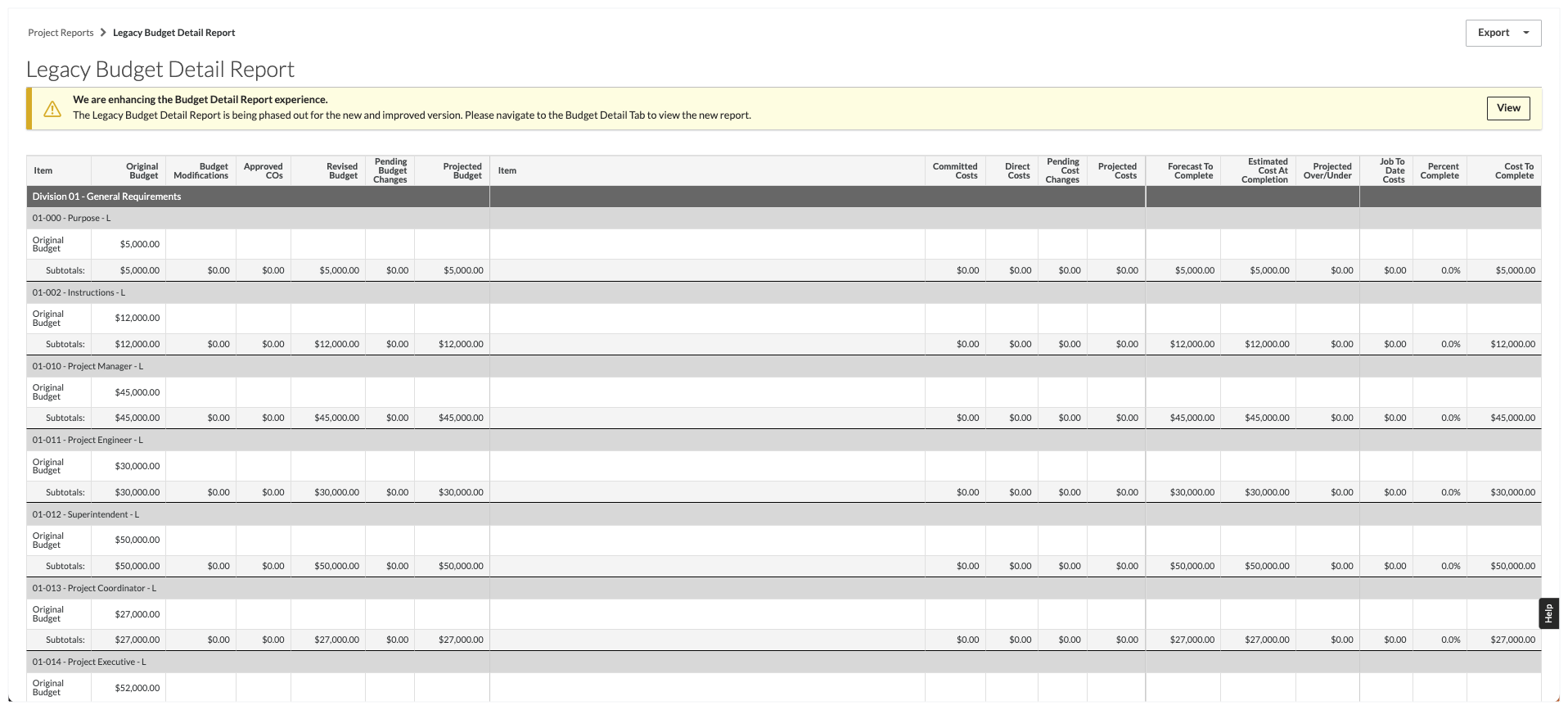
Legacy Budget detail report
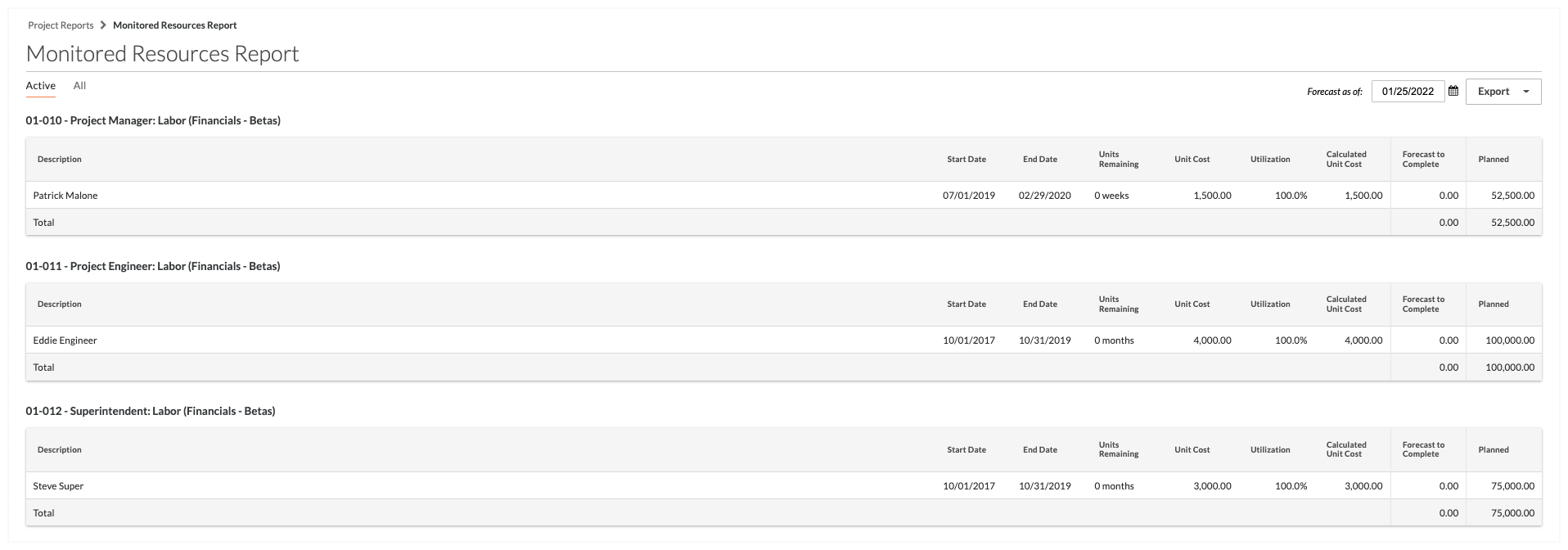
Monitored resources report
Budget modification report
Budget modifications is a legacy feature. Procore recommends using budget changes to manage line item transfers and adjustments. If your account has migrated to budget changes, you will no longer have access to budget modifications. For help migrating your account, reach out to your Procore point of contact. To learn more, see Common questions.
The budget modifications report provides a comprehensive list of all budget modifications that have been performed on the Budget. It's important to remember that budget modifications can only be added to a locked Budget. Since users with 'Standard' and 'admin' user permissions on that Budget tool can perform budget modifications, you can use this report to quickly identify who made a particular modification, as well as when it was added to the Budget.

Buyout summary report
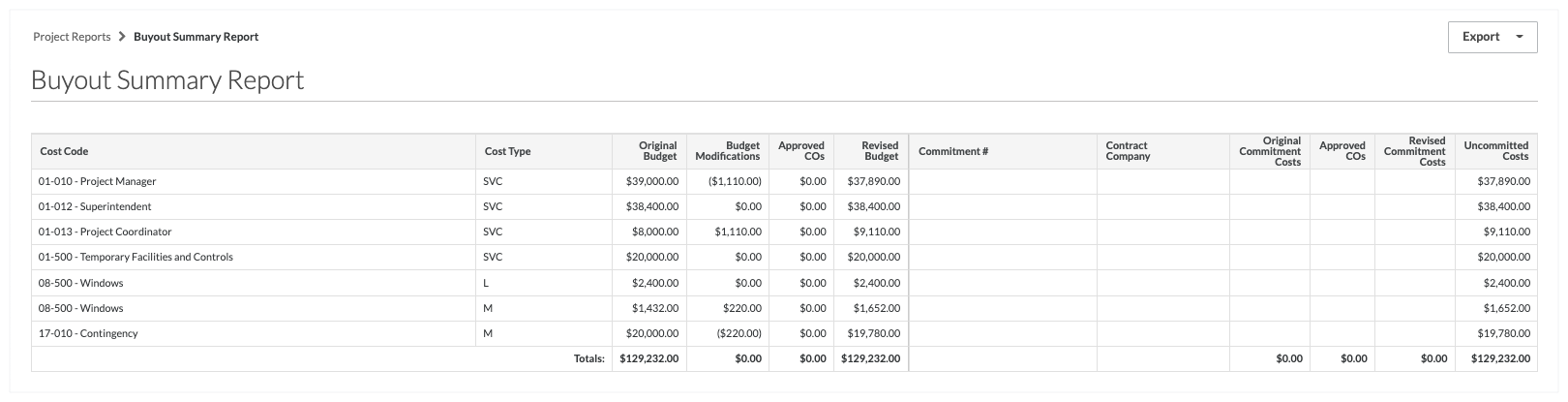
The report will display every line on the Budget and will only display approved commitment contracts for those line items. This report can be used to quickly determine which vendors are working on each budget line item and identify any budget line items where the commitment contracts have not been written or finalised.
Want to apply a similar view in your project's Budget tool? Your company's A Procore administrator is a user who has ‘Admin’ level permissions on all the Company level tools in Procore. Granting a user ‘Admin’ level permissions in the Company level Directory tool automatically assigns that user ‘Admin’ permissions on all Company level tools. Also called a company administrator.