Bulk create commitment variations from a change event
Background
In Procore, a A change event is any event resulting in a modification that affects the scope of work on a construction project and the project’s programme and/or cost(s). In Procore, a change event can be recorded in the system and precedes the creation of a variation, which allows your team members and stakeholders to prepare for a cost change before it becomes an actual cost.
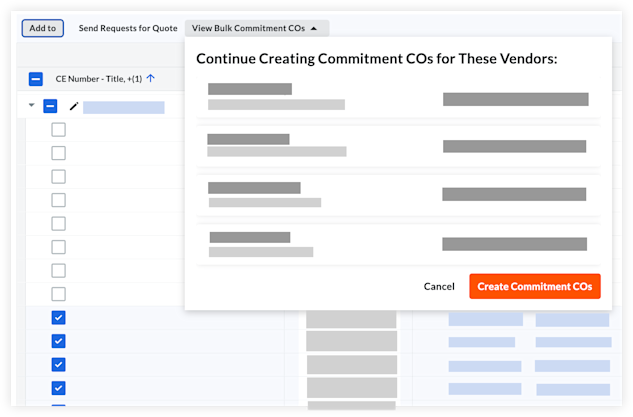
If you have a change event that impacts multiple contracts, you can bulk create multiple commitment variations at once from the change event line items view.
Things to Consider
Required User Permissions:
'Standard' level permissions or higher on the project's Change Events tool.
AND'Admin' level permissions on the project's Commitments tool.
Additional Information:
Requirements for Change Event Line Items:* Before executing bulk creation of Commitment Change Orders, specific criteria must be met for each selected line item:* Change Event Line Item(s) must not be associated with another Commitment Change Order.* Change Event Line Item(s) must have an assigned commitment contract and vendor.* The associated commitment(s) must be 'Approved'.
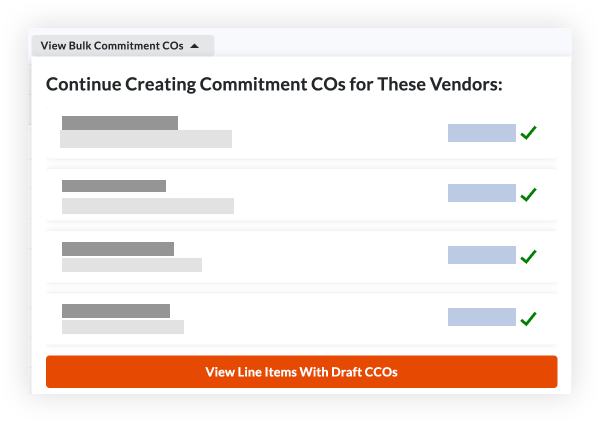
Created Draft Commitment Change Orders:* Commitment Change Orders created in bulk are given a default title of "CCO # - CE # - Title"* The description will include the 'CE # - title' for all Change Events associated with the CCO, as well as the description of that Change Event.
Attachments:* When Change Event Line Items are categorized by commitment contract, any attachments added to the associated Change Event of that line item will be migrated into the created draft Commitment Change Order.
ERP Information:
Line item associations between change orders and commitment contract SOV must be made within the ERP Integration tab of the change orders after they are created.
Steps
Navigate to the project's change event tool.
Select one or more change event line item to include in the 'draft' variation.
TipDoes the change impact line items from multiple change events? If so, you can select line items across multiple change events. To filter the list by vendor, select the desired options from the Filter drop-down menu.
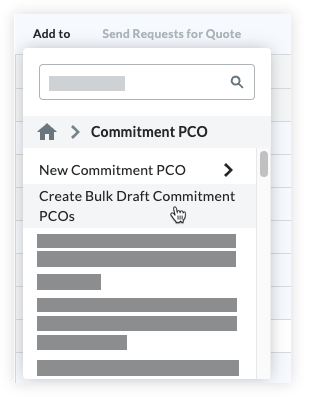
Choose Add to > Commitment VAR > Create bulk draft commitment VARs.
Procore populates the line items on the variation's bill of quantities with the change event line items you select.
Optional: Review any item that will not be added and select Continue or Cancel.
If your company is using 2- or 3-tiered variations for commitments, these steps will create commitment potential variations that are later combined to create a commitment variation as follows:
2-Tier: CE > CPV > CV
3-Tier: CE > CPV > VR > CV