Create a commitment potential variation from a change event
Background
Your project's variation tier configuration setting determines if you need to create a potential variation for a commitment:
1-tier variations. You don't need to create a potential variation and can skip the steps below. Instead, you simply create a commitment variation.
2-Tier variations. First, create a change event. Then, use the steps below to create a potential variation for your commitment from the change event.
Note
If your project is using the optional request for quote feature in the change event tool, you can create the potential variation either before or after the RFQ has a response. However, if you wait until the RFQ has been reviewed and placed into the Pending final approval status, Procore will automatically populate the potential variation's bill of quantities (BOQ) with the RFQ amount.
Things to Consider
Required User Permissions:
You need one of the following:
'admin' level permission on the project's commitment tool.
'Standard' level permissions on the project's Commitments tool and added to the 'Private' drop-down list and the 'Allow standard level users to create CVs' configuration must be selected.
Requirements:
The change event tool must be enabled on the project.
The Commitment tool must be configured for two-tier variations.
Additional Information:
After you create a change event, you have the option to create a RFQ.
On commitments, potential variations can be transitioned into variations.
Place a tick next to the change event line item to add to the potential variation.
Notes
To show only line item for a specific vendor, click Add filter and then choose Vendor from the drop-down list.
You can select multiple line items from multiple change events.
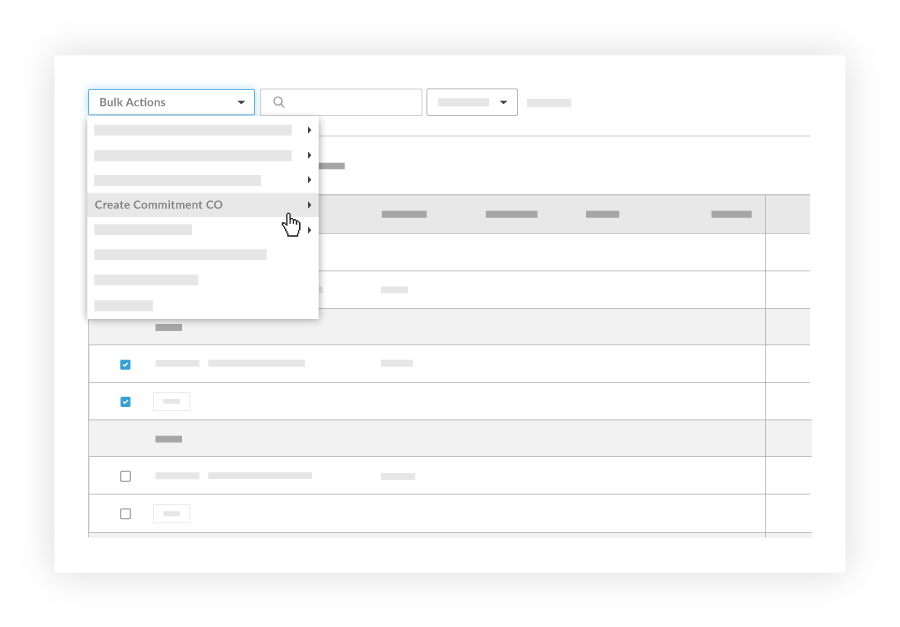
Click Bulk actions and choose one of these options:
Create a commitment potential variation > Contracts with matching cost code If there are contracts with cost code that match the change event line item you select, they will appear here for your selection.
Create a commitment potential variation > Contracts All other approved contracts will appear here for your selection. Note: If an option is greyed out and dimmed, hover your mouse cursor over the tooltip to learn why.
Under General information in the new potential variation page, enter the following information:
Number Procore automatically assigns the next available number to the potential variation. By default numbers are assigned as 001, 002, 002 and so on.
Tip
You can manually override this by typing over the number if desired. For example, you might want your numbering scheme to use three (3) leading zeros instead of two (2): 0001
If you override the default number, Procore automatically increments the numbering using your new entry and format.
Date created This field logs the date and time the potential variation was created.
Revision When you first create a potential variation, the revision number is zero. Note: Later in the project, a potential variation might have several revisions because of feedback from a reviewer/approver.
Created by This field automatically displays the name of the user creating the potential variation.
Contract company This field automatically populates with the name of the subcontractor or vendor listed on the subcontract. Note: This field is only visible if the potential variation is for a subcontract.
Contract This field automatically populates with the name of the contract for which the potential variation is being created. Note: This field is only visible if the potential variation is for a subcontract.
Title Enter a title name for the potential variation that describes what the variation is for.
Note
Before exporting the potential variation to an
In Procore, the term integrated ERP system, is used to refer to enterprise resource planning (ERP) software applications that can be configured to exchange data between Procore and a supported application using the Company level ERP Integrations tool. See which ERP integrations are supported by Procore.
, keep in mind that there may be character limitations.
Commitment variation
Status Select the current state of the potential variation. Procore's default status is Pending-In Review.
Site order
Variation request
None. This is the default setting. You can link the potential variation to a variation request at a later time.
Add to existing. Choose this option. Then select an existing variation request from the drop-down list.
Create new. Choose this option to create a new variation request. Note: You also have the option to create a new commitment variation by placing a tick in the Also create new commitment variation box.
Change reason The change reason field will populate with the change reason you selected in the change event; however, you can edit as necessary. Select one of these reasons for the potential variation: client request, design development, allowance, existing condition or Contra charge.
Private Tick this box so only you and user with 'admin' level access on variation can view this variation.
Description Enter a detailed description of the commitment potential variation. Note: If you will be exporting the commitment potential variation to an
In Procore, the term integrated ERP system, is used to refer to enterprise resource planning (ERP) software applications that can be configured to exchange data between Procore and a supported application using the Company level ERP Integrations tool. See which ERP integrations are supported by Procore.
there may be character limitations imposed by the third-party system.
Request received from Select a user from the project's Directory who you are submitting the commitment potential variation on the behalf of.
Location Use the location drop-down menu to select a location the [item] impact. Either select from the predefined location or see How do I add a multi-tiered location to an item?. This location may be as general as the site location at the first tier or as specific as where on the site the contractor will be working at the second tier.
Programmeimpact If known, enter an approximate number of additional days that the proposed change would add to the project's current programme.
In Beta
Note to users participating in the 'Subcontractor Estimated Completion' limited release beta programme. When a user places a variation in the 'Approved' status and it includes a value in 'programme impact' field of the variation, Procore automatically updates the 'estimated completion date' field in the commitment contract by the number of days entered.
Field change Mark this tickbox if the commitment potential variation requires a field change
Reference Reference any other tools, materials or documents that are related to the commitment potential variation.
Paid in full Mark this tickbox if the cost is already covered in the Budget.
Change event line items If the project is syncing its data with an
In Procore, the term integrated ERP system, is used to refer to enterprise resource planning (ERP) software applications that can be configured to exchange data between Procore and a supported application using the Company level ERP Integrations tool. See which ERP integrations are supported by Procore.
, select a line item from the Associated line item drop-down menu. If you select New line item, a zero (0) pound line item will be added to the commitment's BOQ.
If the project is not syncing data with an
In Procore, the term integrated ERP system, is used to refer to enterprise resource planning (ERP) software applications that can be configured to exchange data between Procore and a supported application using the Company level ERP Integrations tool. See which ERP integrations are supported by Procore.
, continue to the next step.
Click Create. Procore creates the potential variation's BOQ using the change event line item.