View a change event (legacy)

 Legacy Content

Procore has started a phased release of the new change event list view. If your project has been updated to use the new view, you will no longer use the steps in this tutorial. Instead, see Create change event. To learn about the phased release, see Change event: Modernised change event list view.
Background

After a change event is created, you can follow the steps below to view it in the project's change event tool.

Things to Consider

  • Required User Permissions:

    • 'Read Only' level permissions or higher on the project's change event tool.

Beta

Procore administrators can enable the Resource Management: Rate Tables - Company & Project Rate Management beta in Procore Explore. (US 2 | UK)

Rate tables centralise and standardise your labour and Equipment rates across all projects.

When you create rate tables, you define cost and billable rates for labour and Equipment. You can also define which rates can be overridden at the Project level.

Rate tables are then applied to projects and referenced by different Procore tools such as timesheets and Equipment. They can be viewed in 360 Reporting, Analytics and within some Procore tools.


  • Rates are configured in daywork sheets and applied to Labour, Equipment and Materials entries. When a change event is created from a daywork sheet, the revenue unit cost in each change event line item is pre-populated based on the rates from the daywork entries.

  • Change events apply rates only to materials selected from inventory.

  • These cost rates are visible in the change event in the change event tool.

  • To protect historical data from accidental changes, rates created in the table will be applied the next day.

Steps

  1. Navigate to the project's change event tool.

  2. Under the Detail tab, click the change event link to open it.

  3. Under the General tab, you have these options:

    • To modify the change event, click the Edit button. See Edit a change event.

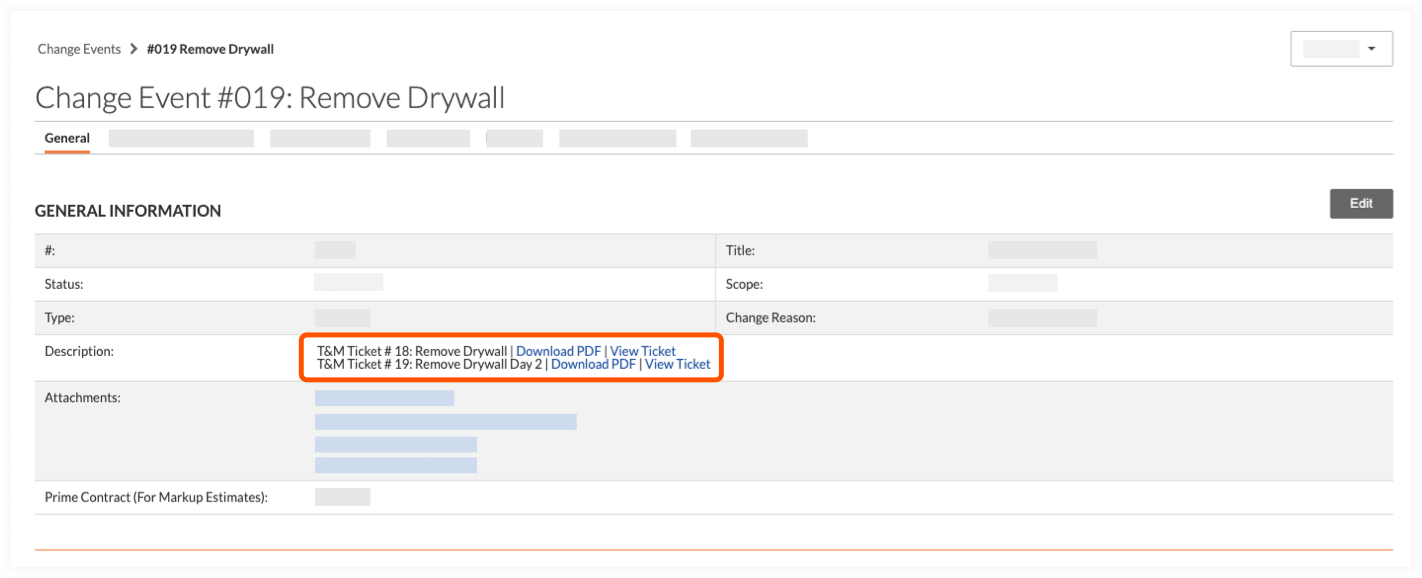
    • If the change event is linked to a daywork sheet (see Create a change event from a daywork sheet or Add a daywork sheet to a change event), you have these options:* Download PDF. To download a PDF copy of the daywork sheet to your computer, click this link.* View ticket. To open the daywork sheet in the project's Daywork Sheets tool, click this link.
      Change Event Download Pdf

    • To download any files attached to the change event, click one of these options:

       Note

      File attachments from linked daywork sheets are also transferred to the 'attachments' section when a change event is created, so you can download those attachments.

      * If there are multiple files attached to the change event, click Download all to download all of the attachment to your computer.* If you want to download a single file, click that file's link to download it to your computer.

  4. In the change event line item table at the bottom of the page, you have these options:

    • Bulk actions
      To use the options in the bulk actions menu, place a tick next to the change event line items to work with. Then choose the bulk actions menu option of your choice.

    • Edit
      To modify one of the line item, click the Edit button.

    • Search
      To search for a specific change event line item, enter terms in the Search field and click the magnifying glass icon.

    • Add filter
      To add filters to narrow the change event line items in view, click the Add filter menu.

See Also

Loading related articles...