Edit a change event
Background
You can edit a change event using the options in the change event tool. However, you cannot edit the cost code, cost type or contract number if it has been linked to at least one (1) or more of these items:
Budget change
Purchase order
Subcontract
Commitment variation
Main contract variation (MCV)
Request for quote
Things to Consider
Required User Permissions:
To edit any change event, 'admin' level permission on the change event tool.
ORTo edit only the change events you created, 'Standard' level permissions on the change events tool.
Prerequisites
Steps
Navigate to the project's change event tool.
Click the Detail tab.
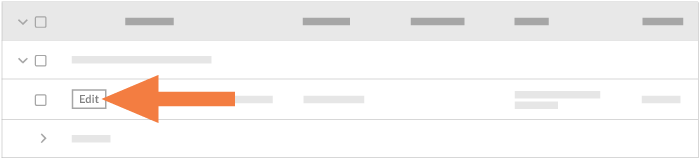
Locate the desired change event in the table. Then click the Edit button.
Under General information, enter the following:
Origin
Select one of the project tools to link the item from which the change event originated. See Which Procore tools can I use to create a change event?Change event #
Procore automatically assigns numbers to change events in ascending, sequential order. You can change the number as needed.NoteThe default numbering scheme is 001, 002, 003 and so on.
You can customise the numbering scheme for the change events on your project at any time by typing an alphanumeric numbering scheme over the default value. For example, CE001, CE1000, CE-1000 and so on.
After customising the numbering scheme, Procore uses your new scheme to assign numbers to new change events.
Title
Enter a descriptive title for the change event.
Status
Select a status for the change event from the drop-down list. To learn about Procore's default statuses, see What are the default statuses for change events in Procore?. Your Procore administrator can also customise the options in this list. See Customise change event statuses.
Scope
Select one of the available scope options from the list: In scope, Out of scope or TBD. See What are the default scope options for change event in Procore?
Type
Select TBD, allowance, contingency, owner change or transfer to indicate the type of cost you are preparing for. See Set the default change management configurations.
Change reason
Select a reason for the change from the drop-down menu. See Set the default change management configurations.
Description
Describe the event that may result in a change in cost.
Attachments
Attach any relevant files.
Main contract (for markup estimates)
Select a main contract to indicate which main contract’s markup setting should be used to calculate the markup on rough order of magnitude. This field will default to the lowest-numbered main contract.
Optional: Add new line item to the change event. For step-by-step instructions, see Add change event line item. Then return to these steps.
Use the inline editing options to update any of the existing line items. You can edit these fields inline:
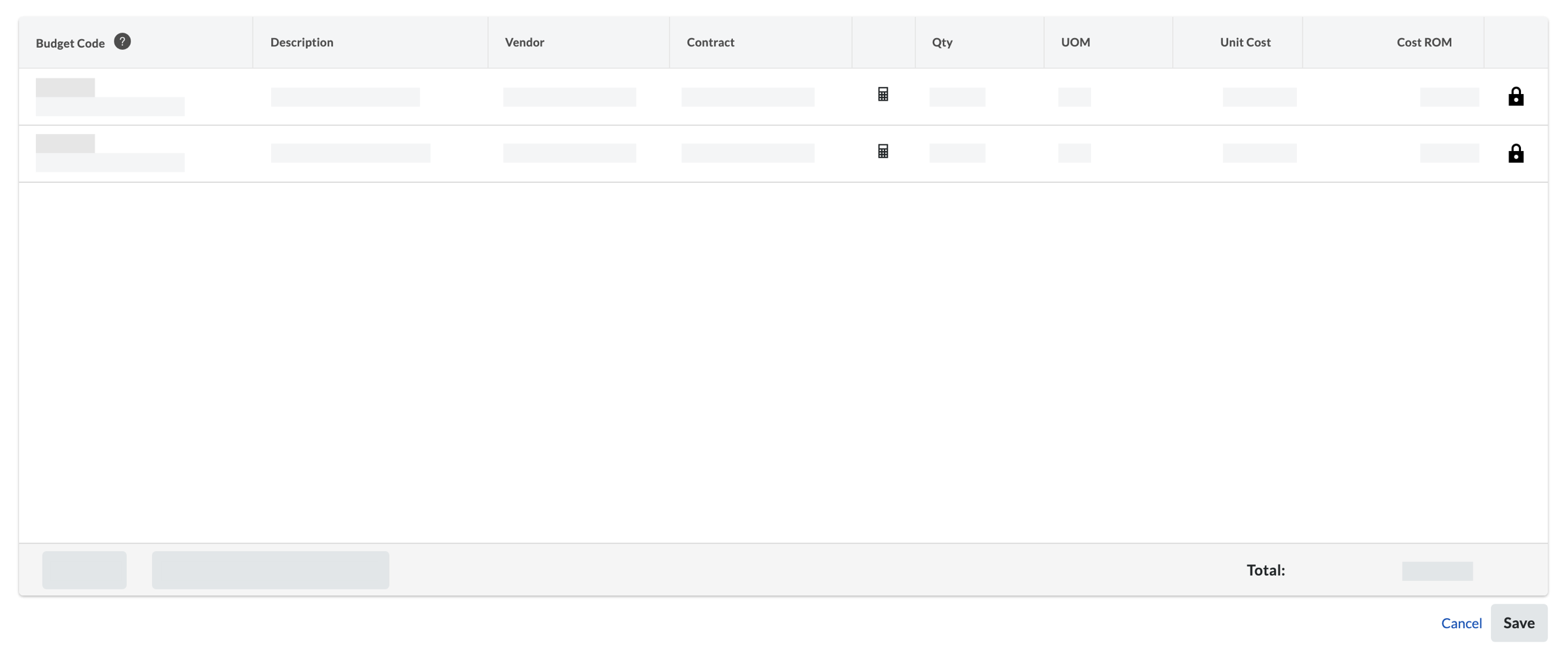
You can group change event line items while editing a change event by clicking Add group at the top of the line item adder. You can group line items by the following:
Sub job
Cost Type
Cost Code
Cost code tier 1
Cost code tier 2
Cost code tier 3
Cost code tier 4
Cost code tier 5