Edit a purchase order (Android)
Things to Consider
Required User Permissions:
To edit a purchase order or subcontract:
'admin' level permission on the project's commitment tool.
Additional Information:
The new view and workflow now applies to both purchase orders and subcontracts.
Details like descriptions, inclusions and exclusions can be expanded or collapsed to keep the view clean.
Bill of Quantities and variations are now organised into independent subtabs, reducing the need for excessive scrolling.
Attachments are displayed at the top of the commitment for quick access.
This item can be viewed or edited offline if it was previously viewed and cached on your mobile device. Tasks performed in offline mode sync with Procore once a network connection is reestablished.
Prerequisites
Steps
Navigate to the commitment tool using the Procore application on an Android mobile device.
Tap the purchase order you want to edit.
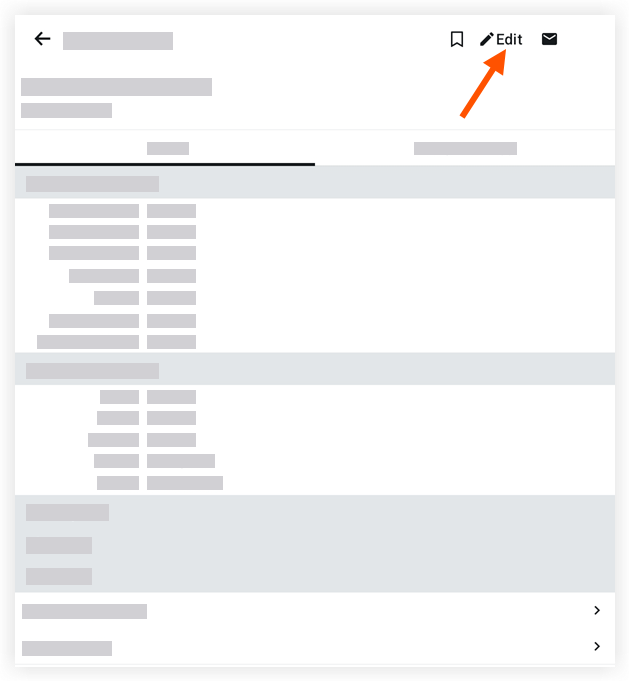
Tap the edit icon.
Tap into a field to edit the relevant information. To learn about the fields you can edit, see Create a purchase order (Android).
Tap Save.
See Also
Loading related articles...