Delete a commitment variation
Background
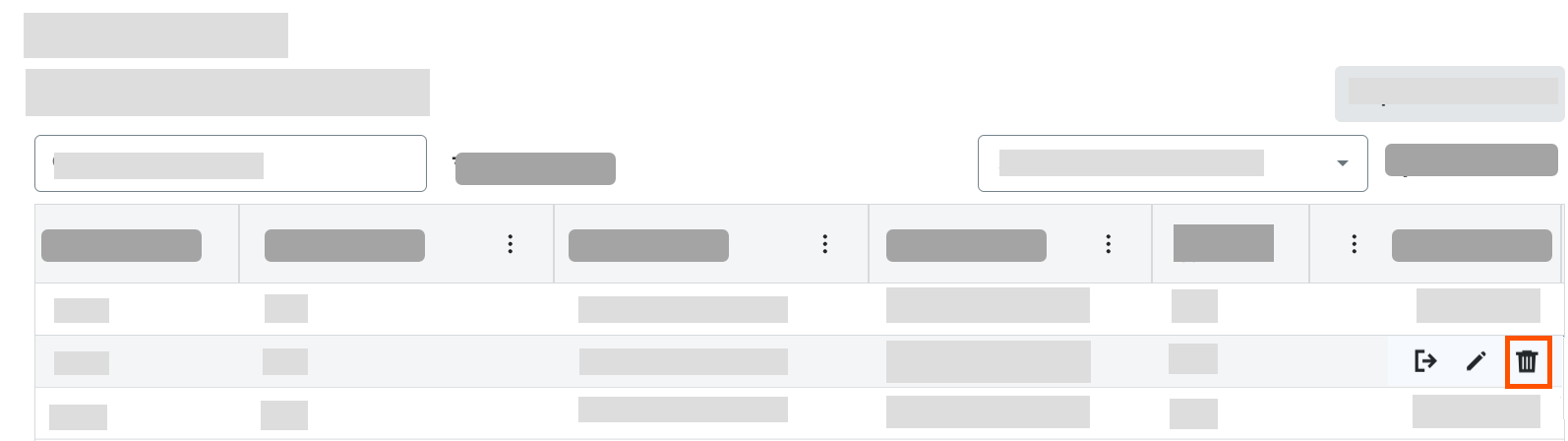
To remove a commitment variation, you can click the red (x) icon on the line item. However, when the icon is greyed out and not available, it means the variation is associated with other items in Procore. The steps below show you how to remove associated items and then permanently delete an MCV.
Before you can perform a delete action, you must:
Change the status of the variation from 'Approved' to another status as described below. If you want to change the status of multiple variations, you must apply the status changes in reverse order from how they were approved. For example, if you approved the variations in sequential order (001, 002 and 003), you will need to remove the 'Approved' status in reverse order (003, 002, 001).
Unlink any Procore items associated with the variation. This may include potential variations (PVs), variation requests (VRs) and payment applications as described in the prerequisites below.