Delete a subcontractor payment application from the Commitment tool (legacy)
Legacy Content
This content details the commitment tool's legacy experience. To learn how to use the modernised experience, see Delete a subcontractor payment application.
You can use the steps below to delete a subcontractor payment application from a purchase order or subcontract. Once deleted, the data is permanently removed from Procore and cannot be retrieved.
Required User Permissions:
'Admin' level permissions on the project's Commitments tool.
OR
'Standard' level permission on the project's commitment tool and the payment application must be set to the 'draft' or 'Revise and resubmit' status. See What are the default statuses for Procore payment applications?
For user with the required user permission listed above, you can alternatively delete a payment application from the project's Payment Applications tool. For instructions, see Delete a payment application from the Payment Applications tool.
Additional Information:
You can only delete the most recent payment application on a commitment.
Delete actions are recorded in the Change History tab on the commitment.
Limitations:
Once deleted, the data is permanently removed from Procore and cannot be retrieved.
For companies using the  ERP Integrations tool:
Before you can delete a subcontractor payment application that has been synced with an integrated ERP system, you will first need to unlink the synced payment application.
You or another user must create a payment application to delete:
Choose the following options for deleting a subcontractor payment application:
Delete a payment application from the payment applications tab
Delete a payment application from the contract's 'Payment application (payment application)' page
Navigate to the project's Commitments tool.
Click the Contracts tab.
Locate the contract that contains the payment application you want to delete. Then click its Number link.
This action opens the contract.
In the contract, click the payment applications tab.
Locate the payment application to delete in the 'Payment applications (payment applications)' section. You can only delete the most recent payment application on a commitment. Then click the RED (x) icon.
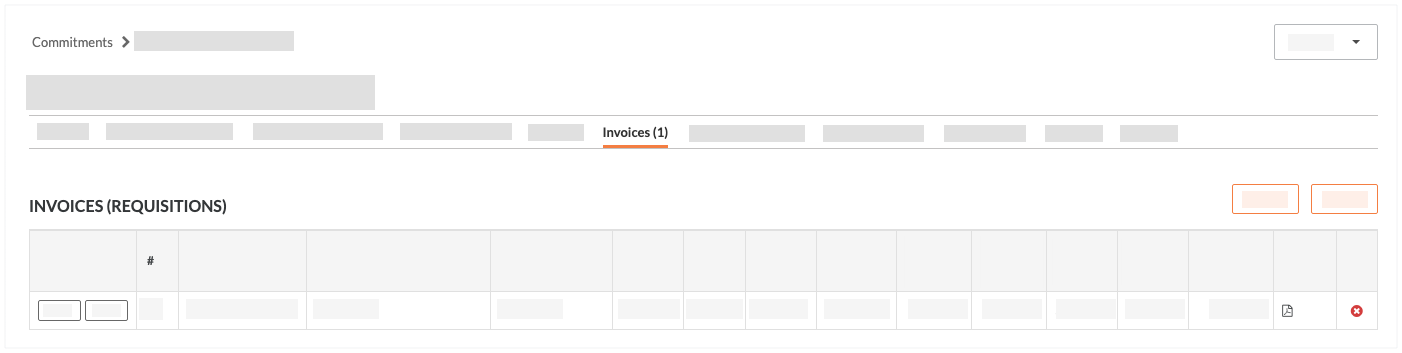
Navigate to the project's Commitments tool.
Click the Contracts tab.
Locate the contract that contains the payment application you want to delete. You can only delete the most recent payment application on a commitment. Then click its Number link.
This action opens the contract.
Click the Payment applications tab.
In the 'Payment applications (payment applications)' table, locate the payment application to delete. Then click View or Edit.
This action opens the contract associated with the selected payment application in the project's Commitment tool. The Summary tab is visible by default.
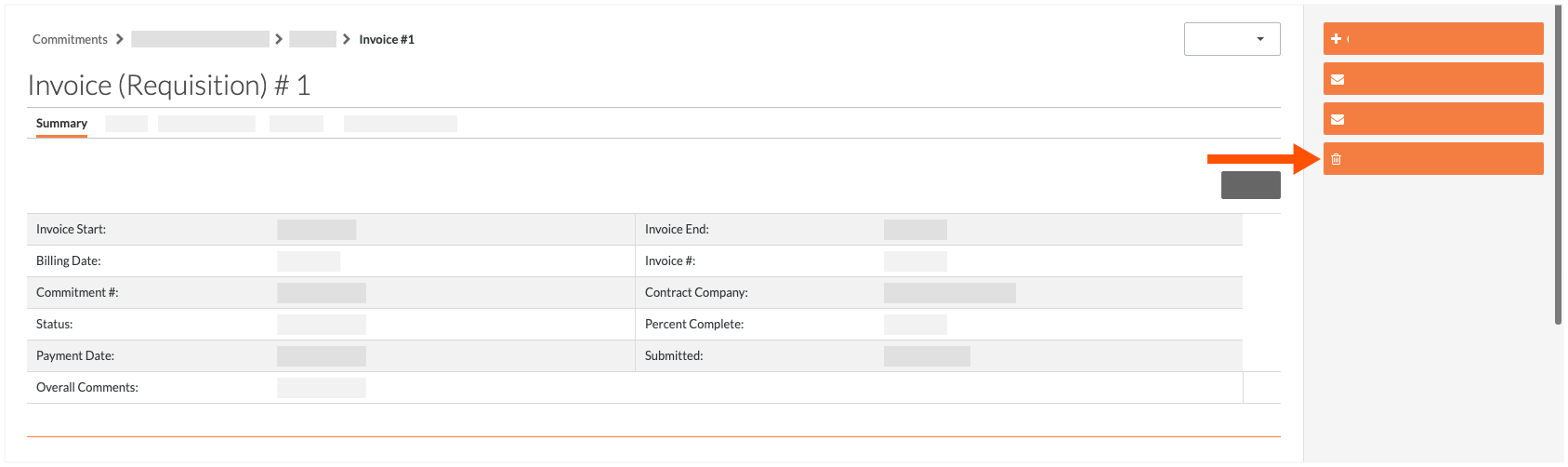
Click the Delete button.
Loading related articles...