Review a subcontractor payment application as an admin (legacy)
Legacy Content
This page details the legacy subcontractor payment application experience. A modernised experience is also available.
Required User Permissions:
To review a subcontractor payment application as payment application administrator from the commitment tool, 'admin' level permissions on the project's commitment tool.
Additional Information:
To review the status of the line item review as a 'payment application contact,' see Review a subcontractor payment application as a payment application contact.
To learn how to review a subcontractor payment application from the project's Payment Applications tool, see Review a subcontractor payment application as an admin.
Place the payment application in the Under Review status. See What are the default status for Procore payment applications?
Navigate to the project's Commitments tool.
Click the Contracts tab.
Locate the purchase order or subcontract with the payment application in the contracts table. Click its Number link to open it.
In the purchase order or subcontract, click the payment applications tab.
In the 'Payment applications (payment applications)' table, locate the payment application to review. Then click View.
Click the Detail tab.
Click the Edit button.
In the Line items table, approve or reject each line item on the payment application as follows:
To approve a line item, click the GREEN tick so it appears in a circle .
To reject a line item, click the RED 'x' so it appears in a circle  .
Enter a reason in the Leave a reason why box. 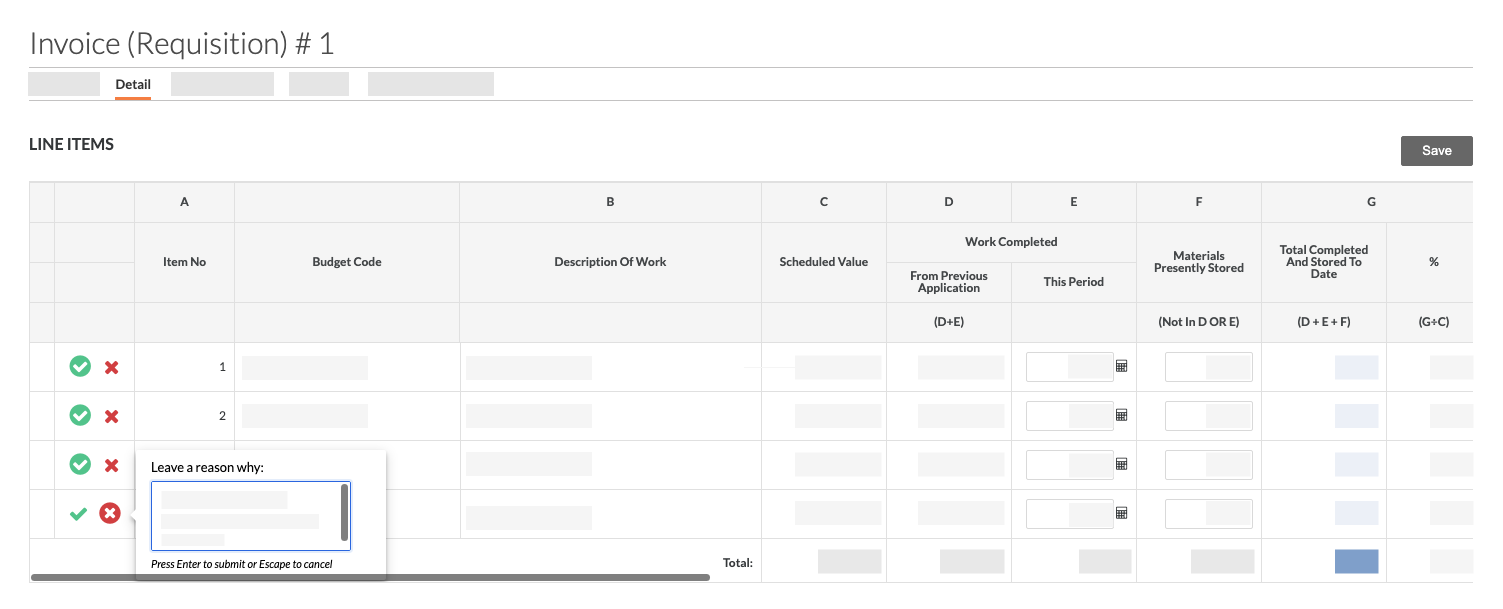
Comments entered in the 'Leave a Reason Why' box are NOT included in the automated email sent to the payment application contact. However, you can export a PDF that includes a 'Reasons for difference' table that shows the comments as entered.
Press ENTER to submit your explanation for rejecting the line item.
If you have turned the 'Show amounts subcontractors claim' option ON in the Configure settings page of the project's Payment Applications tool, the 'Proposed amount' column appears.
The 'Proposed amount' column can reflect what a payment application contact submitted, a user with 'admin' level permission can adjust the 'Work completed this period' and 'Materials presently stored' columns separately to set the appropriate amounts.
Click Save.
In the Finish review popup window, update the status as needed and add any information in the Overall comments box.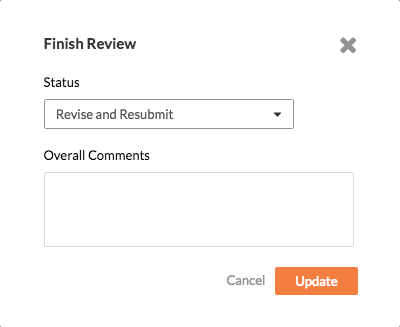
Click update to complete the review.
If you rejected any of the line items, Procore automatically sets the status to Revise and resubmit. The system also sends an email notification so the downstream collaborator can Revise & resubmit a payment application as a payment application contact.
If you approved all of the line items, Procore automatically sets the status to Under review.
Loading related articles...