View a subcontract
Background
Depending on the permissions that have been granted, you may be able to view the details of a subcontract.
Things to Consider
Required User Permissions:
To view subcontract NOT marked Private, 'Read Only' level permission or higher on the project's commitment tool.
To view subcontract marked private:
'admin' level permission on the project's commitment tool.
OR'Read Only' or 'Standard' level permissions on the project's commitments tool and you must be a member of the 'Private' list on the subcontract.
OR'Read Only' or 'Standard' level permission on the project's commitment tool with the 'View private work order contract' granular permission enabled on the permission template. This permission allows you to view the variations tab on the subcontract.
Prerequisites
Steps
Navigate to the project's Commitments tool.
Under the Contracts tab, locate the purchase order or subcontract. Then click Edit.
For companies using the ERP Integrations tool, colour-coded icons and ribbons appear in relevant areas of Procore to show the current status of an item.
Icon
RIBBON
Colour
Definition


YELLOW
Data that was sent ERP integration tool for approval has been retrieved from the tool by an end user. OR Data that was sent to the ERP integration tool has been rejected for export to the integrated ERP system by an accounting approver.


GREEN
Data is synced between Procore and an integrated ERP system.


BLUE
Data was sent to the ERP integration tool and is waiting for accounting approver to accept it for export to the integrated ERP system.

GREEN
When a user is designated as an accounting approver, this badge appears next to their user profile in the company and Project Directory.
View the subcontract's information by clicking the following tabs:
General Information
Bill of Quantities
Variations
Payment applications
Payments issued
Related item
Emails
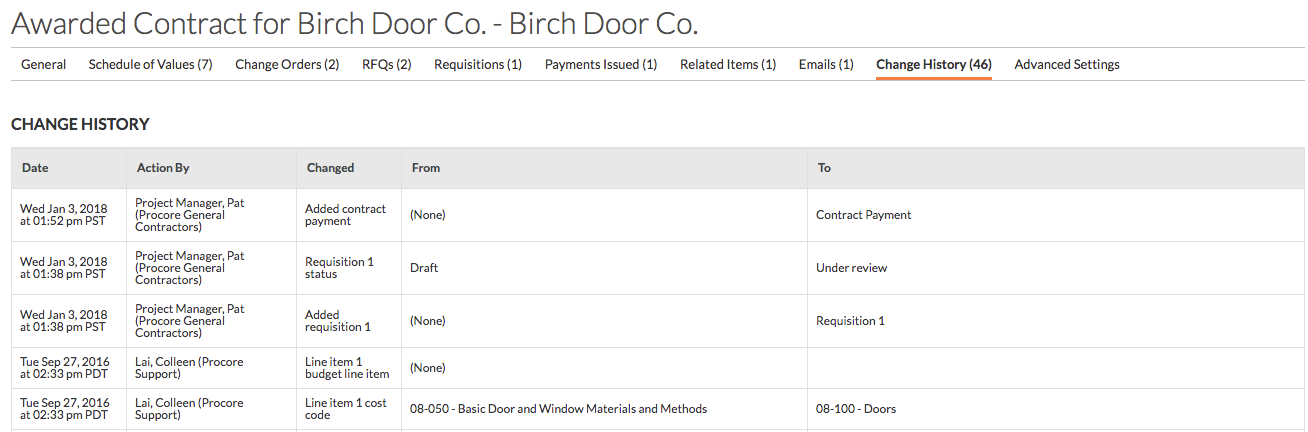
Change history
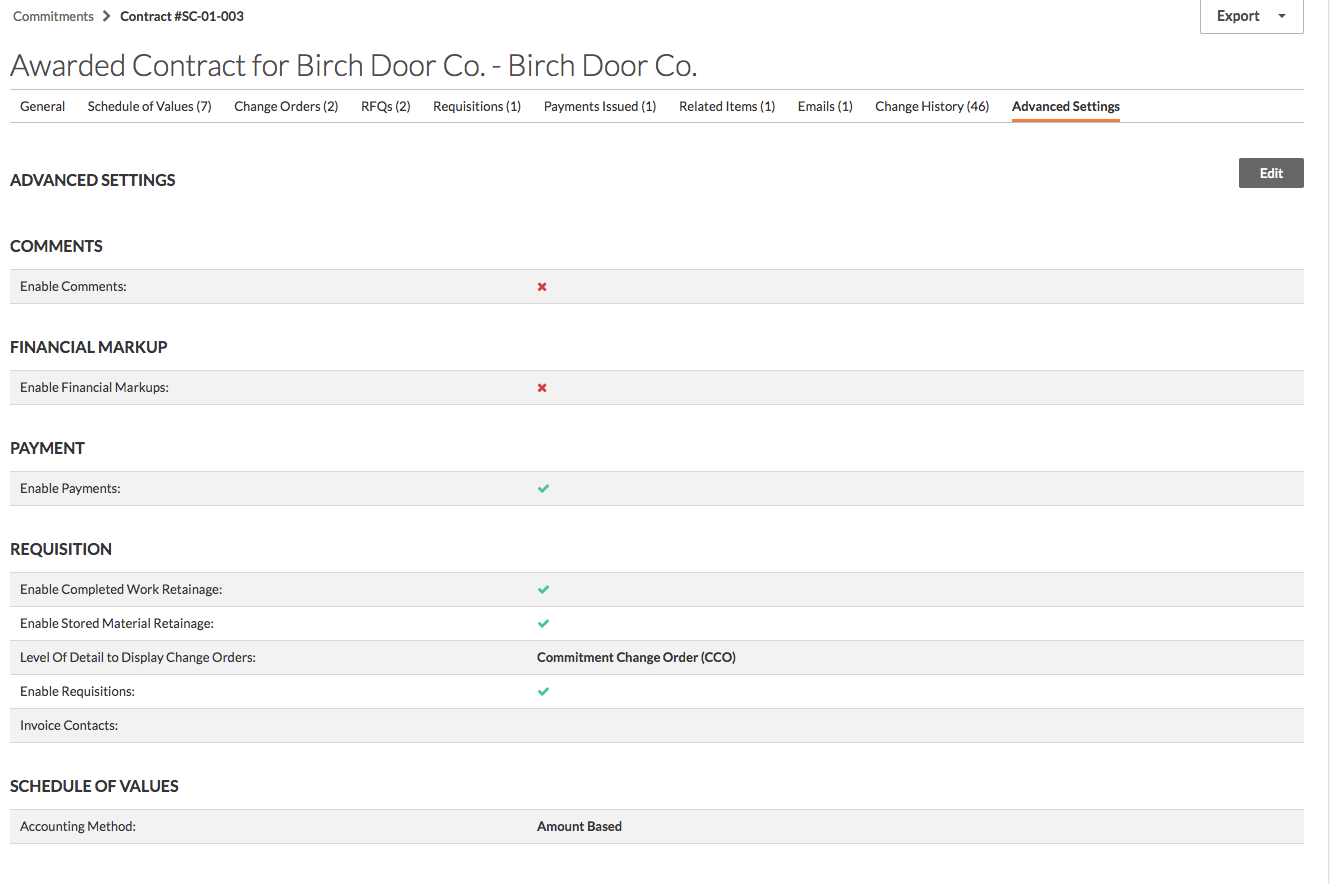
Advanced settings
General Information
General information
View the basic subcontract information that was entered when creating the subcontract.Contract dates
View important contract dates.Additional information
View contract inclusions and exclusions.Contract summary report
View amounts for the original contract, approved variations, revised contract, pending variations, draft variations, payment applications, payments issued, percent paid and remaining outstanding balance.
Bill of Quantities
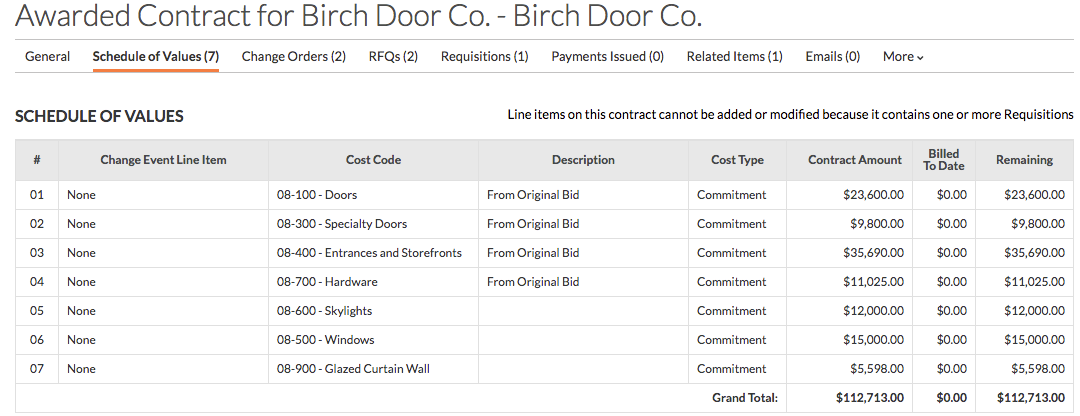
This tab displays the bill of quantities for the subcontract, which lists the cost codes, contract amount, billed to date and remaining costs.
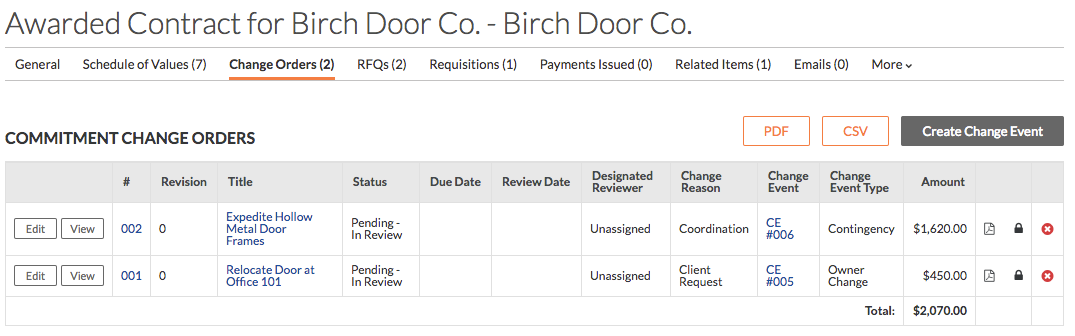
Variations
The variations tab provides an overview of any variations that have been created for that particular subcontract. You can view the status, the amount and the due date for each variation. You can also export each variation to a PDF or CSV.
This tab is available to users with 'admin' permission on the commitment tool. If you have 'Read Only' or 'Standard' permission, you must be added as a member of a commitment 'Private' list in order to see it or your company's Procore administrator must grant you the appropriate granular permission. See Grant granular permissions in a permission template.
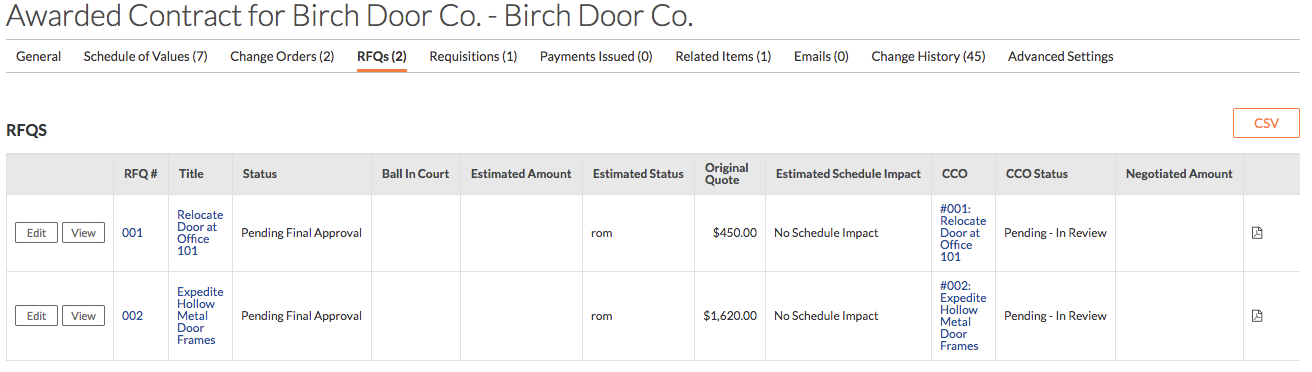
RFQs
If the change events tool is enabled on the project, this tab displays any requests for quote (RFQs) that are related to the subcontract.
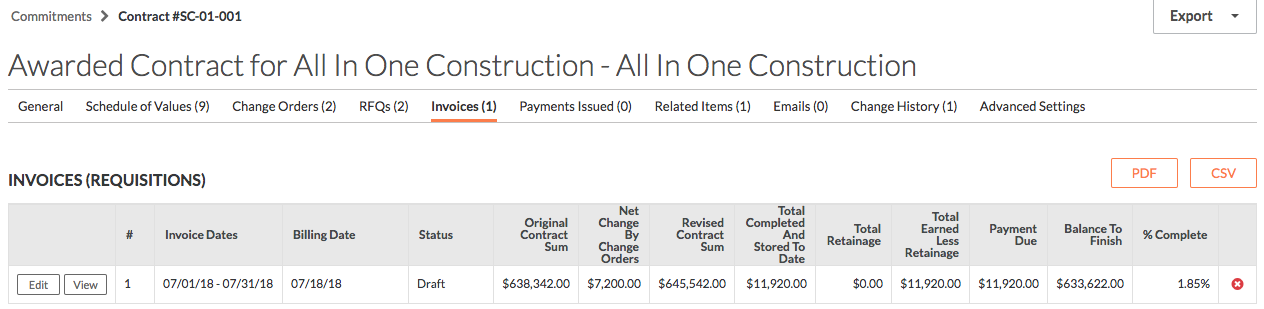
Payment applications
This tab displays any payment applications submitted for that subcontract and outlines the period, billing date, revised contract sum, payment due, retention, balance to finish and percentage complete.
Payments issued
This tab displays all payment that have been issued for the subcontract.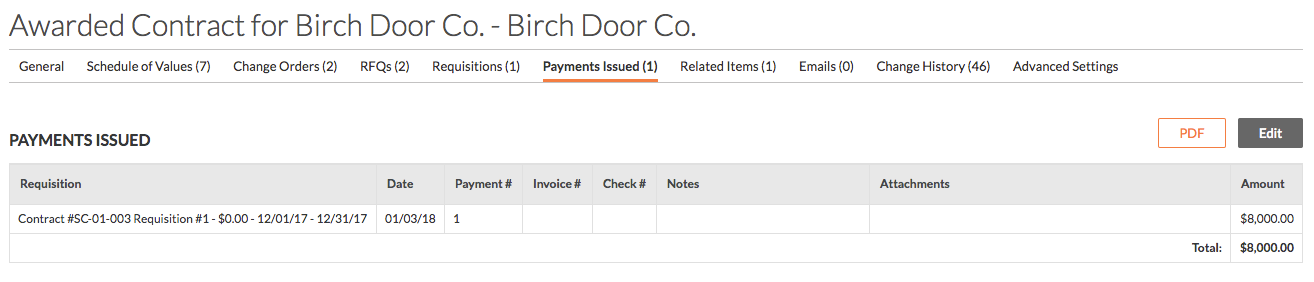
Related item
This tab displays all items related to the subcontract. Related items can be manually added to each subcontract. In this case, the tender sheet is automatically listed as a related item because this subcontract was converted to a contract from the tender sheet.

Emails
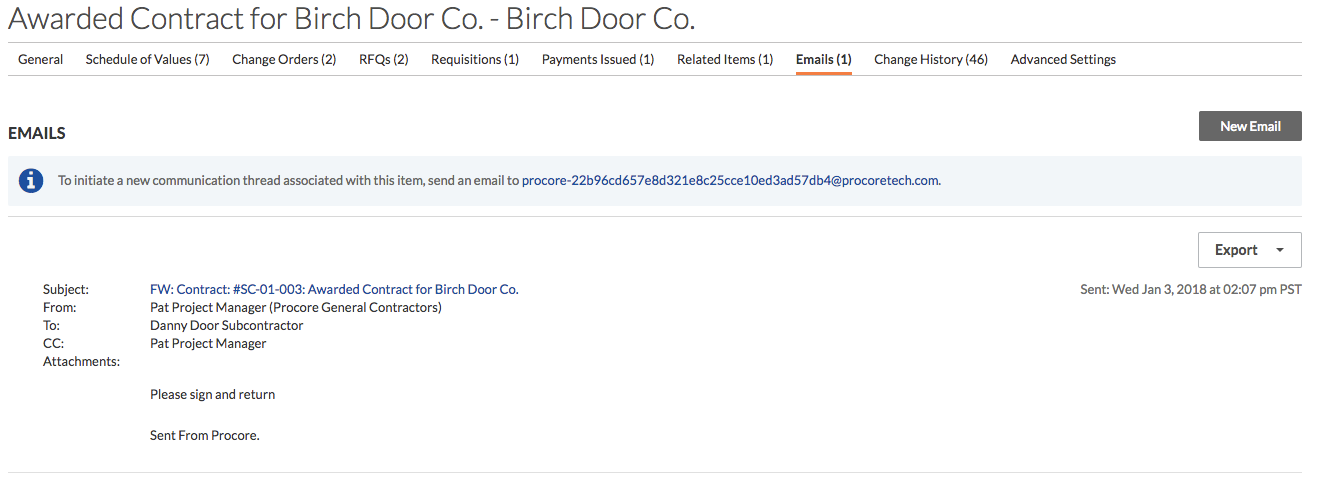
This tab displays all email communication associated with the subcontract.
You will only be able to view this tab if you have 'admin' level permissions on the commitments tool or are included in the email.