Export a Site Diary as PDF
Things to Consider
Required User Permissions:
'Read Only' or higher permissions on the Site Diary tool.
Additional Information:
If you need to export Site Diaries with a date range longer than 3 months, please use the Procore Extracts application for Windows instead.
See Extract project data using Procore Extracts.
Steps
You can either export a single day's Site Diary as a PDF or you can download a .zip file of multiple days' Site Diaries.
Export a single day as a PDF
Navigate to the Site Diary tool.
From the list view, select the date of the log you want to export.
Click Export.
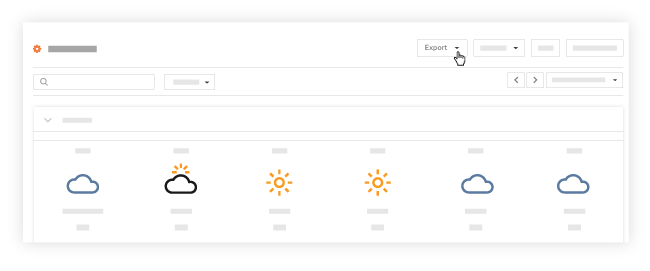
Click PDF.
Note: A PDF of your Site Diary for that specific date will download to your computer.
Export multiple days as PDF in .zip file File
Navigate to the Site Diary tool.
From the list view, click the Date drop-down menu.
Click Date range.
Select the dates to designate the start and end of the date range you want to view.
Note: You will be shown the Site Diary for those days.Click Export.
Click zip file.
Note: A .zip file containing the PDFs for those days will be email to your email address.
See Also
Loading related articles...