Mark up a drawing (Android)
Things to Consider
Required User Permissions:
To add personal markups to a drawing, 'Read Only' or higher permissions on the Drawings tool.
To publish markups, 'Standard' or 'Admin' permissions on the Drawings tool.
Additional Information:
This asset/item can be viewed or edited in offline mode provided that the asset/item was previously viewed and cached on your mobile device.
Steps
Navigate to the project's Drawings tool on your Android device with a network or internet connection.
Tap the drawing you want to mark up.
Tap the markup tool you want to use in the markup toolbar. Choose from the following options:
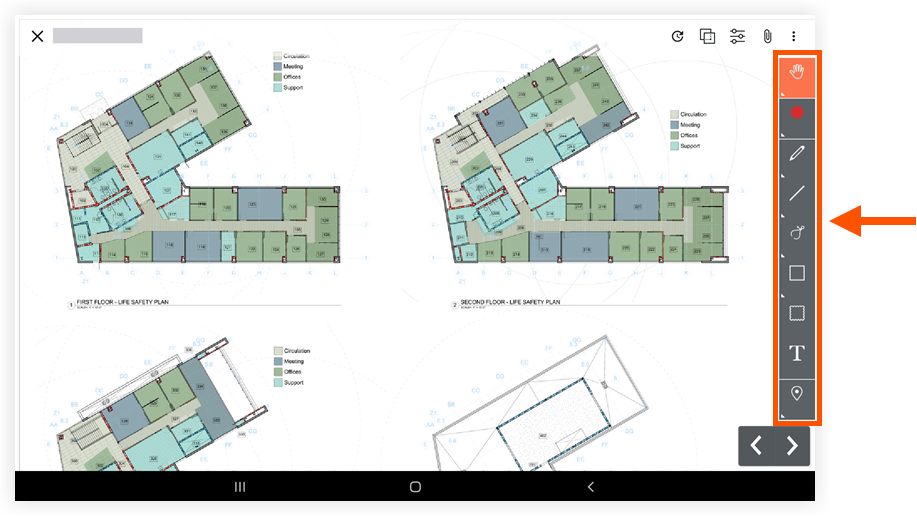
Select / Lasso: Select existing markups or area to edit, add markups, publish, resize or delete.
Colour: Tap an item on the drawing and then tap this tool to select the colour of that item.
Opacity: Select the desired opacity of the shape. This is only selectable on the box or circle markups.
Width: Select the desired width of the border or line. This is only selectable on the line, arrow, double arrow, pen, highlight, box or circle markups.
Pencil/Highlight: Draw freehand shapes using either a pencil or highlighter with your finger on the touch screen.
Line: Select a line, arrow or double arrow to draw on the drawing.
Measurement: Measure distance, area or a curved or poly shape by first adding a calibration to your drawing and then selecting the appropriate measurement tool. See Add measurements to a drawing (Android).
Box: Draw a square or circle on your drawing.
Cloud: Add a transparent cloud to your drawing.
Text: Add a resizeable text box.
Pin: Pin the following item to your drawing:
Snag: Add a snag list item to a drawing. See "Add snag list items to a drawing (iOS)" in the See also section below.
Observations: Add observations to a drawing. See Add observations to a drawing (Android).
Photos: Add a photo to a drawing. See Add photos to a drawing (Android).
Changes are automatically saved, so you can exit the drawing when you're finished.
Next Steps
See Also
Loading related articles...