Add 3D model takeoff using auto-mapping
Background
A takeoff extracts quantities from a drawing or model and associates with items in your cost catalogue to create estimates. Using the takeoff tab in Procore's Estimating tool, can add and manage a wide variety of takeoff for different trade. As you might have both drawings and model on a project, you can use a combination of takeoff from 2D drawings and 3D model to create estimates. This documentation shows the steps to perform takeoff from 3D model.
The auto-mapping functionality auto-detects materials used in 3D models and connects them to materials and assemblies in your cost catalogue, to quickly create multiple takeoffs at once.
Things to Consider
The following quantities are available for 3D takeoffs at this time: count, linear, area and volume.
You cannot change the Unit of Measure when using auto-count.
3D takeoffs have a model
 icon next to them in the 'takeoffs' list.
You can use assemblies to create more detailed estimates from the model. See Create assemblies for a cost catalogue.
Prerequisites
Your organisation must have the Procore BIM product, since this feature uses the model viewer from the model tool.
Revit® files must exist in the project's Documents tool. See Upload files or folders to the Project level Documents tool.
Steps
Navigate to the project's Estimating tool.
Note: The Estimating tool automatically opens to the Takeoff page.Click the drawing drop-down menu.

Click the model tab and select the model you want to add takeoff for.
Note: This pulls model files from the project's Documents tool. See Upload files or folders to the Project level Documents tool.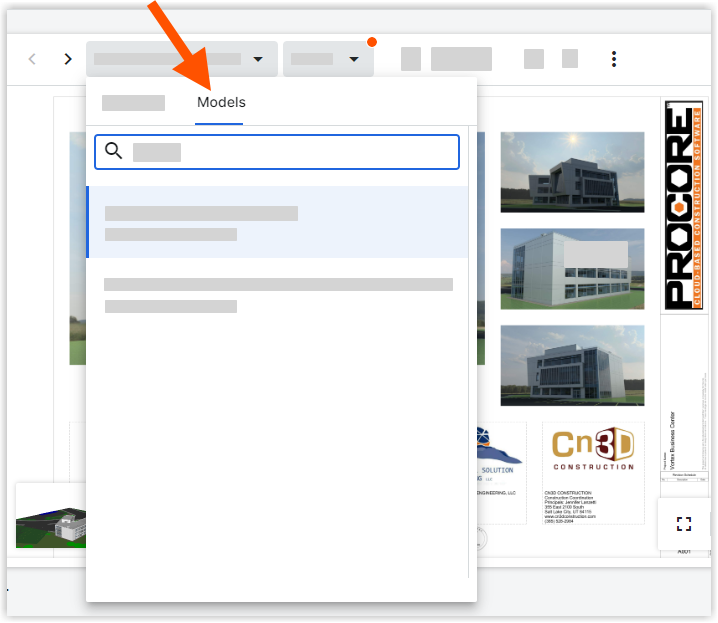
Mark the tickboxes for the model objects you want to auto-map and create takeoff for.
Click Auto-map selected materials.
Select how to map item to your cost catalogue.
To auto map the objects to item in your cost catalogue, move the Model objects maps to catalogue item toggle to the ON
 position.
Click the replace item
 icon to replace the item with another item in your cost catalogue
Click the warning
 icon to see model objects without a cost catalogue item. Click Browse catalogue to select an item or add a new one.
To manually select the cost catalog items, move the Model objects maps to catalog items toggle to the OFF
 position.
Next to the item, click Browse catalogue.
Select the item in your cost catalogue, then click Select.
Click Create takeoff to create takeoff for each model object type.


See Also
Loading related articles...