Export a subcontractor payment application
Using owner or specialty contractor terminology?
Procore can be configured to use terminology specific to main contractors, owners or specialty contractors. Learn how to apply the dictionary options.
If you want to download a digital copy of a subcontractor payment application, you can choose to export the payment application in a Comma Separated Values (CSV) or Portable Document File (PDF) format. You can also download a PDF that includes any selected attachment in the zip file format or as a single PDF.
Required User Permissions:
You must be a payment application administrator.
Supported File Formats:
CSV
PDF with attachment
Limitations:
Attachments added to a custom field are NOT supported by the 'PDF with attachments' option at this time. To learn more, see What are custom fields and which Procore tools support them?
Export a PDF
Export a PDF with attachments
Export a CSV
Navigate to the project's Payment Applications tool.
Click the Subcontractor tab.
Find the payment application to work with.
Click the payment application # link to open it in the project's commitment tool.
Click Export > PDF.
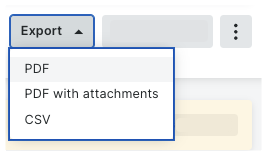
Procore opens the PDF in a separate tab in your web browser. The controls to save or download the file to your computer depend the PDF viewer or reader installed on your web browser. For assistance with your web browser setting, contact your company's IT department.
Navigate to the project's Payment Applications tool.
Click the Subcontractor tab.
Find the payment application to work with.
Click the payment application # link to open it in the project's commitment tool.
Click Export > PDF with attachment.
Procore opens the Select and arrange item window.
Choose the attachment to include by marking the attachment tickboxes:
Optional. Arrange the order of the attachment in the PDF by hovering your mouse cursor over the left side of the item until the grab bar appears. Next, grab the component and move it to the desired position.
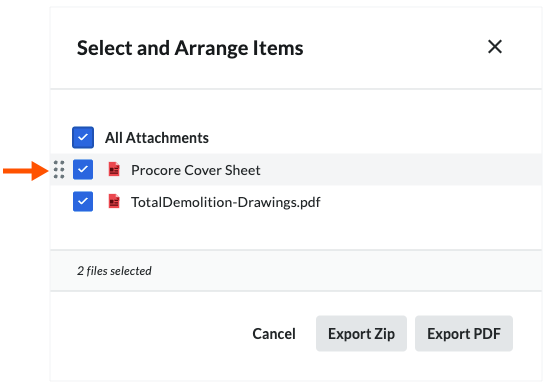
Click one of these buttons:
Cancel. Cancels the export.
Export zip file. Exports the payment application and all file attachments as PDFs in a zip file and sends the zip file to you in an email.
Export PDF. Downloads the payment application and selected attachment to your computer as a single PDF.
Navigate to the project's Payment Applications tool.
Click the Subcontractor tab.
Find the payment application to work with.
Click the payment application # link to open it in the project's commitment tool.
Click Export > CSV.
Procore download a copy of the payment application CSV to your computers download location.
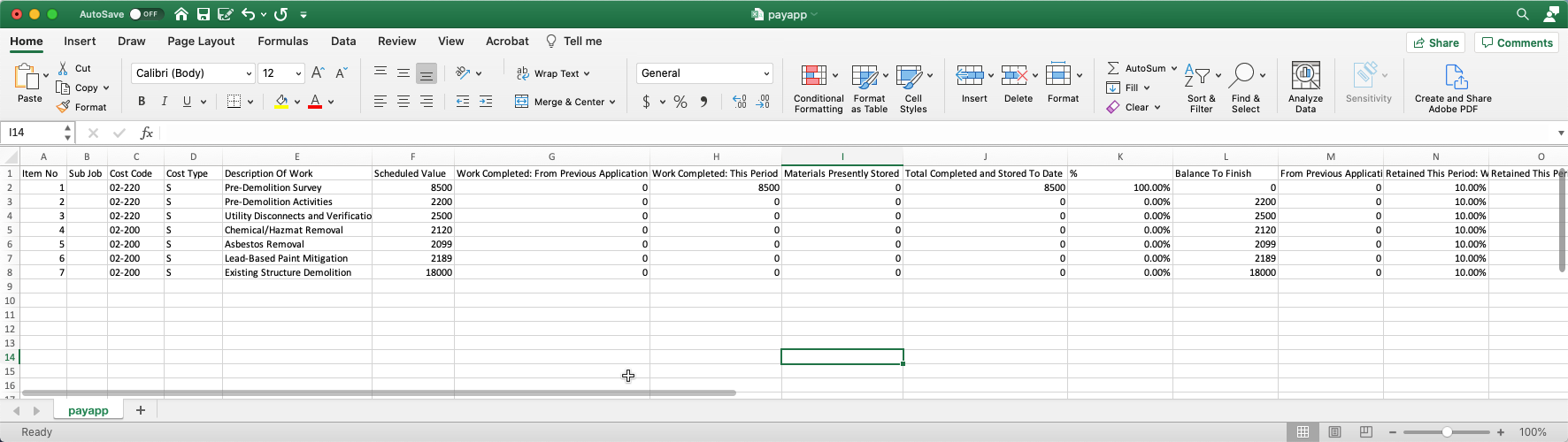
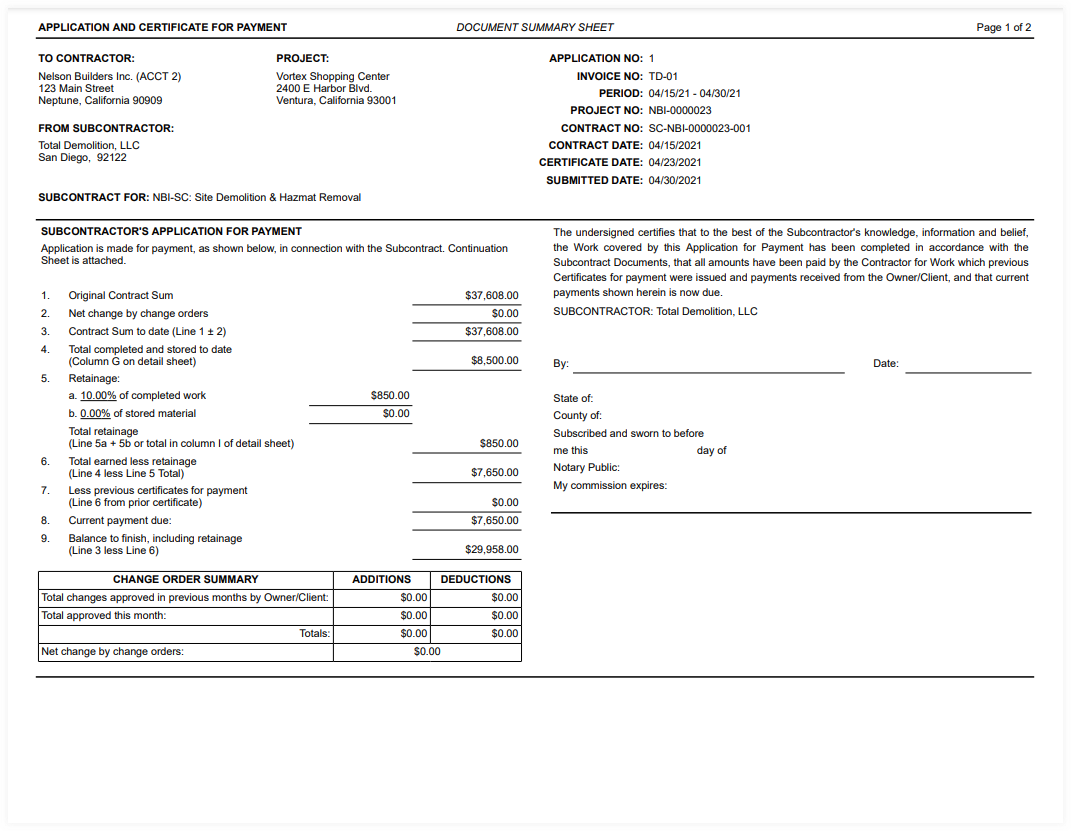
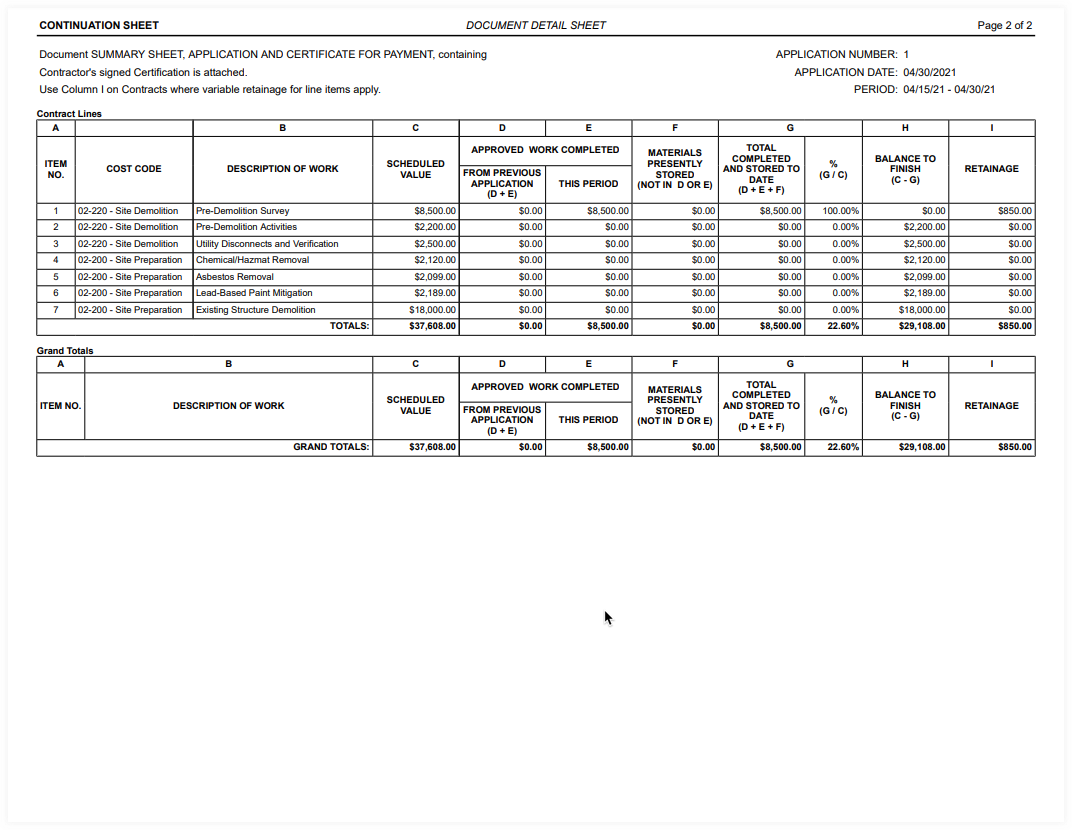
These examples show you the CSV and PDF versions of a payment application.
A PDF payment application has multiple pages: a document summary sheet and at least one (1) document detail sheet.
Document summary sheet
Document detail sheet
Loading related articles...