Scan a Quick Response Code in the location tool (Android)
Things to Consider
Required User Permissions:
'Read Only' level permissions or higher on one or more of the following tools: Inspections, Observations, Snag List or RFIs.
Steps
Navigate to the project's location tool using an Android mobile device.
Tap the Quick Response Code
 icon to scan a Quick Response Code.
Point your camera at a Procore-generated location Quick Response Code (see example Quick Response Code below).
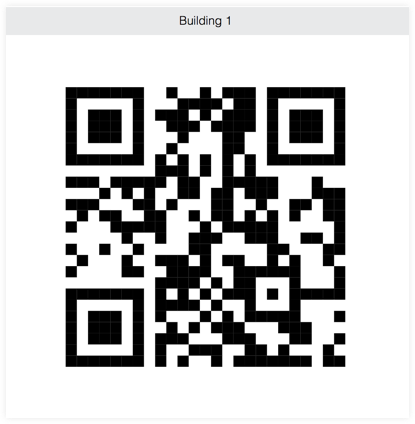
Note: Procore will scan the code and redirect you to the results automatically.Items associated with the location are listed under their respective tools.
Note: You can only view the items that you have permissions to view in Procore.The following actions are available:
Tap an item to view its details.
Tap View more to view a list of all items linked to the location.
Users with the appropriate permissions can create or add items for the following tools:
Photos
Snag List
Incidents
Inspections
Observations
RFIs
See Also
Loading related articles...