Delete a meeting category
Things to Consider
Required User Permissions:
You need one of the following:
'Admin' level permission on the project's Meeting tool.
'Read Only' level permission or higher on the project's Meetings tool with the 'Manage meeting categories' granular permission enabled on your permission template.
Additional Information:
Meeting items must be in a category. If there are no custom categories, meeting items are added to the 'Uncategorised items' category.
When you delete a meeting category, existing meeting items in that category are automatically moved to the 'Uncategorised items' area.
Meeting items are NOT deleted when you delete meeting categories.
Steps
Navigate to the project's Meeting tool.
Click the arrow next to a meeting to expand the series.
Click the meeting's title.
Under the Agenda section, find the category you want to delete.
Click the Delete category
 icon next to category.
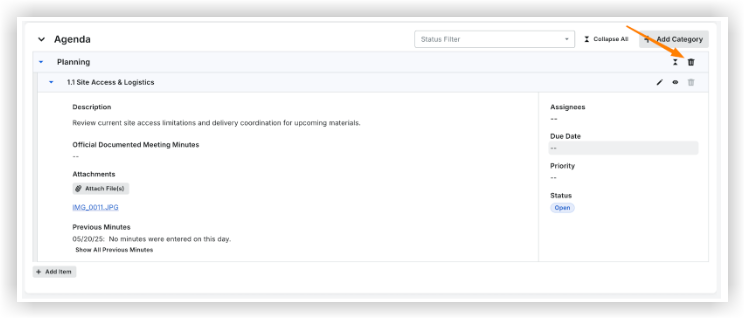
Click Delete to confirm.

See Also
Loading related articles...