Beta participant guide

Deployment status & regional availability

Model manager, Procore’s next-generation replacement for the model tool, officially launched in general availability in all regions. Procore Mobile App (iOS/Android) support is also live in beta as Procore continues to transform 3D model workflows. Stay tuned for additional features in future releases.
For platform deployment status & regional availability Show/hide

The Model manager and the model tool can be active on the same project at once. Administrators are not required to disable the model tool.

Platform

Status

Region

Web

Beta (GA for UKI coming soon)

Global (GA for UKI coming soon)

iOS

Beta

Global

Android

Beta

Global

Model manager Beta: Access & guidelines

  • Registration: Participating companies must sign the Procore Beta agreement. Once signed, your Procore administrator will coordinate with your Procore point of contact to enable Model manager on specific projects. It is not available in Procore Explore.

  • Support & feedback: Please report critical or breaking issues directly to Procore customer support. For general feedback, feature requests and non-critical issues, contact your dedicated Beta programme lead or Procore point of contact.

  • Beta notice: This feature and its supporting documentation are in active development. Beta services are provided strictly "as is" for evaluation purposes, carry no standard warranties or liability and are subject to change or discontinuation without notice. For full terms, please refer to the Procore Subscription Services agreement.

Welcome to the Beta programme. This guide introduces the Model manager tool, the central hub for your Building Information Modelling workflow. Admins can use Model manager to federate 3D models, map 2D drawings for navigation and overlay and curate saved views. Model data and saved views to simplify the accessibility and usefulness of the model for the larger project team.

Things to Consider

  • Model manager access is restricted.

    For platform deployment status & regional availability Show/hide

    The Model manager and the model tool can be active on the same project at once. Administrators are not required to disable the model tool.

    Platform

    Status

    Region

    Web

    Beta (GA for UKI coming soon)

    Global (GA for UKI coming soon)

    iOS

    Beta

    Global

    Android

    Beta

    Global

    Model manager Beta: Access & guidelines

    • Registration: Participating companies must sign the Procore Beta agreement. Once signed, your Procore administrator will coordinate with your Procore point of contact to enable Model manager on specific projects. It is not available in Procore Explore.

    • Support & feedback: Please report critical or breaking issues directly to Procore customer support. For general feedback, feature requests and non-critical issues, contact your dedicated Beta programme lead or Procore point of contact.

    • Beta notice: This feature and its supporting documentation are in active development. Beta services are provided strictly "as is" for evaluation purposes, carry no standard warranties or liability and are subject to change or discontinuation without notice. For full terms, please refer to the Procore Subscription Services agreement.

  • Document repository: Participating companies must select either the Document Management or Documents tool as their Procore project's repository for model files.

  • Additional Information:

Prerequisites

Model manager

The Model manager tool is located in Procore's Project level tool menu. The admin view of the Dashboard is the main view and serves as the primary hub for 3D coordination.

To navigate to the project's Model manager tool Show / Hide steps

  1. Log into the Procore web application.

  2. Open a Procore project.

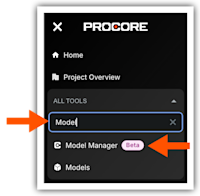
  3. In the All tools menu, start typing: model manager

    Tip

    Don't see the Model manager in the Project Tools menu? See Why is the model Manager tool not appearing in my Project Tools?

  4. Under All tools, click Model manager to go to the tool's landing page.
    This images shows the Project Tools menu in Procore with

Key features include:

  • Conditioning: Federate and condition multidimensional project data in the model manager to configure optimised, field-ready views and streamline data retrieval.

  • Coordinating: Centralise issue tracking and shorten coordination cycles by placing persistent 3D pins directly on the model to resolve conflicts with shared locational context.

  • Connecting: Establish a continuous flow of data by linking 3D model objects directly to Procore execution tools, ensuring field decisions are ground in a single, visual source of truth


Windows is a registered trademark of Microsoft Corporation in the United States and other countries. Google Chrome, Android and Google Play are trademarks of Google LLC. iPhone, iPad and Application Store are trademarks or service marks of Apple Inc., registered in the U.S. and other countries and regions. iOS is a trademark or registered trademark of Cisco in the U.S. and other countries and is used under licence by Apple Inc. Autodesk, AutoCAD, Civil 3D, Navisworks and Revit are registered trademarks or trademarks of Autodesk, Inc., and/or its subsidiaries and/or affiliates in the USA and other countries. SpaceMouse is a registered trademark of 3Dconnexion. All other trademarks are the property of their respective owner.