View the version history of a model
Things to Consider
Steps
Navigate to the Project level model tool on app.procore.com.
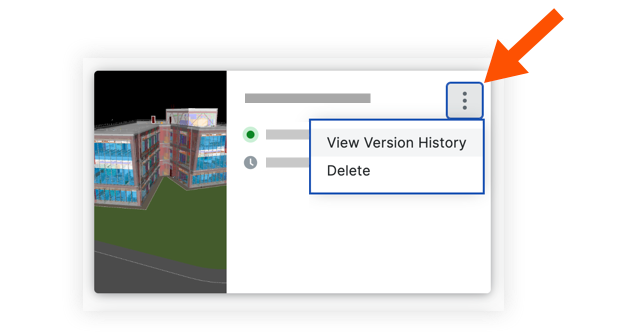
Click the vertical ellipsis
 icon for a model and select View version history.
View the following information is shown:
Version: the version number of of the model.
Status: The status of the model that was selected during publishing.
Published date: The date the version of the model was published.
Published by: the name of the person who published the version.
Source file name: the name of the model file.
Optional: If you need to delete a version of the model, see Delete a version of a model.
When you're done reviewing version history, click the x to close the window.
See Also
Loading related articles...