Submit a tender
Welcome to Procore!
When you are added as a tender recipient, Procore sends a "tender invitation" email to notify you of the opportunity. However, you don't need that email to get started. Your entire team can access the tender directly through the Planroom tool. Since every user linked to your vendor company in the solicitor's Procore account has access, you can collaborate on the submission seamlessly.
Things to Consider
Required permissions:
'Read Only' level permission or higher on the company's Planroom tool.
ANDAll users linked to your vendor company in the solicitor's Procore account can access the tender through the Planroom tool.
Additional Information:
We recommend state your intention to tender (Will tender or Will not tender) early to keep the solicitor informed of your status.
When a tenderer submits a question or reply via the Planroom, it flows directly into the solicitor's centralised email tab in the Tendering tool in Procore, ensuring your questions are tracked and answered without leaving the platform.
Once you submit a tender, the solicitor is notified. If you are not ready to submit, click Save for later to revisit your tender form at another time.
When 'Planroom Routing' is enabled in the Company Admin tool, new tender invitation emails redirect tenderers directly to Planroom instead of the Tender Board. Emails sent before this setting was enabled will keep their original routing.
Video
Steps
Access your tender form and submit your tender
See the 'Tender invitation' email overview to learn how to view and submit your tender.
From the tender invitation email, click View in Procore to log in and view the tender form.
First-time users: You will be prompted to create a password upon opening your first invitation. Your email address serves as your login ID.
If you're not automatically redirected, navigate to the company's
tool. See Planroom for more information.The Planroom tool is the central hub within the solicitor's Procore account where you manage your tender. It allows you to access documents, track status and submit tenders.
Click on a tender package to see the tender form, project and tender information.
In the banner on the tender form, select whether you intend to tender or not.
Click Submit a tender and fill in your tender information:
Tender form: Add an amount next to each line item in your tender. The 'Total' field automatically calculates the total of all amounts that you enter.
If the company who invited you to tender has updated their Procore account to the new Tender Management Enhanced Experience:
Line items that you have been invited to tender on will show in the Base tender and alternates sections.
Enter an amount for each line item in the unit cost or amount columns.
NoteIf the unit quantity lock is enabled within the tender package by the solicitor, the unit and quantity fields are read-only. Tenderers can only edit the unit cost.
If the company is using the older tender management experience, you'll see a Scopes of work section:
Click Add scope of work and select a cost code from the drop-down menu.
In the Amount column, enter an amount.
Add additional scope of work as needed.
Inclusions: Enter any inclusions that may not be clearly stated in the related contract documents.
Exclusions: Enter any exclusions that may not be clearly stated in the related contract documents.
Comments : Add any comments you would like to send the company.
Attachments : Add any relevant attachments to your tender form.
Click Save for later if you want to revisit your tender form at another time.
When you are ready to submit your tender, click Submit.
You can also submit a tender by replying to the tender invitation email with one or more files attached to your email. After you send your tender submission, the tender solicitor will see that you submitted a tender and can review any files that were attached to your email.
The following file type are accepted: .pdf., doc, .docx, .xls, .xlsx, zip file, .ods, .odt, .fods, .fodt, and .txt.
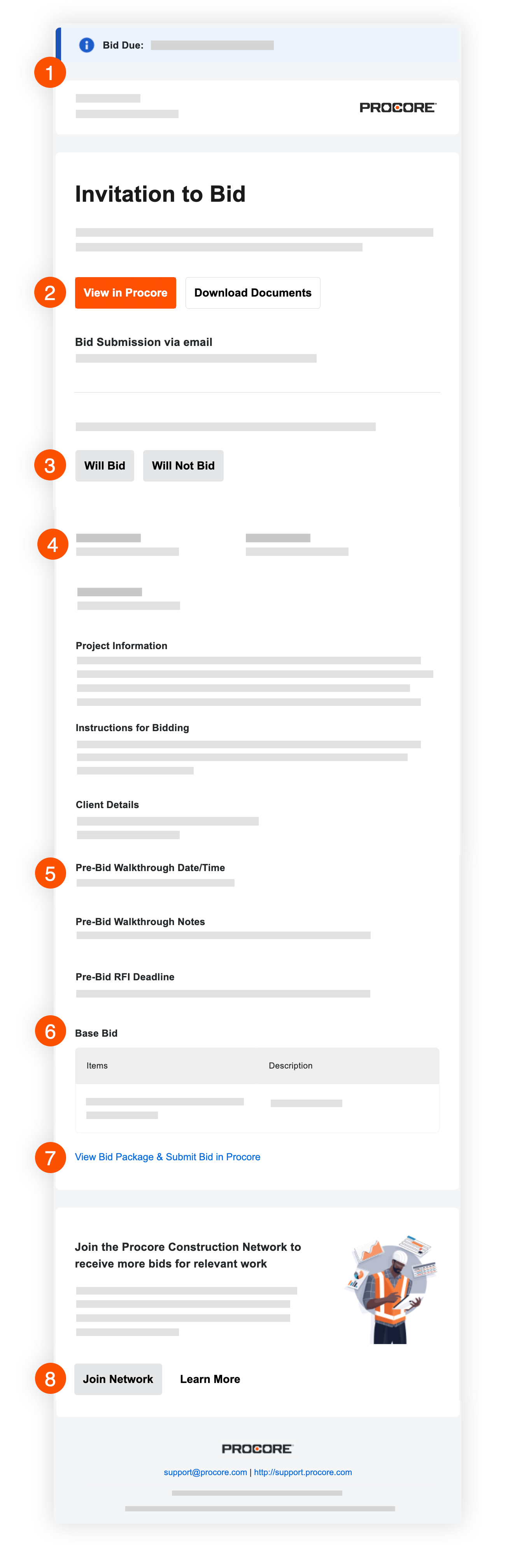
 Tender due date and information
 View or download tender documents
 State your intention to tender
 View tender, project and client details
 Pre-tender walk-through and RFI information
 View the base tender
 View tender package and submit in Procore
 Optional: Join the Procore Construction Network