Add allocation rules for components in Portfolio Financials
Legacy
This information is intended for accounts with Portfolio Financials product in Procore. Please reach out to your Procore point of contact for more information.
Cost allocations allow you to allocate Budget, holds, contracts, programme items and variations to sub-projects called components using percentage-based allocation rules. Each component acts as a sub-project to which you can allocate and track cost. Budget, holds, contracts, programme items and variations can all be assigned to components based on the percentage-based logic of the allocation rules assigned to them.
In order to allocate a percentage of each cost item to components, you must first add an allocation rule. After allocation rules are set, you can see rollups of cost for each component in the 'Components' tab.
Required User Permissions:
'Full Access' to the project or higher.
The components that you want to allocate cost for must be added for the project. See Add a component to a project in Portfolio Financials.
Navigate to the Components section of the project page.
Click the Allocation rules tab.
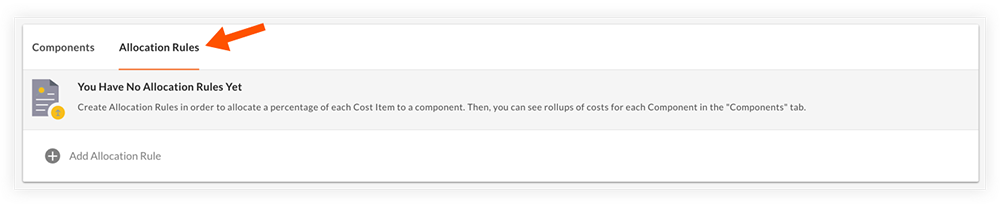
Click Add allocation rule.
Enter a rule name and set the logic for the rule by entering the percentage to be allocated for each component.
Note: Cost can be allocated between components in any combination, but 100% of cost must be allocated in order for the rule to be published.
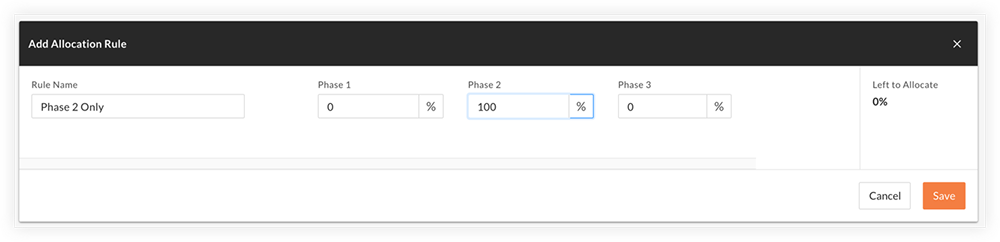
Click Save.
Loading related articles...