Create a variation request for a main contract

Background

A variation request provides you with the ability to create a package that contains one (1) or more potential variations (PVs) to use as a formal request to the project's owner. When creating a VR, it is a common practice to group PVs that share the same scope of work into a single VR. This helps to organise your variations into logical groups, which can streamline the review and approval process for the project owner.

 Important

A VR requires that your project's main contract tool is configured to use the three (3) tier variation setting. 1- and 2- tier variation configurations do NOT support the use of VRs. See What are the different variation tier settings in Project Financials?
Things to Consider

  • Required User Permissions:

    • 'Admin' level permissions on the project's Prime Contracts tool.

Prerequisites

  • The project's main contract must be in the 'Approved' state.

Steps

  1. Navigate to the project's main contract tool.

  2. Locate the main contract to work with. Then click its Number link.

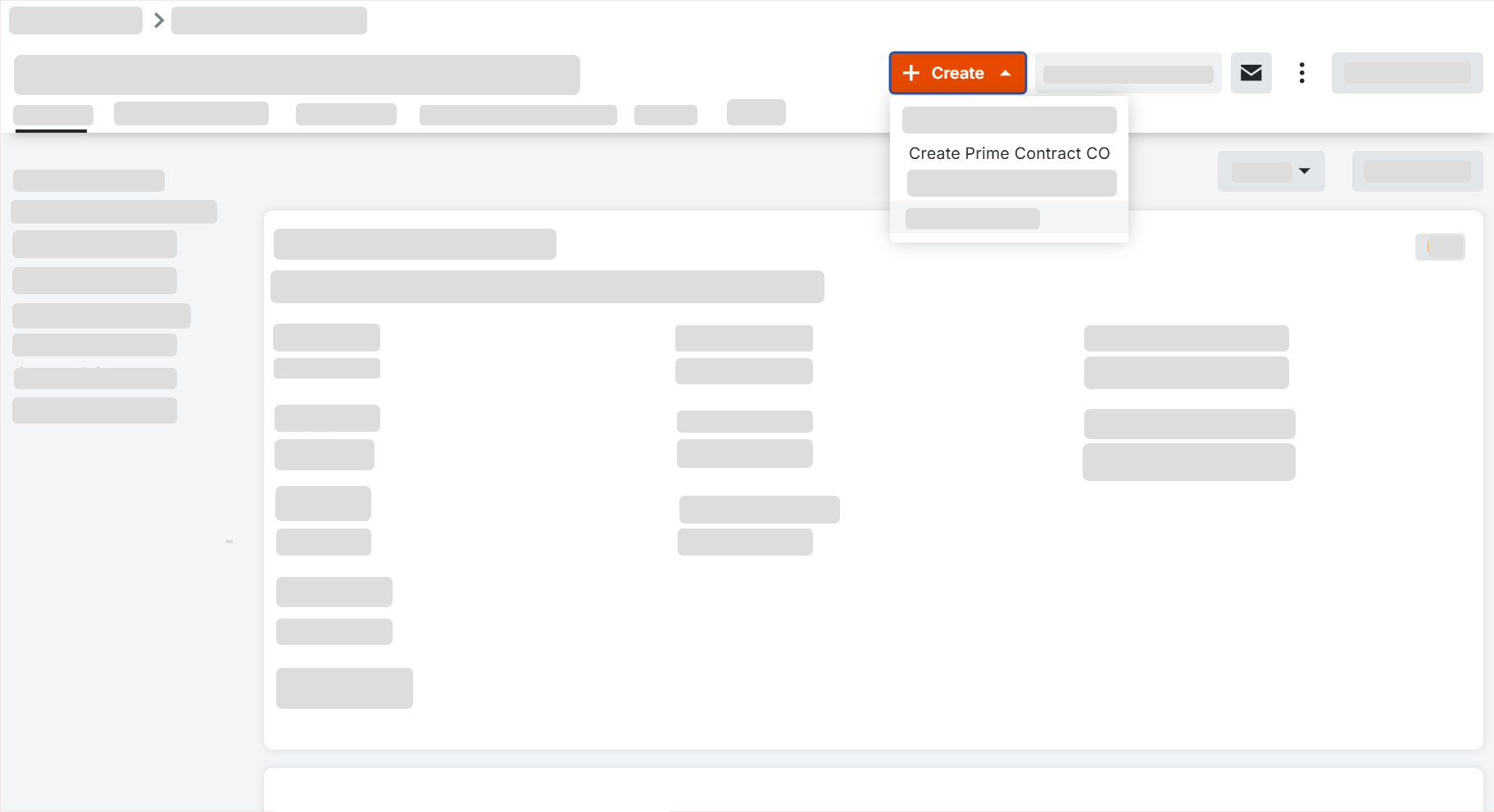
  3. Click Create main contract VAR.
    Note: This button is only available if your project's main contract is in the 'Approved' status.
    Create Prime Contract Change Order Request

  4. Complete the following:

    • MCV number. This field is automatically prefilled based on the number of other VRs that have been created. By default, the number will automatically increment by one. However, you can manually enter a different number, if desired. (Note: If you manually enter a number, the next VR that's created will automatically increment by one, based upon this specified value.)

    • Title. Enter a title that describes the VR.

    • Revision. This field displays the VR's revision number. When a VR is first created, its revision number is zero (0). Depending on the feedback you receive from the reviewer/approver, a VR may have multiple revisions.

    • Status. Select the current state of the VR.

      • Approved. The VR has been approved. Cost are reflected as 'Approved Changes' in the Budget.

      • Draft. The VR still needs to be modified before it can be submitted for review. Cost is not reflected in the Budget.

      • Pending - in review. The VR is currently being reviewed by an approver. Costs are reflected as 'Pending changes' in the Budget.

      • Pending - revised. The VR has been modified since its initial submission. Costs are reflected as 'Pending changes' in the Budget.

      • Pending - pricing. The VR is pending and is currently out for pricing. Costs are reflected as 'Pending changes' in the Budget.

      • Pending - not pricing. The VR is pending and is not actively being priced. Costs are reflected as 'Pending changes' in the Budget.

      • Pending - Proceeding. The VR is still pending and the work is being completed. Costs are reflected as 'Pending changes' in the Budget.

      • Pending - not proceeding. The VR is pending and the work is not currently taking place. Costs are reflected as 'Pending changes' in the Budget.

      • Rejected. The VR was rejected. Cost is not reflected in the Budget.

      • No charge. The VR will be performed at no charge. Cost are not reflected in the Budget.
        Note: These status reflect the Budget in the ways listed above for the Procore Standard budget view. To create or modify views, see Set up a new budget view.

    • Contract. (For 3-tier variations only) If desired, you can add the VR to an MCV. You can either select an existing MCV from the drop-down menu or create a new MCV where the VR will automatically be added to it.

    • Contract. The specific main or main contract that this variation is modifying. This links the variation to the correct overall project Budget and scope.

    • Reference: A unique tracking number, cross-reference ID or internal code (such as a specific RFI, PV or drawing number) used to tie this variation back to its originating documentation.

    • Private. Mark this tickbox if you want the VR to be private and only visible to users with 'admin' permissions on the main contract tab.

    • Executed. Tick this box once the variation has been fully approved and legally signed off by all parties.

    • Signed variation received date. The date the fully executed and signed variation document was officially received back from the client or owner.

    • Designated reviewer. Select the specific individual or stakeholder assigned to evaluate and make a decision on this variation request.

    • Review date. The date the designated reviewer completed their official assessment and made their determination.

    • Reviewed by. The name or system identity of the actual person who conducted the review.

    • Due date. The deadline by which this variation needs to be reviewed, approved or processed.

    • Payment application date. The date this variation's amount was officially billed to the client on a progress payment application.

    • Paid date. The date the payment for this specific variation was received and processed.

    • Programme impact. If known, you can provide an estimate of the number of additional days that would potentially be added to the current Project Programme if the VR were approved.

    • Amount. The total financial value (cost or credit) associated with this specific variation.

    • Revised substantial completion date. The new, updated project completion date, factoring in the time impact of this variation.

    • Description. Enter a more detailed description of the VR.

    • Attachments. Select and attach any relevant documents.

    • Potential variation. Select which PVs to include in the VR.

    • Additional information

      • Insurance programme. The specific wrap-up or project insurance programme (e.g., OCIP/CCIP) applicable to this variation, if any.

      • Additional coverages required. Any extra or non-standard insurance policy or endorsements needed specifically for this new scope of work.

      • Bonds. Details regarding any updates, increases or riders required for performance and payment bonds due to the change in contract value.

      • ATP Date (Authorisation to Proceed): The date the formal, written notice was given to begin the work before the official variation was fully executed.

      • Attachments uploaded. A list or indicator of supporting documents (e.g., PDFs, drawings, emails) attached to this variation record.

      • Contract form type. The specific contract template or legal form format being used to execute this variation.

      • Contracted days. The number of calendar or working days added to (or subtracted from) the original Project Programme as a result of this change.

      • Extra Description. A detailed narrative or justification explaining the reason for the variation and the specific scope of work involved.

      • General liability

    • Date created. Displays the date and time that the VR was created. You cannot change this value.

    • Created by. Displays the name of the user who created the VR. You cannot change this name.

    • Click Create.

 Note

If you want to email the VR to the project owner or another user for review, click Create & email. This action opens a new page where you can select the recipients for the email. The recipients can then email a reply to the message to approve the variation.

 Note

If you want to route the variation for official electronic signature, click Complete with DocuSign. This action opens a new window where you can place signature tags, finalise the routing order and send the document directly to the recipient. Once all parties sign via DocuSign, the contract status will automatically update to reflect completion.

Next Steps

See Also

Loading related articles...