Email a main contract
Background
After you create one or more main contracts, you may have a need to share that information with other individuals. Unlike other Procore tools that send automatic email notifications to members of a distribution group or list when items are created, updated or approved, a main contract contains sensitive financial data. To protect that data, main contracts much be explicitly sent to individuals.
Things to Consider
Required User Permissions:
To send a main contract by email, 'Standard' level permission or higher permission on the project's main contract tool.
To be named as a recipient in the To or CC field, you must have a user account in the Project Directory.
Note: All recipients named in the To or CC field can view your main contract data in the PDF attached to the email message.To gain access to a main contract by clicking the 'View this contract' or 'View online' link in the email message:* 'Admin' level permissions on the project's main contracts tool.
OR* 'Read Only' or 'Standard' level permissions on the project's main contracts tool AND your name must be listed under 'Make this visible only to administrators and the following users.'
Limitations:
Unlike other Procore tools, which send automated email notifications to distribution group or lists, the main contract tool requires you to use the steps below.
Prerequisites
Your recipients must have a user account in Procore's Project Directory. See Add a user account to the Project Directory.
You must have a main contract to mail. See Create main contracts.
Steps
Navigate to the project's main contract tool.
Locate the main contract to work with. Then click its Number link.
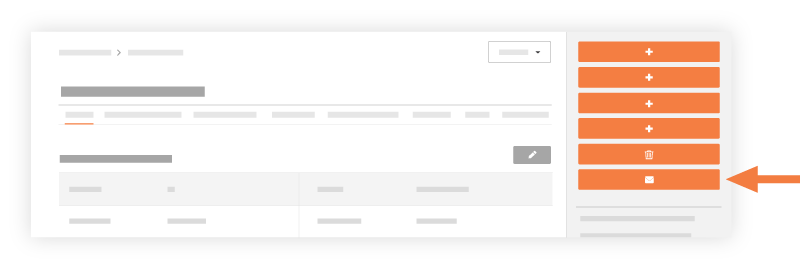
Click Email contract.
Complete the following fields:
To
Start typing in this field to select your primary recipients from a list of users in the Project Directory. See Add a user account to the Project Directory.CautionDoes your contract contain attachment that don't want your email recipient to view? If your project team has added attachment to the main contract you are sending by email, be sure to review all of those attachment to ensure you are OK with sending them to your recipient. Your recipient will have the ability to download those attachment.
CC
Start typing in this field to select your secondary recipients from a list of users in the Project Directory. See Add a user account to the Project Directory.
Private
Place a mark in this tickbox if you want to restrict recipients who have not been granted 'admin' permission to the Main Contracts tool from gaining access to the main contract in the Procore web application.
Subject
This field automatically completes based on the name of the main contract, but you may make any additional changes to the field.
Attachments
Attach any related files or documents.
Message
Include a message to the recipients.
Click Send.