Export main contracts (Beta)
In Beta
This content is for participants in the Project Financials: modernised experience for main contracts beta programme.
You can export a single main contract at any time. Reasons you might want to export a single main contract include:
You are working on a 'draft' version of a contract and need to share a copy of it in its current state with a person who does not have access to Procore.
You want to review the contract as it would look when it is printed out.
You have 'Approved' the contract and you want to collect digital signatures from the contracting parties using a PDF and a third-party signature program.
You want to print a copy of the 'Approved' contract because you will be collecting wet signature from the contracting parties.
Required User Permissions:
To export a single contract to the CSV or PDF file format 'admin' level permission to the project's main contract tool.
To export a list of main contracts that you have permission to see, 'Read Only' or 'Standard' level permissions on the project's Main Contracts tool.
Additional Information:
To export a list of all the main contracts on the project, see (Beta) Export a main contracts list.
Supported File Formats:
Comma Separated Values (CSV)
Portable Document Format (PDF)
Navigate to the project's main contract tool.
Locate the main contract that you want to export. Then click its Number link.
From the Export drop-down list, select one of these options:
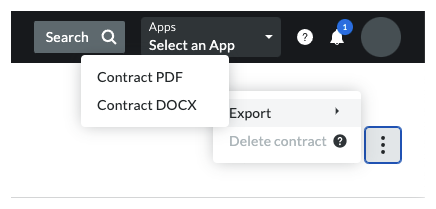
Contract PDF. Procore exports the file to the PDF file format and opens the file in a new browser tab. You can hover your mouse cursor over the contract and click the Download icon.
Contract DOCX. Procore downloads a DOCX copy of the main contract to your browser's download location. This option is only available to users with 'admin' level permissions on the project's main contract tool.
Want to save a copy of the executed contract in Procore? After you export an 'Approved' contract to PDF and it has been signed by all authorised parties, you can scan the signed contract and upload the digital file to the project's Documents tool. You can also add the signed file from the Documents tool as a file attachment on the main contract in Procore.
Loading related articles...