Export grids from Autodesk® Revit® to a model in Procore
Background
Use the Procore BIM plugin to export grid lines from your Autodesk® Revit® model. These grid help mobile user orient themselves within the model by displaying it correctly in the 2D view of the model tool on the Procore for mobile application.
Things to Consider
Required User Permissions:
'Admin' level permissions on the model tool.
Additional Information:
To export grid, your Windows® computer must be running a supported version of Autodesk® Revit®.
To prevent misalignment in the 2D view, the coordinate system selected in the Procore BIM plugin during the export must match the coordinate system used when the 3D model was published to Procore. See Why aren't my grid aligned in the model tool?
Prerequisites
Steps
The Navisworks® API cannot publish grid lines to Procore. To address this, use the Procore BIM plugin to export them from Revit® instead. A team member must then verify that the coordinates align. Site teams rely on these accurate grid lines for precise installation.
Open the Revit® model that contains the grid line you want to export. Typically, this is an architectural or structural model.
In Revit®, click the Procore tab to use the Procore BIM plugin.
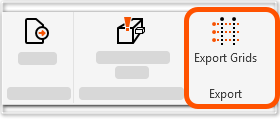
In the ribbon, click Export grids.
In the Export grids page:
Confirm that the Procore company and project are correct.
Under Coordinate system, select Internal or Shared.
ImportantTo prevent misalignment in the 2D view, the coordinate system selected in the Procore BIM plugin during the export must match the coordinate system used when the 3D model was published to Procore. See Why aren't my grid aligned in the model tool?

Under Export to:
Find the correct model name.
Click Add grids.
When successful, a tick and an Added message appears where the button once did.
Where can you view your exported grid? Exported grid assist viewer with on-site orientation, so they are only visible in the Procore for mobile application. Grid do not appear in the Procore web application.
To confirm the grid were successfully exported:
Open the Procore for mobile application.
Navigate to the model tool.
Locate the model's card. A grid icon appears in the bottom left corner of the card, indicating that grid is available for the model.