Enrol in MFA with an authenticator application as a payor

 General availability in select markets (United States)

Flag Us Procore Pay is available in the United States. It is designed for main contractors and owner-builders who act as their own main contractors on a job. Procore Pay extends the payment application management functionality in the Procore web application to handle the payment process between main and specialty contractors.

Important: MFA is required for Procore Pay

To keep payment secure, all Procore Pay user must use multi-factor authentication (MFA).

  • Payers: An authenticator application is required to log in.

  • Payees: An authenticator application is highly recommended for enhanced security, but you have the flexibility to use SMS verification if preferred.

Prerequisites

Secure your account with the authenticator app

First-time setup

To set up your mobile device for Procore MFA with an Authenticator app, complete these steps:

  1. Go to the Procore web application at: https://login.procore.com

  2. Enter your Procore email and password. Then click Continue.

    Login Enter Your Email
    Single sign-on users: If applicable

    If your company currently uses or is implementing single sign-on, please note the following requirements for Procore Pay:

    • Separate single sign-on implementation: Companies must implement a separate single sign-on specifically for Procore Pay users within their organisation.

    • Submit a request: To begin this process, you must submit a request to your Procore customer success or Procore point of contact.

    • Login process: Once configured, single sign-on users will sign in through their specific identity provider's login prompts rather than the standard Procore login. Once the single sign-on login is complete, users are prompted by Procore to complete the MFA challenge.

    To learn more, see What is single sign-on?

  3. Open the Authenticator app on your mobile device. Use the application's built-in camera/scanner to capture the Quick Response Code displayed on the Secure your account page.

    Procore account security screen with QR code for authentication and instructions to scan and enter one-time code.
     Tips
    • Why isn't my phone's camera scanning the Quick Response Code? The Quick Response Code must be scanned from within the Authenticator application, not with your phone's camera. Open the Authenticator application and use its built-in scanner to capture the code.

    • Setting up MFA on your phone without a computer? Since you can't scan a Quick Response Code on the same screen, you must enter the code manually. Tap Trouble scanning and enter the provided code into your authenticator application.

  4. Enter the 6-digit code from your Authenticator app. Then click Continue.

    A login dialog box with a text field labeled
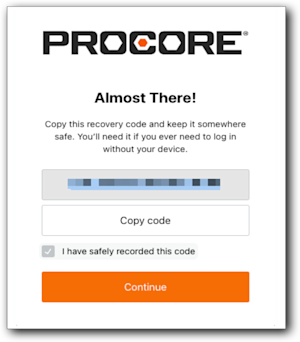
  5. At the Almost there page, click Copy code and mark the I have safely recorded this code tickbox.

    Warning

    Be sure to save your recovery code in a location that is securely accessible from another device. If your MFA device is lost or damaged, you will need your recovery code to set up MFA on a new device. Each recovery code can be used only once. After a recovery code is used, you will have the option to save a new recovery code.


    Almost There Copy Code

  6. Mark the I Have Securely Saved This Code tickbox.

  7. Click Continue to log in to Procore with an authenticator app for the first time.

    Tip

    Ready to log in? To log in next time, locate your account type in the left navigation menu of this guide (e.g., Standard Procore or Procore Pay), then follow the instructions in the 'Log in' tutorial for your role (e.g., admin, user, payor or payee admin).