Release a manual hold on subcontractor payment applications

 General availability in select markets (United States)

Flag Us Procore Pay is available in the United States. It is designed for main contractors and owner-builders who act as their own main contractors on a job. Procore Pay extends the payment application management functionality in the Procore web application to handle the payment process between main and specialty contractors.
Background

With Procore Pay, manual holds can be applied to payment for a variety of reasons. These include quality issues, such as when delivered work is subpar or warranty support is uncertain. Holds might also be applied for incomplete work, work not meeting the specified quality level, contract disputes, financial concerns or compliance issues. Whatever your reason for applying a hold, Procore Pay users can apply these hold types on subcontractor payment applications:

  • Payment application holds. A , , or user with 'admin' level permissions on the payment tool can create a payment application hold to alert users about a hold on a specific subcontractor payment application.

  • Vendor holds. A or can apply a vendor hold to a subcontractor payment application to alert users to pause payments on all of that vendor's payment applications.

After creating a payment application, user can edit the details of a hold. Once the conditions are satisfied, user can also release the hold.

 Note

As a payor, it's important to note that some payment admins configure Procore Pay to prevent users from creating a disbursement when the disbursement include a subcontractor payment application with holds applied. Others configure Procore Pay to notify users about holds, but allow payments. Check with your company's payment admin if you have questions about your company's configuration. See Configure payment requirements as a payor.

Things to Consider

Prerequisites

Steps

What tool are you using?

Depending on your role and permission setting, you can navigate to a subcontractor payment application from one of these tools:

I am using the payment tool.

A or can create, edit, view and release payment application or vendor holds on subcontractor payment applications from the payment tool. They can also manage both types of holds on subcontractor payment applications from the payment tool.

 Note

Users 'Admin' level permissions on the Payment tool are limited to creating payment application holds. For more information, see What roles and permissions are required to manage payment application and vendor holds on subcontractor payment applications?

  1. Navigate to the Company level Payment tool.

  2. Click the Subcontractor payment applications tab. This tab is active by default.

  3. Locate the payment application for the hold.

  4. Choose one of these options:

    • Click the information icon to open the payment requirements panel.

    • Click the Payment application # link to open the payment application in the Project level Commitment tool. Then click the Payment requirements tab.

  5. Under payment requirements, click the Holds tab.

I am using the commitment tool.

A or that has been granted payment application administrator permissions can create, edit, view and release payment application or vendor holds on subcontractor payment applications from the Commitment tool.

 Note

Users granted only payment application administrator permissions are limited to creating, editing and releasing payment application holds. For more information, see What roles and permissions are required to manage payment application and vendor holds on subcontractor payment applications?

  1. Navigate to the Project level commitment tool.

  2. Under the Contracts tab, locate the contract in the table. Then, click the Number link to open it.

  3. In the contract, click the payment applications tab.

  4. Locate the payment application in the Payment applications (payment applications) table. Then, click the Payment application # link to open it.

  5. In the payment application, click the Holds tab.

I am using the Payment Applications tool.

A or can create, edit, view and release payment application or vendor holds on subcontractor payment applications from the Payment Applications tool.

 Note

Users granted only payment application administrator permissions are limited to creating, editing and releasing payment application holds. For more information, see What roles and permissions are required to manage payment application and vendor holds on subcontractor payment applications?

  1. Navigate to the Project level Payment Applications tool.

  2. Click the Subcontractor tab, locate the payment application in the table.

  3. Click the payment application # link to open it.

  4. Under payment requirements, click the Holds tab.

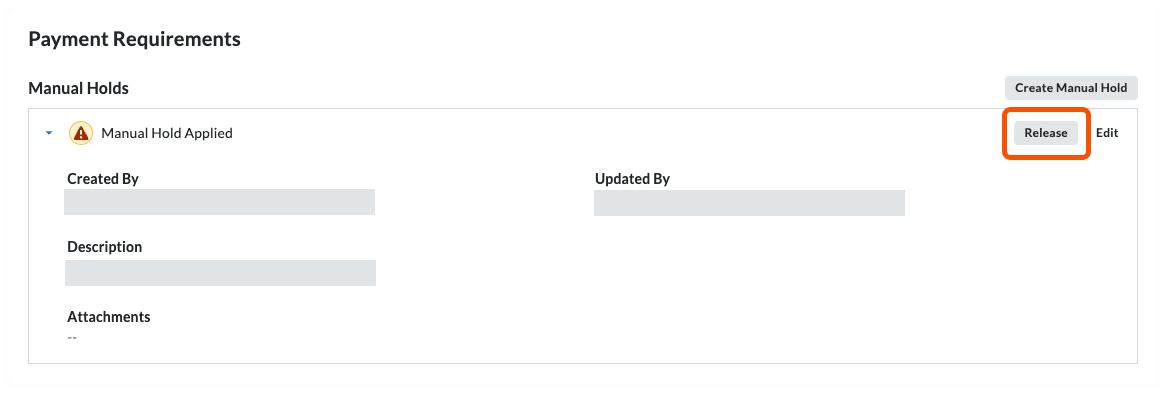
  1. In the Holds tab, locate the hold to release.

     Tips
    • Not sure which hold to release? To view details about each manual hold, click the BLUE arrow to expand the hold details and view any attachment. You can alternatively click the Edit button. To learn more, see Edit a manual hold on a payment application.

    • Can't release a vendor hold? You must be a payment admin or payment disburser to release a vendor hold.

  2. Click the Release button.
    Release Manual Hold
    Procore releases the hold from the selected payment application. This action is logged in the payment application's Change history tab.

Next Step

See Also

Loading related articles...