View the Payment tool change history

 General availability in select markets (United States)

Flag Us Procore Pay is available in the United States. It is designed for main contractors and owner-builders who act as their own main contractors on a job. Procore Pay extends the payment application management functionality in the Procore web application to handle the payment process between main and specialty contractors.

Background

When a user performs an action in the Company level Payments tool, it is recorded on the change history page in the payment processing tab.

Things to Consider

  • Required User Permissions:

    • You must be a .

Prerequisites

Steps

  1. Navigate to the Company level Payment tool.

  2. Click the payments settings Icon Settings Gear Android icon.
    This opens the payment setting page.

  3. Click the Payment processing tab.

  4. Click the change history link.
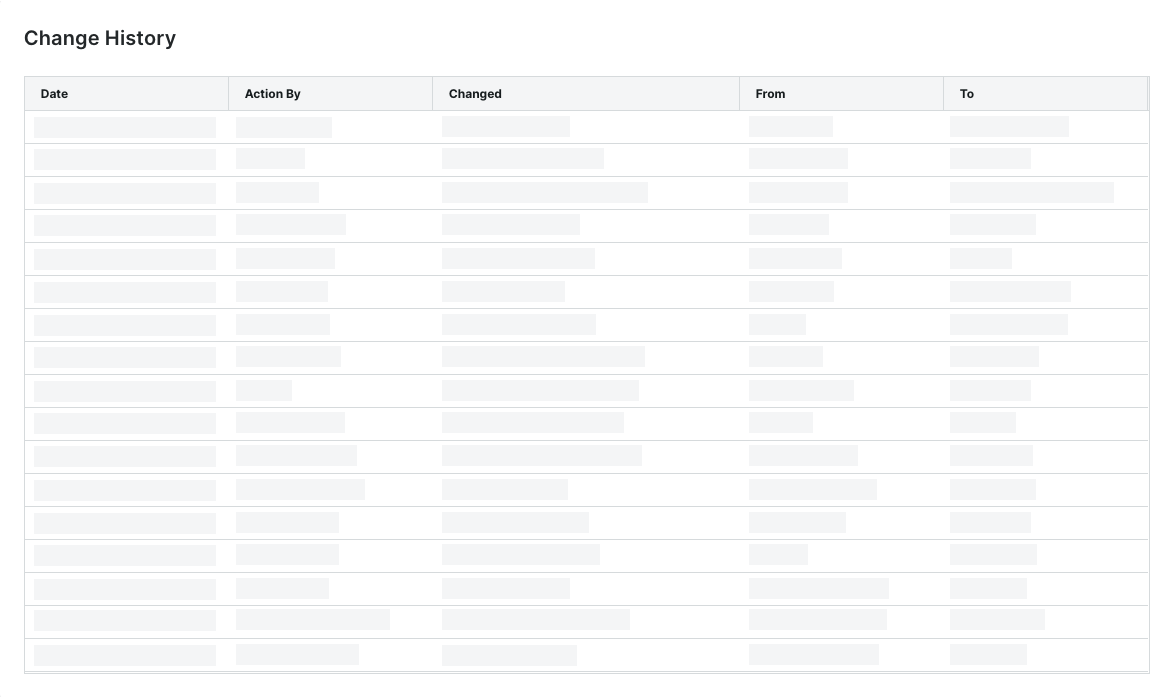
    This opens the Change History page.

    Only a payment admin has access to view the payment tool's change history. The table on the change history page logs the actions performed by payment admins and payment disbursers with the Company level payment tool. For step-by-step instructions, see View the payment tool change history.

    View Change History

    Click here to learn about the table.

    Change history page

    The table below describes the default columns on the Change history page.

    Column

    Description

    Date

    Shows the date and timestamp of the action.

    Action by

    Shows the first and last name of the Procore user as their name appears in the company Directory. Note: Only a member of Procore's Payment Operations Team can add payment admins to your account. This requires an authorised user at your company to complete and sign Procore's payment administrator designation form. Once added, this entry indicates the user was added by 'Procore support'. For details, see Add or remove payment admins as a payor.

    Changed

    Provides a brief description of the action.

    From

    Shows the value that the action changed from. Note: If the action originated from a setting with a blank or null value, Procore shows the double dash symbol (--).

    To

    Shows the To value that the action changed to. Note: If the action resulted in a setting with a blank or null value, Procore shows the double dash symbol (--).

See Also

Loading related articles...