Notify assignees of snag list items (iOS)
Things to Consider
Required User Permissions:
'Admin' level permissions on the project's Snag List tool.
Note: 'Read Only' users cannot be assigned a snag list item.'Standard' permissions on the project's Snag List tool for users who are listed as default snag list item managers in the Snag List configuration settings, see Configure advance settings: Snag List.
Additional Information:
The snag list item must already be created and saved before you can email it.
Snag list items must have an assignee in order to send the notification.
You can automatically send notifications to additional users when 'Item sent to assignees (work required)' is configured in advanced settings. See Configure advance settings: Snag list.
You can send snag list items in bulk using the Review function or you can email snag list items individually.
Once an initial email notification has been sent, selected assignees will receive daily notifications of overdue items via email; email notifications will end after 45 days.
Steps
Navigate to the project's Snag List tool on your iOS mobile device.
Tap Ball-in-Court to view item that currently require your action.
OR
Tap All to view all snag list items.If there are snag list items ready to be sent, a yellow banner appears above the items.
Tap Review.
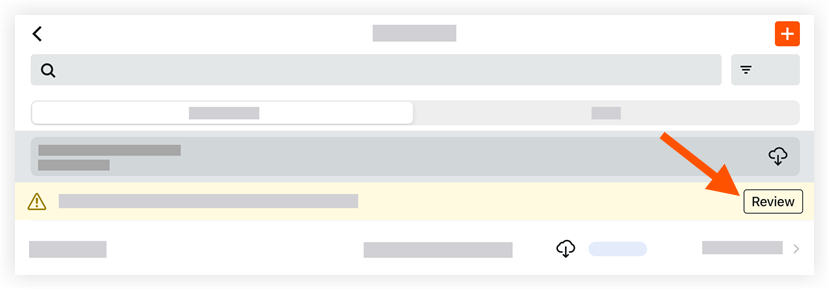
If a snag list item does not have an assignee listed, the item is labelled with 'Can't send - assignees missing'.
Tap the snag list item.
Tap the names of one or more users from the Contacts, companies or Groups tabs that you want to add.
Tap Done.
Note: After tapping done, the selected assignee(s) is automatically added to the assignee field on the snag list item.
Tap an item to select or deselect it or tap Select all or Deselect all.
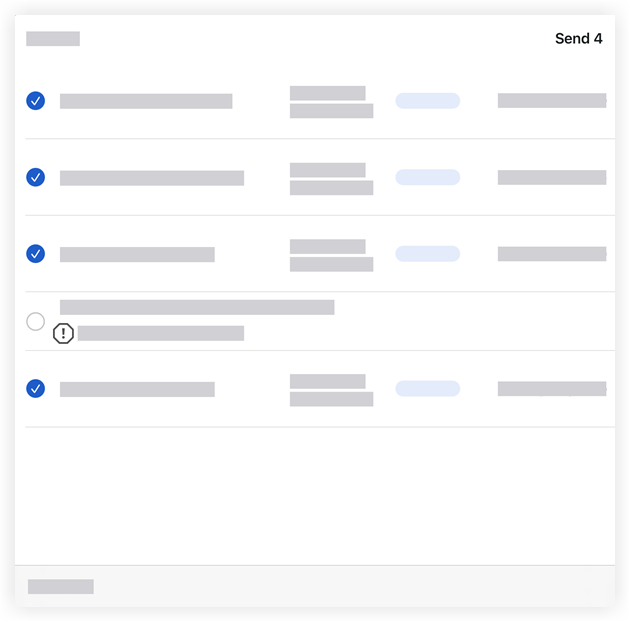
Tap Send.
Note: An email notification is sent to the assignees listed on each item, as well as any other users configured in Advanced settings.
See Also
Loading related articles...