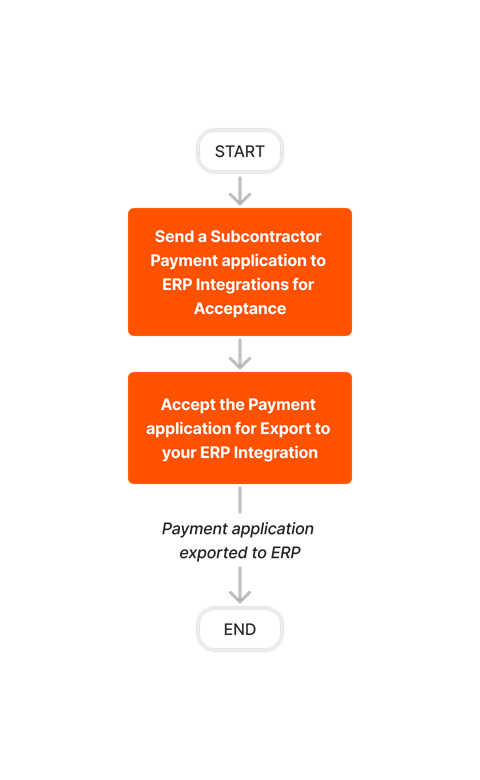
Diagrams
Integration Sage 100
Set up a job/project
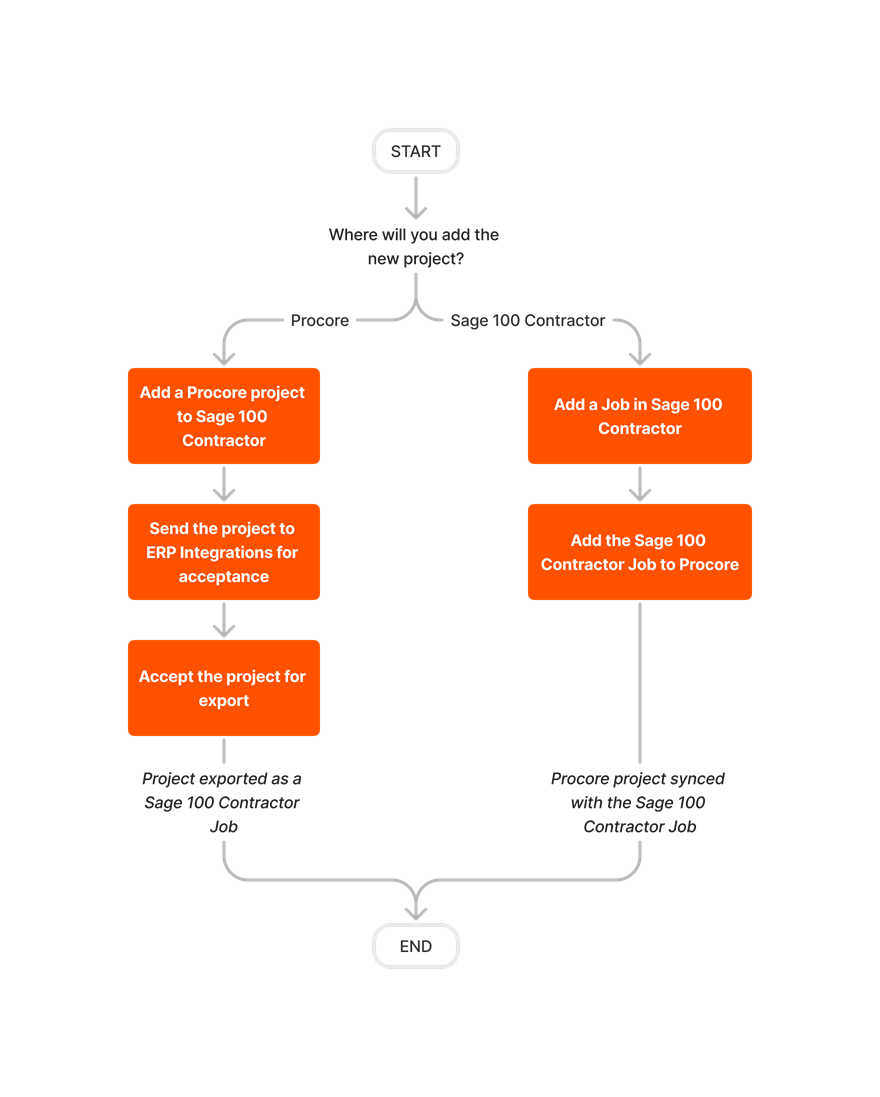
If you are setting up a new job/project for Procore + Sage 100 Contractor®, use the workflow below as a guideline.Important! When setting up a new job/project in Procore, you must always add the job/project in one system and then add it to the other. You cannot create a job in both systems and then sync them at a later time.
Set up and manage a budget
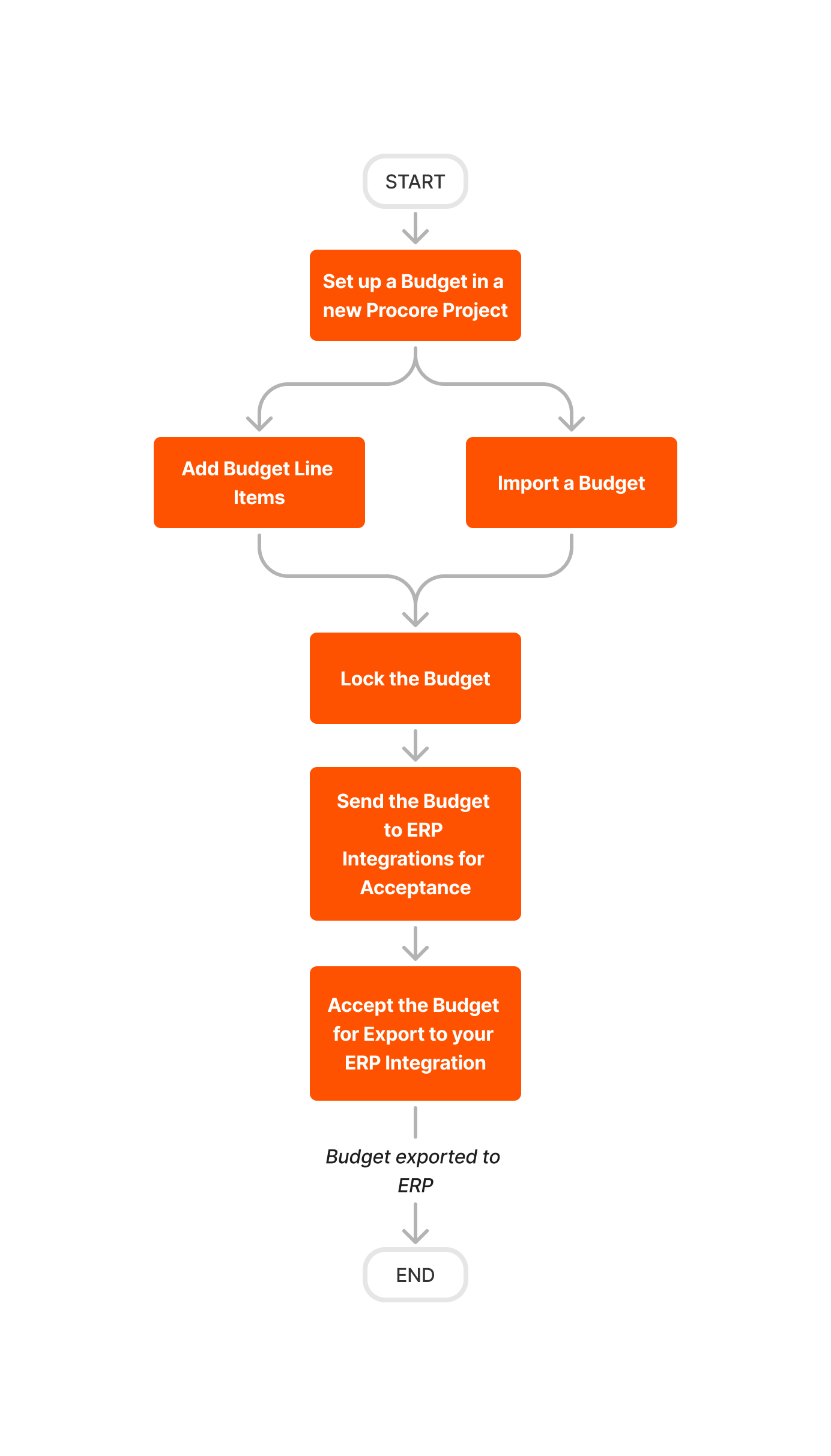
If you are setting up the Budget on a Procore + Sage 100 Contractor® project for the first time, use the workflow below as a guideline.
Important! When setting up a new project in Procore, you must always set up the Budget in one system and then import or export it to the other. You cannot create a Budget in both systems and then sync the Budgets at a later time. Once it is set up as desired, update to the Budget must be managed in the system in which it was created.
Update and export a budget
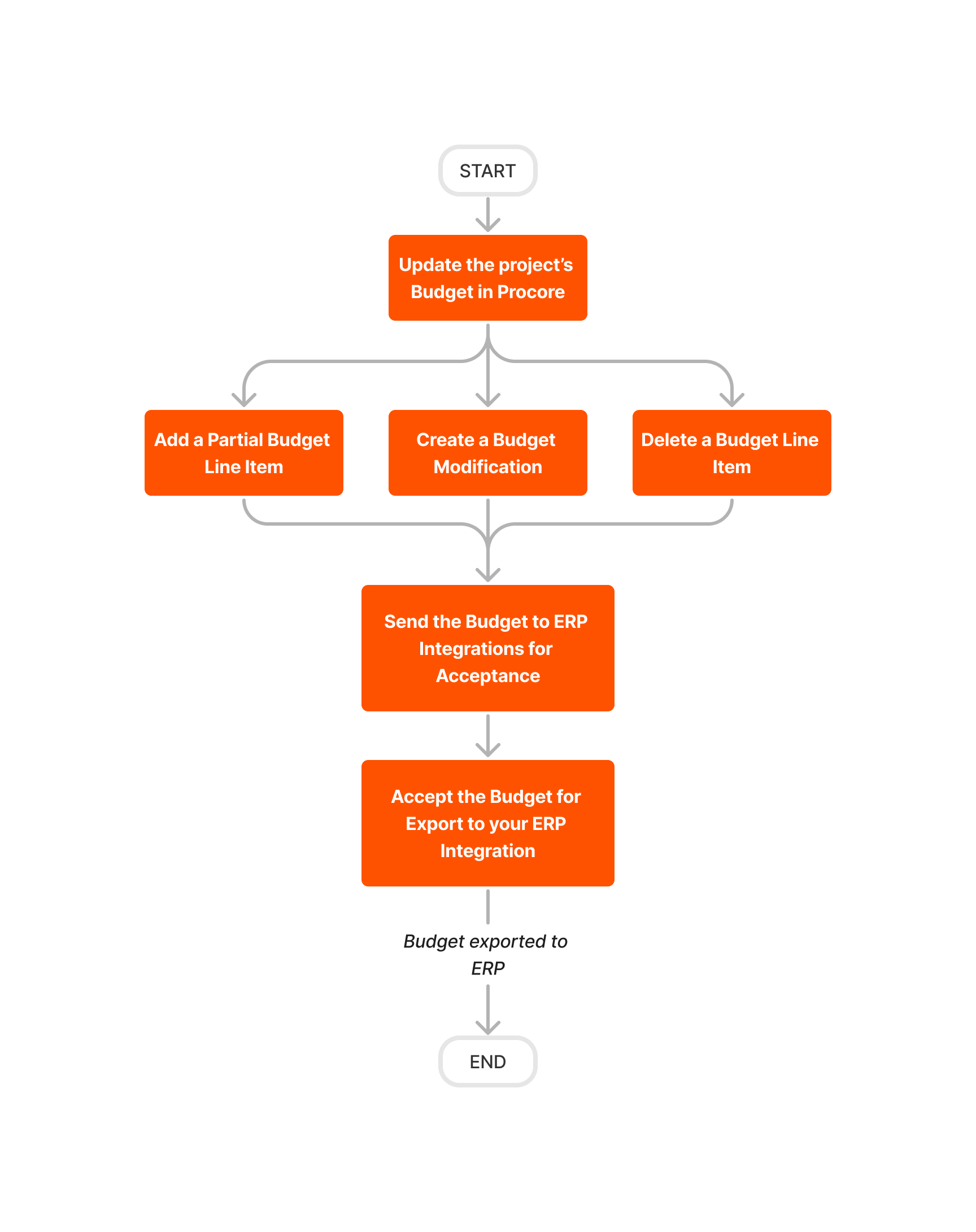
If you need to update a Budget in Procore after exporting it to Sage 100 Contractor®, use the workflow below as a guideline.
Create and export commitments
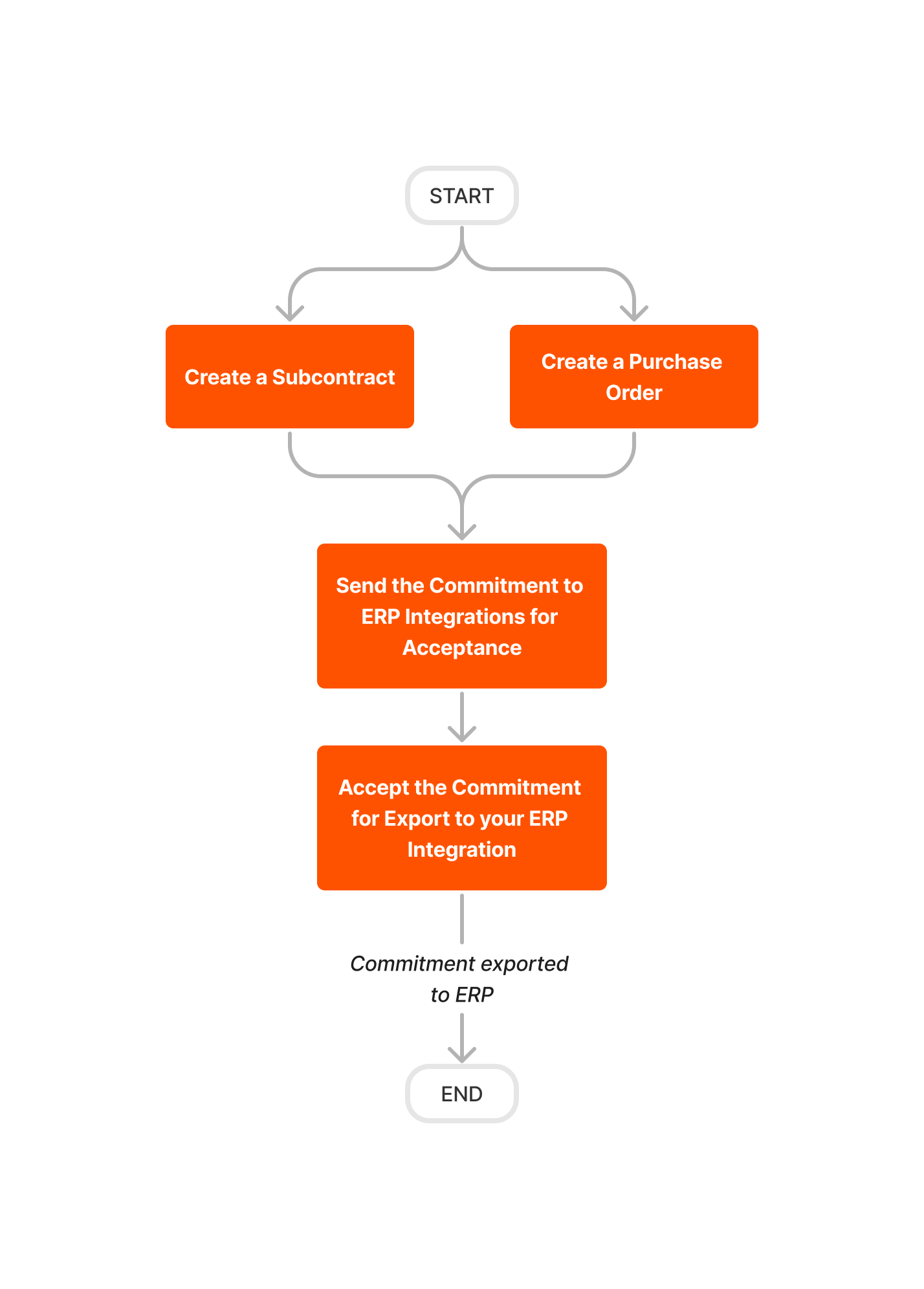
Follow the steps below to create commitments in Procore and then export them to Sage 100 Contractor®.
Important! After a Procore project is synced with a Sage 100 Contractor® job, commitment must always be created in Procore using the steps below. Do NOT create commitment directly in Sage 100 Contractor®.
Create and export CVs
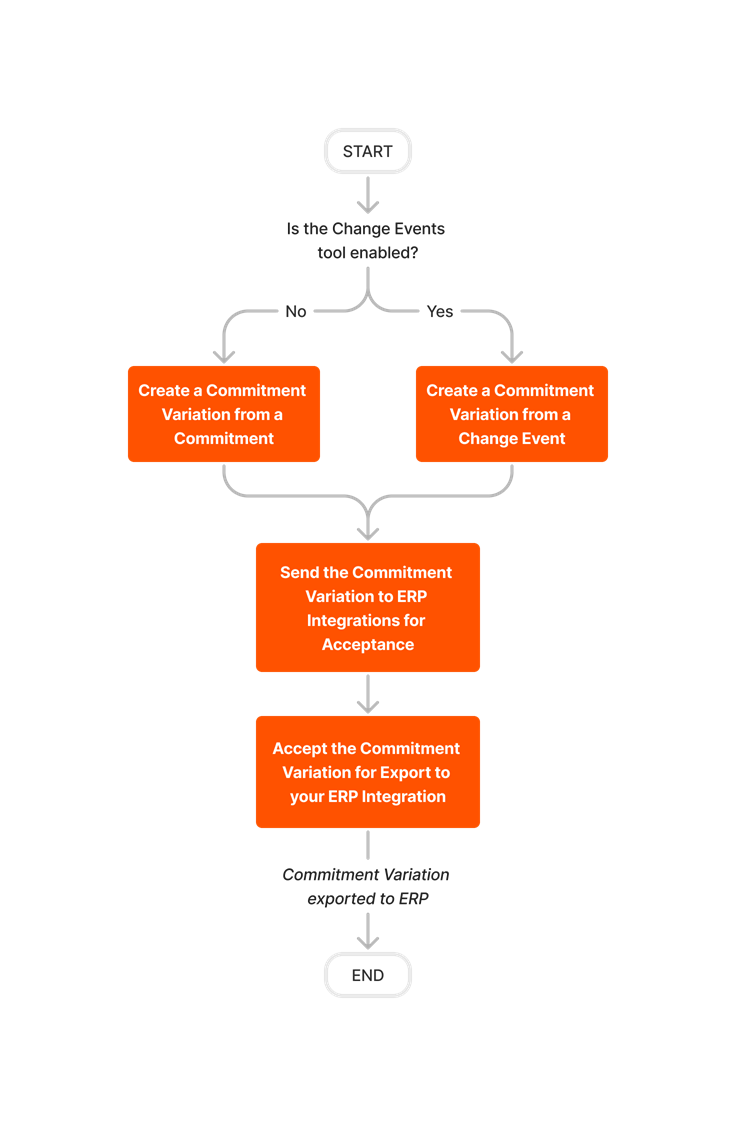
Follow the steps outlined below to create commitment variations (CVs) in Procore and then export them to Sage 100 Contractor®.Important! Variations can only be created from synced commitments.
Create and sync vendors
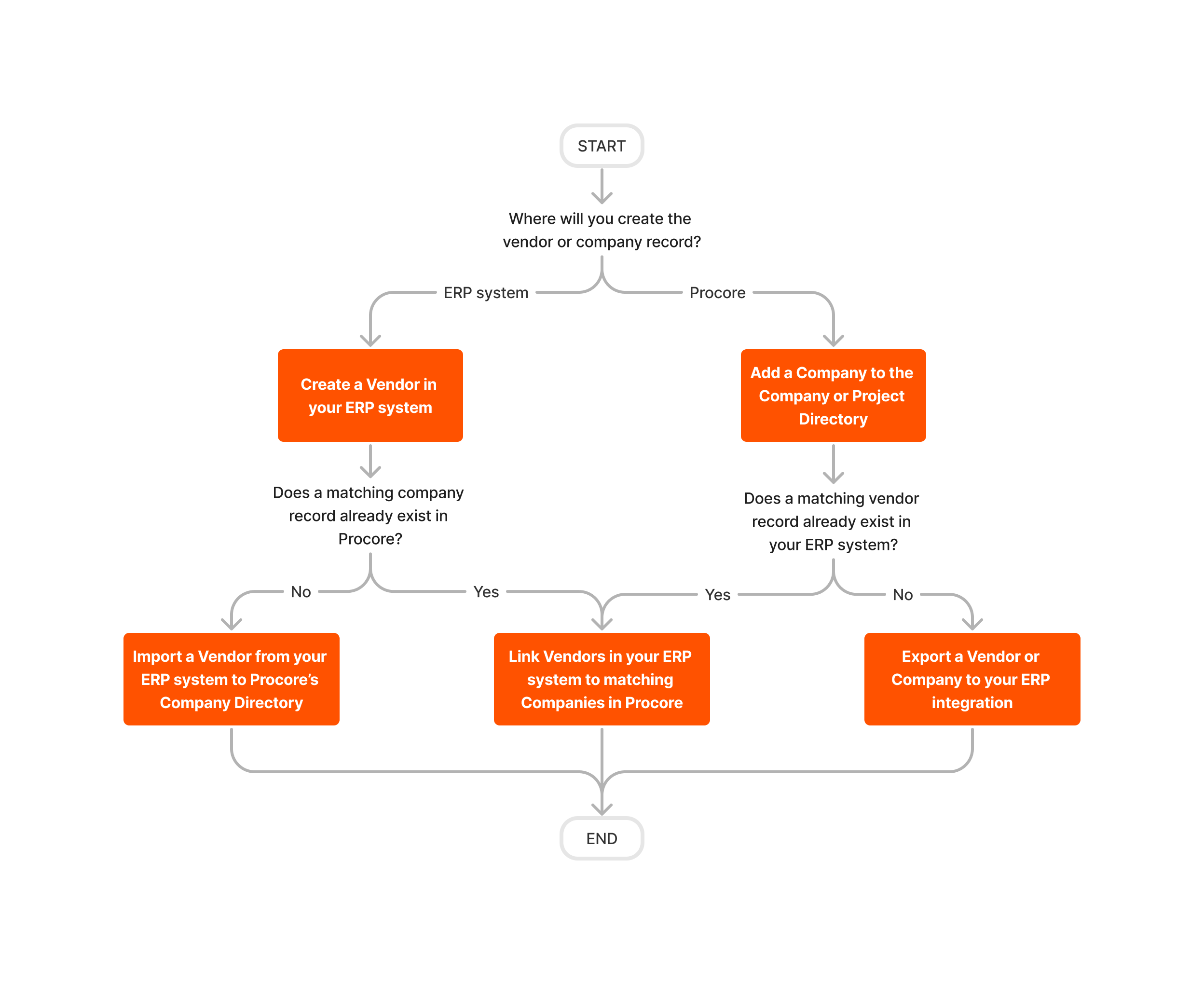
There are two different ways to sync vendor data between Procore and Sage 100 Contractor®.
Important! Vendors can be created in either Procore or Sage 100 Contractor®.
Export subcontractor payment applications