Add and Manage Subtasks for a Lookahead Programme
Background
A lookahead is a Snapshot of the master programme uploaded to Procore over a specified duration ranging from one to six weeks. The lookahead feature allows companies to manage programme tasks on the master programme in greater detail. You can use a lookahead to create subtasks, add notes to existing programme tasks and edit programme tasks. In addition, programme tasks and lookahead subtasks will carry over to each lookahead created if the dates overlap with one another.
Things to Consider
Required User Permissions:
To add and manage subtasks for a lookahead programme:
You need one of the following:
'admin' permission on the project's Programme tool.
'Read Only' or 'Standard' level permissions on the Programme tool with the following granular permission enabled on your permissions template:
Delete Lookaheads
Create lookahead task
Delete lookahead tasks
Update lookahead tasks
Additional Information:
Edits and changes made on a lookahead will not reflect on the master programme.
Prerequisites:
To manage subtasks on a lookahead you must have already created a lookahead on the project's Programme tool.
Manage lookahead tasks
Users can manage an individual task on a lookahead by its day-to-day progress and status. Tasks can be managed with the following options:
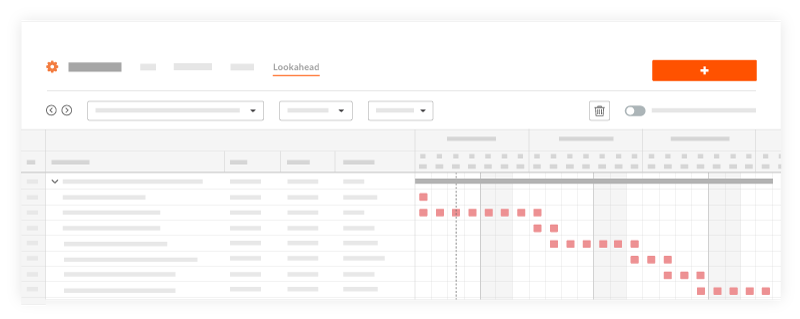
Critical and Standard subtasks are inherited directly from the parent programme task that has been uploaded to project's Programme tool. Critical task are identified by a red box and standard task are identified by a blue box. User cannot designate a subtask as critical or noncritical on a lookahead and the colours of the boxes can't be modified.
Critical: To mark a task as Critical on a lookahead, click the day and date box one time and a light red box will appear.
Notes: Click the day and date box for each day a task will be performed. A red box denotes a task is critical.Critical complete: To mark a critical task as complete, click the light red box a second time and the critical task turns dark red.
Standard: To mark a task as standard on a lookahead, click day and date once and a light blue box will appear.
Notes: Click the day and date box for each day a task will be performed. A blue box denotes a task is non-critical.Standard complete: To mark a standard task as complete, click the light blue box a second time and the standard task turns dark blue.
The following actions are also available:
Delete a lookahead programme
Create a subtask
Edit a task
Delete a task
Delete a lookahead
Click the delete trash
 icon to delete a lookahead.

Note: Deleting a lookahead will not impact the master programme or other lookaheads where dates overlap.
Create a subtask
Navigate to the project's Programme tool.
Click the Lookaheads tab.
Select the lookahead you want to add a subtask to.
Click the plus icon in the Notes column of programme task you want to add a subtask to and the Create subtask menu will appear.
Note: Click Add another subtask to create another subtask.Fill in the Create subtask menu.
Note: Any data from the 'Resource', 'company' and 'assignee' fields in the main task is added automatically in the Create subtask menu but can be edited as necessary.Click Create.
The subtask will appear on the lookahead as under the main task.
Note: You can add multiple subtasks.
Edit a task
Navigate to the project's Programme tool.
Click the Lookaheads tab.
Select the lookahead task you want to edit.
In the Notes column of the task you want to edit, click the Edit task
 icon.

Fill in the Edit task menu.
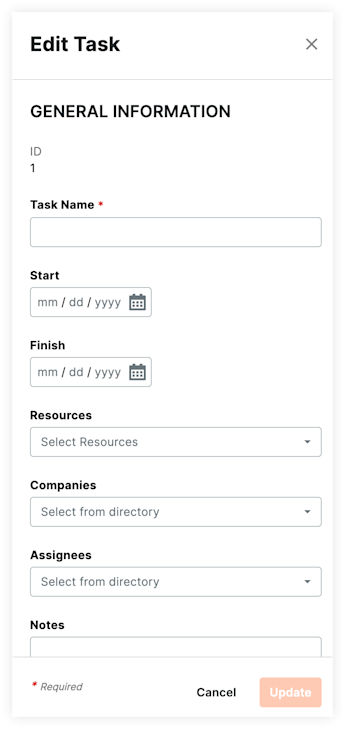
Click Update.
Delete a task
Navigate to the project's Programme tool.
Click the Lookaheads tab.
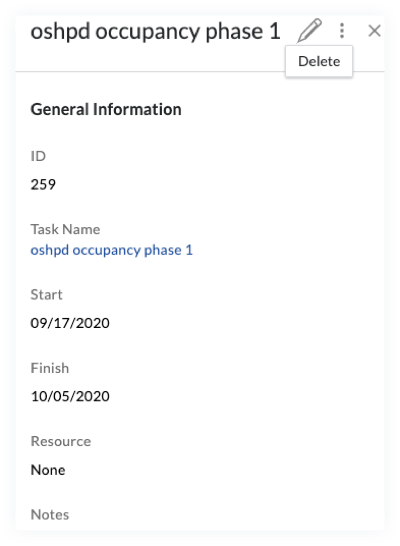
Hover over the lookahead and click the task info
 icon.

Click the vertical ellipsis
 on the task menu and click Delete.
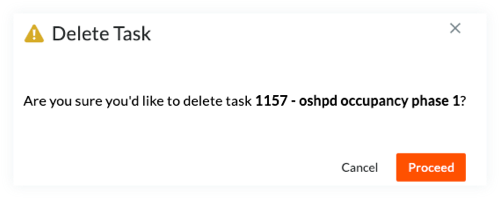
On the Delete task window, click Proceed to delete the task from the lookahead.