Submittal builder: Add submittals
Things to Consider
To increase accuracy of submittal automatically generated from your specification book, make sure all submittal related to this spec section appear under a header that contains the English word, 'submittal'.
Prerequisites
Generate submittals from specifications
An AI-powered submittal builder is available in English to Enhanced and Premier Procore accounts in the United States, Canada and Australia.
Steps
Navigate to the project's Specifications tool.
Click Items to review.
Hover over the item you want to create and click
 Review.
Note: If you don't see the submittal item in the 'Items to review' window at the bottom of your screen, you may need to generate the submittal first. Or, the item was already reviewed or deleted.
Highlight to create submittals

Click the open
 icon to open the specification section from the submittal builder.

Click and drag your cursor over the text that you want to be in the submittal's description.
Enter the title of the submittal.
Verify the Type and Description of the submittal.
Click Add.
Note: This will add the submittal to the submittal Builder and you will need to click Confirm in the submittal Builder before the submittal is created in the submittal tool. You can add as many submittal per section as you need.Follow these steps to add submittal line items:
Click the specification section under which you want to add submittal.
Click Add.
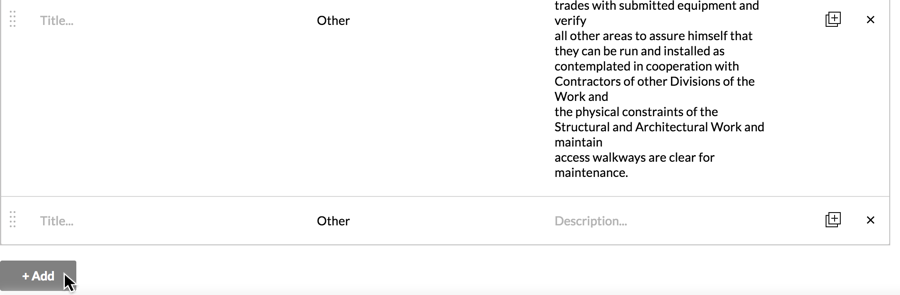
Enter in the title, type and description of the submittal.
Click Confirm in the submittal builder.

Next Steps
Use bulk actions > Edit in the Submittal tool to fill in remaining information on your submittal.
See Also
Loading related articles...