Configure advanced settings: Daywork sheets
Background
Configure the Daywork Sheets tool’s settings to enable daywork sheet sections, build a default distribution list and choose which users receive automatic email notifications when work is completed.
Things to Consider
Users must be added to your project's Directory to add them to a distribution list. See Add a user account to the Project Directory.
Procore automatically email customer signees a copy of their signed ticket for their records. This receipt remains active regardless of your email setting.
Steps
Configure daywork settings
Configure the change events export options
Configure the Daywork settings
Navigate to the daywork sheets tool.
Click the Configure settings
 icon.
Click the Default distribution drop-down menu and select the people you want to receive email notifications.
Under the Daywork emails section, mark the tickboxes to specify who receives notifications based on the daywork sheet action and task.
Actions:
Daywork sheet created. Send when a new daywork sheet is added or created.
Note: Updates to existing tickets do not trigger an email notification.Signed by company. Send when a company signee submits a signature.
Daywork sheet signed by customer. Send when a customer signs a daywork sheet.
Closed: Send when a daywork sheet has been closed.
Recipients:
Creator. Send to the user who created the daywork sheet.
Company signee. Send to the user designated as the 'company signee' on the ticket.
Customer signee. Send to the email address associated with the user designated as the 'Customer Signee' on the ticket.
Distribution group. Send to all users who have been added to the 'default distribution'.
Status:
In progress: Indicates a new daywork sheet has been created.
Ready for review: Indicates a daywork sheet has been signed by a company and is ready for review.
Field verified: Indicates a daywork sheet has been signed by a customer.
Closed: Indicates a daywork sheet has been closed.
Click Update.
Configure the change events export options
Click the Change event export options tab.
NoteThis tab is only visible and available when the change event tool is active on the project.
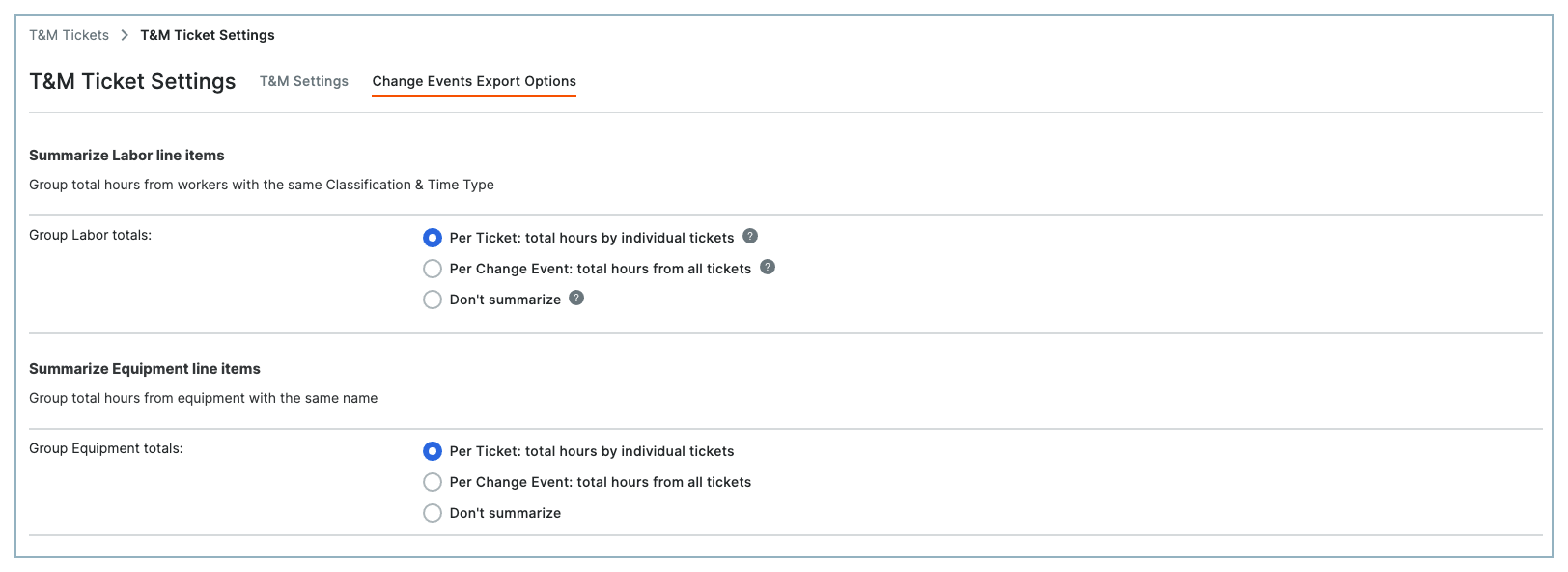
Under the Summarise labour line item section, choose one of the Group labour totals options:
Per ticket: Total hours by individual tickets to summarise the employee hour entries on each daywork sheet and list total hours by classification and time type.
Per change event: Total hours from all tickets to summarise total hours per employee entry from each daywork sheet added to a change event.
Don't summarise to list total labour hours on all tickets with no summarisation.
Under the Summarise equipment line items section, choose one of the Group equipment totals options:
Per ticket: Total hours by individual tickets to summarise the total hours per Equipment entry from each daywork sheet added to a change event.
Per change event: Total hours from all tickets to summarise total hours per Equipment from each daywork sheet added to a change event.
Don't Summarise to list total Equipment hours on all tickets with no summarisation.
Click Update.