Add items to a transmittal
Things to Consider
Additional Information:
If you want to attach a PDF or other document attachment to a transmittal, you can do so when you select one of the following from the Format drop-down list under item: Documents, Plans, Prints, Samples or Shop Drawings.
Prerequisites
Complete the steps in Create a transmittal.
Background
The Transmittal tool lets you keep a record of project information that has been sent to others via fax and shipping. When you create and send a transmittal, all of the transmittal information is captured and stored with your Procore project, including the names of the sender, recipient and relevant dates. For example, perhaps a user's email system is down and the only way to send an official response is via fax or a phone call. In such cases, transmittal can be used to properly keep track of these Correspondence inside of Procore for historical record and audit purposes.
Steps
In the new transmittal page, scroll down to the items area.
Select an item from the Format drop-down list.
Notes:You can add multiple items to a transmittal.
When adding item to a transmittal, the system lets you attach multiple files at once for these formats: Documents, Plans, Prints, Samples and Shop Drawings. See How do I attach multiple files at once to a transmittal?
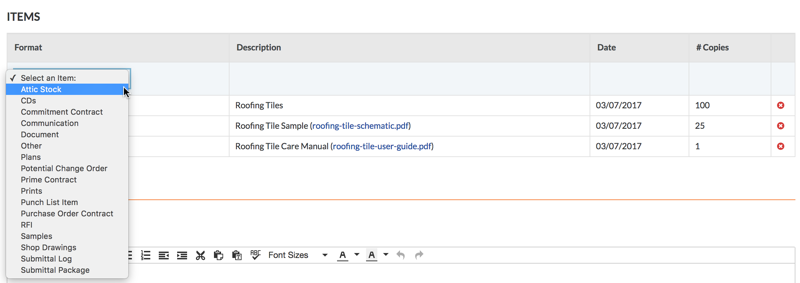 Depending on the Procore tools that are enabled in your environment, you may have these options:
Attic Stock: Select this option to create a transmittal for any Attic Stock Then enter a description, select a date from the calendar and enter the number of copies.
CDs: Select this option to create a transmittal for a compact disc. Then enter a description, select a date from the calendar and enter the number of copies.
Commitment contract: Select this option to create a transmittal for subcontract (see Create a subcontract). Next, select a subcontract from the description list, the date of the subcontract is captured automatically and then enter a number of copies.
Communication: Select this option to create a transmittal for an email message in the project's Email tool.
Document: When you select this option, the system prompts you to select a document from the project's Documents tool.
Plans: Select this option to create a transmittal for any construction plans. Then enter a description, attach any files to the item, select a date from the calendar and enter a number of copies.
Potential variation: When you select this option, the system prompts you to select a potential variation from the project's main contract tool.
Main contract: When you select this option, the system prompts you to select a contract line item from the project's Main Contracts tool.
Prints: Select this option to create a transmittal for prints. Next, enter a description of the print(s), attach a file of the print, select a date from the calendar and enter a number of copies.
Snag list item: When you select this option, the system prompts you to select a snag list item from the project's Snag List tool.
Purchase order contract: Select this option to create a transmittal for a purchase order (see Create a purchase order). Then select a purchase order from the description list, the system sets the date automatically and enter a number of copies.
RFI: When you select this option, the system prompts you to select an RFI from the project's RFIs tool.
Samples: Select this option to create a transmittal for a sample. Then type a description of the sample, attach a file to the item, select a date from the calendar and enter a number of copies.
Shop drawings: Select this option to create a transmittal for shop drawing. Then type a description of the shop drawing, attach a file to the item, select a date from the calendar and enter a number of copies.
Submittal log: Select this option to create a transmittal for a submittal. Then select a submittal from the description list and specify the number of copies.
Submittal package: When you select this option, the system prompts you to select a submittal package from the project's submittal tool.
Click Add.
Note: If you attached multiple files to the transmittal, each file is added as a separate line item.Repeat the steps above to add additional line items.
The illustration below shows you an example of a completed items area.
Note: The system does NOT permit you to edit existing items. If you need to correct an item, click the RED 'x' to delete it. Then add the item again.
Continue with Add comments to the transmittal.
See Also
Loading related articles...