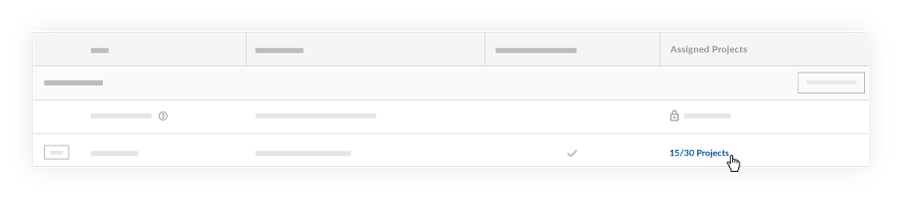

Remove Configurable Fieldsets from Projects
Fondo
Un conjunto de campos configurables es un grupo de campos en ciertas herramientas de Procore que se pueden configurar como opcionales, obligatorios u ocultos, según las necesidades de su compañía. Esto permite un mejor control sobre el ingreso de datos cuando los usuarios crean y editan ítems en proyectos de Procore.
Consulte ¿Qué son los conjuntos de campos configurables y qué herramientas de Procore los admiten?
Si se aplicaron previamente conjuntos de campos configurables a un proyecto, puede optar por eliminar las configuraciones personalizadas de ese proyecto. Después de anular la selección de un proyecto, los conjuntos de campos volverán a los conjuntos de campos predeterminados de Procore.
Si desea eliminar un conjunto de campos configurables, consulte Eliminar conjuntos de campos configurables.
Things to Consider
Required User Permissions:
'Admin' level permissions on the Company level Admin tool.
Additional Information:
After a project has been deselected from the 'Assigned Projects' window, the fieldsets will return to Procore's default fieldsets.
Configurable fieldsets applied to projects will be reflected on both Procore's web and mobile applications.
Prerrequisitos
See Create New Configurable Fieldsets OR click here to view the steps.
Navigate to the Company level Admin tool.
Under 'Tool Settings', click the tool you want to create configurable fieldsets for.
Click the Fieldsets tab.
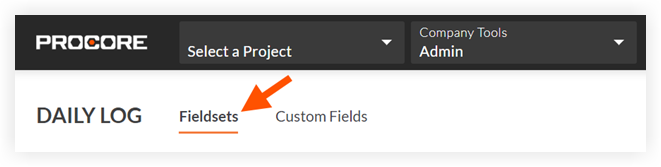
Note: Tools without other settings in the Company level Admin tool will open to this page automatically.Click Create Fieldset and if required, select the fieldset type.
Enter a name for the fieldset, then click Create.
On the 'Edit Fieldset' page, each field name has the following options:
Do one of the following:
Click the toggle to the ON
 position to make the field visible in the section.
 Click the toggle to the OFF
 position to hide the field in the section.
Note: A faded toggle icon indicates that the field is visible and cannot be changed to hidden.
Do one of the following:
Mark the 'Required' checkbox to designate the field as required.
Clear the 'Required' checkbox to designate the field as optional. Notes:
Optional: If available, click Create Section to create a new section. See Create Custom Sections.
Click Save.
In the 'Apply changes to [#] project(s)?' window, click Assign Projects to add the fieldset to projects.
In the 'Assign Projects' window, mark the checkbox next to each project you want to apply the fieldset to and click Update.
In the 'Apply changes to [#] project(s)?' window, click Confirm.
Optional: To set a fieldset as the default for new projects, click the
 icon at the end of its row on the 'Fieldsets' tab and select Set as New Project Default.
 Note
Projects created from a project template that includes fieldsets will inherit the fieldsets from the project template instead of your company's default fieldsets. See Configure a Project Template.