Este sitio web aún no se ha lanzado completamente en tu configuración regional preferida
La única página disponible en tu configuración regional preferida del sitio de soporte V2 es la página de la biblioteca de videos. El lanzamiento completo del sitio web llegará pronto.
¿Buscas otro contenido? Vuelve al sitio de soporte V1.
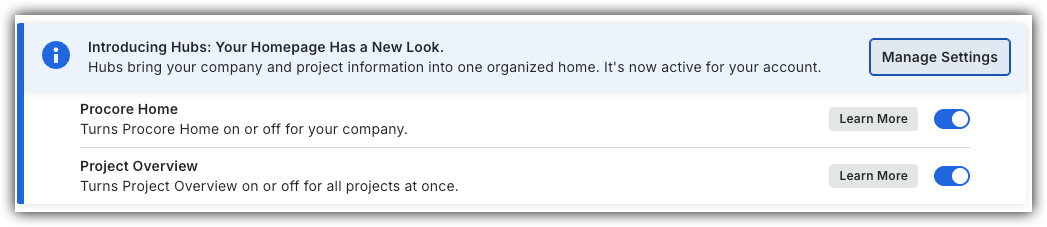
Company Administrators can switch between the new Procore Home and legacy Company Portfolio by following the below steps:
Open the Procore Home or Company Portfolio tool.
Locate the Introducing Hubs banner.
Select Manage Settings on the banner.
Toggle Procore HomeON or OFFto switch between the new view and the legacy view.
However, later this year Company Portfolio will be sunset and will no longer be available.
Background
Use project templates to set up new projects quickly. By copying preferences and file structures from previous projects, templates ensure every new project starts with your preferred default settings.
To create a project template, contact Procore Support or your Procore point of contact to have a team member mark the project as a template for you.
You may create an unlimited number of project templates.
You can modify existing templates. However, modifications only apply to new projects.
For companies using theERP Integrations tool: If you will be importing a job from an integrated ERP system to add to Procore as a new project, you will need to select the project template to apply to your new Procore project. For details, visit Things to Know About Your ERP Integration.
Steps
Request to Enable a Project as a Template in Procore
Confirm that Your Project Template is Active
1. Request to Enable a Project as a Template in Procore
Send a request to your Procore point of contact or contact Support asking them to convert a project to a template. You can use an existing project in your company's account, or you can create a new one. Include the following details in your request:
Project Name and Number
Navigate to the Procore Home tool.
Locate the desired project in the Projects list.
Project ID
Open the project in Procore.
In your browser's URL, the Project ID is the number before /project/. Note: For some tools, the Project ID is the number after '/projects/' in your browser's URL.
Example: In the examples below, the bolded numbers indicate the project ID.
If you are still unsure about your project ID, include the project's full URL in your request.
2. Confirm that Your Project Template is Active
Take the following actions after your Procore point of contact confirms that your template has been created.
Navigate to the company's Procore Home tool.
Click Create Project.
Click the Template drop-down list. The template will appear in the list.
Note: Company Admin can take additional action—including setting a default template—in the project template area of the Company Admin tool.
What carries over from a project template?
The following table shows which settings and data transfer from a template to your new project.
Tool
Carries Over
Does NOT Carry Over
Action Plans
Configurar ajustes
Configuración de notificaciones
Las plantillas a nivel compañía están disponibles automáticamente en todos los proyectos en los que está habilitada la herramienta Planes de acción
Plan Manager
Action Plan Approvers
Completed Action Plan Receivers
Admin (Company Level)
Programas
Lista de programas
Conjuntos de campos
Conjuntos de campos asignados al proyecto de plantilla
Company Settings
Webhooks
Company level webhooks Note:Project level webhooks DO copy over
Admin (Project Level)
Configuración del proyecto
General
Información del proyecto
Método de entrega
Etapa del proyecto
Tipo de proyecto
Logotipo
Foto
Ubicación del proyecto
País
Zona horaria
Dirección
Ciudad
Estado
código postal
Teléfono
Fax
Integraciones de ERP Nota: Esta configuración solo está disponible para cuentas con una integración de ERP creada por Procore.
Permitir que el proyecto se sincronice con ERP
Habilitar la sincronización de transacciones de costos de trabajo de ERP Nota: 'Permitir que el proyecto se sincronice con ERP' también debe estar habilitado para permitir que 'Habilitar sincronización de transacciones de costos de trabajo' se transfiera.
Avanzado
Departamentos
Programa
Bandera
Región
Tipo de oferta
Tipo de propietario
Proyecto principal
Fechas de inicio y finalización de la garantía
Habilitar DocuSign* para evitar la sobrefacturación en este proyecto
Costos sin contrato
Productividad laboral para presupuesto, eventos extraordinarios y órdenes de cambio
Cliente de Quickbooks
Crear múltiples PCI
Crear órdenes de cambio de propietario
Herramientas activas
Herramientas marcadas como activas
Nota: La configuración de la herramienta Equipo NO se transfiere y está inactiva de forma predeterminada.
Estructura de desglose del trabajo
Los ítems de segmento predeterminados de "Tipo de costo" de Procore y todos los ítems de segmento de tipo de costo personalizados.
Cualquier ítem de segmento personalizado agregado a la plantilla del proyecto.
La configuración ON/OFF que incluye y excluye "Segmentos" en la estructura del código de presupuesto.
La estructura del código de presupuesto de la plantilla de proyecto y su disposición de segmentos en la plantilla.
Días laborables
Días laborables seleccionados
Ubicaciones
Permitir solo que se creen ubicaciones en el Administrador de ubicaciones
Webhooks
Webhooks a nivel proyecto, que incluyen:
Encabezado de autorización
Punto final de notificación Nota: Solo los Webhooks configurados en el espacio de nombres predeterminado de Procore se copian en los nuevos proyectos.
Equipamiento (heredado)
Lista de nombres de equipos
Configuración del proyecto
General
Información del proyecto
Nombre del proyecto
Número de proyecto
Valor total
Fecha de inicio
Fecha de finalización
Fecha de inicio real
Fecha de finalización proyectada
Sector del proyecto
Alcance del trabajo
Pies cuadrados
Descripción
Ubicación del proyecto
Condado
Latitud
Longitud
Avanzado
Idioma - País
Oficina
Herramientas activas
La herramienta Equipo está desactivada de forma predeterminada para todos los proyectos.
Estructura de desglose del trabajo
Códigos de costo
Subproyectos Nota: Cuando la configuración"Copiar los detalles del subproyecto WBS y del código de costo cuando se utilizan plantillas de proyecto" está habilitada, la información del subproyecto y del código de costo, junto con todos los demás detalles de WBS, se transfieren automáticamente a nuevos proyectos cuando se utilizan plantillas de proyecto.
Ubicaciones
Listas de ubicaciones por niveles
Clasificaciones
Selecciones de tablas de clasificaciones
Bidding
Configurar ajustes
Configuración de licitación
Todos los ajustes
Budget
Configure Settings
Budget Settings
Forecasting
Autocalculate Forecast to Complete by default
Enable Advanced Forecasting
Budget Changes
Require a Budget Change Adjustment to Change Event association
Require net zero Budget Change amounts
Allow budget changes to be billed on owner invoices
Presupuesto
Valores dentro del propio presupuesto
Vistas de presupuesto asignadas al proyecto de plantilla
Change Events
Configurar ajustes
Configuración de eventos extraordinarios
Sincronización de objetos
Mantener sincronizados los códigos de presupuesto en todas las partidas
Visualización de columnas
Mostrar monto estimado de los ingresos, último precio, último costo y más/menos de
Mostrar las columnas Unidad de medida (UOM), Cantidad de ingresos, Costo unitario de ingresos, Cantidad por unidad de monto estimado y Costo unitario de monto estimado
Accesorios
Copie los archivos adjuntos de las respuestas a RFQ a las OCP primarias
Copiar los archivos adjuntos de las respuestas a RFQ a los CO de contrato
ROM del presupuesto
ROM del presupuesto para dentro del alcance
ROM del presupuesto para fuera de alcance
ROM del presupuesto para el alcance por determinar
Cambios en el presupuesto
Evite cambios en el presupuesto y órdenes de cambio potenciales primarias en la misma partida de evento extraordinario
Predeterminar "Contrato primario (para estimaciones de sobreprecio)" para nuevos eventos extraordinarios
Change Orders
Configurar ajustes
Configuración de la orden de cambio
Mostrar partidas en PDF de órdenes de cambio de contrato primario
Mostrar partidas en PDF de órdenes de cambio de contrato
Comportamiento de Razón de Cambio
La configuración de la orden de cambio que se establece en una plantilla de proyecto se trasladará a nuevos proyectos basados en la plantilla. Puede elegir una configuración de orden de cambio de un solo nivel, de dos niveles o de tres niveles, tanto para el contrato primario como para el contrato. La configuración de los niveles de orden de cambio puede ser diferente entre el contrato primario y el contrato.
Commitments
Configurar ajustes
Configuraciones de contrato
Todas las opciones de configuración del contrato
Todas las configuraciones de contrato predeterminadas
Todas las configuraciones y selecciones de distribución predeterminadas
Subcontratos y órdenes de compra individuales
Información general
Título
Ejecutado
Retención predeterminada
Descripción
Partidas
Partidas, que incluyen:* Monto* Descripción
Individual Subcontracts and Purchase Orders
General information
Contract number (#)
Company
Attachments
Invoice Contacts
Access for Non-Admin Users
Status Note: All Commitments carry over to the new project with the status marked as 'Draft.'
Schedule of Values
Cost code assignment
Connection Manager
Configurar ajustes
Correos electrónicos de Connection Manager
Selección de notificaciones (Todos los usuarios o Usuarios específicos)
Conexiones descendentes
Configurar conexiones automáticamente
Correspondence
Configure Settings
For each Correspondence Type:
Enable Email Reminders for Overdue Items
Responses will be due number
Default Description
Email Settings
Configurar ajustes
Distribución predeterminada
Daily Log
Configurar ajustes
Todas las configuraciones se transfieren, excepto los ítems indicados en la columna "No se transfiere".
Configurar ajustes
Categorías de mano de obra
Distribución predeterminada
Registro diario
Entradas del registro diario
Directory
Directorio
Empresas
Usuarios, entre los que se incluyen:
Datos de usuario Nota: El rol de proyecto de un usuario es la única información de su perfil de directorio que no se transfiere.
Permisos
Si su plantilla de permisos asignada en la plantilla es global, se asignará en el nuevo proyecto
Si su plantilla de permisos asignada en la plantilla es específica del proyecto, la plantilla no se aplicará. En su lugar, los permisos de nivel de herramienta correlativos de la plantilla específica del proyecto se aplicarán a través de su lista de directorio. Nota: Los permisos granulares no están disponibles en los permisos administrados por directorio. Solo se pueden asignar en plantillas de permisos. Como práctica recomendada, utilice siempre plantillas de permisos para administrar los permisos de usuario.
Directorio
Asignación de roles de proyecto de los usuarios
Documents
Documentos
Estructura de carpetas
Todos los archivos de la herramienta Documentos (archivos raíz y archivos de carpetas)
Permisos
Permisos de carpeta o archivo
Document Management
Settings & Configurations
Permission Groups & Rule Configurations
Document Fieldsets, Attributes & Custom Fields
Naming Standards & Upload Requirements
Views & Collections
Shared Saved Collections & Saved Views
Workflows
Default Workflows & Originators
Settings & Configurations
Individual User Assignments
Notification Settings
Project-Specific Metadata Picklist Values
Views & Collections
Personal 'Just Me' Saved Views
Content & Data
Files, Documents & Placeholders
Drawings
Drawing Areas
Drawing Area Name
Drawing Area Description
Configurar ajustes
Configuración del registro de planos
Suscriptores del registro de planos
Número de Planos por Página
Permitir que los usuarios de nivel estándar eliminen anotaciones publicadas
Habilitar planos por área
Edit Drawing Sets
Editar disciplinas de planos
Connected Project
Administrative Email Recipients
Configuración de la abreviatura de disciplina
Abreviaturas
Nombres de disciplinas
Dibujos
Planos individuales cargados en la herramienta
Configurar ajustes
Configuración del registro de planos
Proyecto conectado* Proyecto upstream
Editar juegos de planos
Emails
Configurar ajustes
Configuración de correo electrónico
Ajustes de comunicación
Comunicaciones "privadas" por defecto
Configure Settings
Email Settings
Inbound email address
Default Distribution
Copy tags from another project
Estimating
Estimaciones
Todas las estimaciones y sus datos, excepto la columna Cantidad
Configurar ajustes
Unidades
Estimaciones
Valores de la columna Cantidad
Propuesta
Propuestas
Incidents
Configurar ajustes
Privado por defecto
Configure Settings
Default Distribution
Inspections
Configurar ajustes
Privado por defecto
Configurar notificaciones
Plantilla de inspecciones y datos relacionados
Configurar ajustes
Distribución predeterminada
Plantillas en la bandeja de reciclaje
Instructions
Configure Settings
Project Instruction Settings
Instructions Private by Default
Number Instructions by Type
Configurar ajustes
Configuración de instrucciones del proyecto
Distribución predeterminada
Tipos de instrucción
Tipo
Prefijo
Invoicing (without Procore Pay)
Configurar ajustes
Todos los ajustes
Facturación
Facturas individuales
Invoicing (with Procore Pay)
Configurar ajustes
Exenciones de primer nivel
¿Cuándo se deben solicitar las exenciones de primer nivel?
Exenciones de subnivel
Habilitar exenciones de subnivel
¿Cómo se deben recaudar las exenciones de subniveles en este proyecto?
Exigir exenciones incondicionales de todos los niveles secundarios antes de pagar la siguiente factura
Exigir una renuncia condicional o incondicional de cada subnivel antes de pagar la factura actual, y garantizar un conjunto completo de exenciones incondicionales antes de pagar la siguiente factura
Requerir exenciones incondicionales de todos los niveles secundarios antes de pagar la factura actual
Mostrar instrucciones personalizadas
Texto de instrucciones personalizado
Requerir la recopilación de información ampliada del subnivel para su uso en declaraciones juradas o declaraciones juradas de contratistas
Plantillas
Progreso condicional (si está habilitado)
Progreso incondicional (si está habilitado)
Condicional final (si está habilitado)
Final incondicional (si está habilitado)
Configure Settings
First-Tier Waivers
Enable conditional waivers
Enable unconditional waivers
Sub-Tier Waivers
Property Owner
Property owner
Meetings
Configurar ajustes
Todos los ajustes
Reuniones
Solo reuniones de padres
Reuniones
Reuniones de seguimiento
Observations
Configurar ajustes
General
Establecer nuevas Observaciones como privadas de forma predeterminada
Días laborables para completar la observación
Configurar ajustes
General
Distribución predeterminada
Plantillas
Plantillas de nivel de proyecto
Sin embargo, la configuración a nivel compañía de activo o inactivo se transfiere al proyecto.
Tipos
Tipos a nivel proyecto
Sin embargo, la configuración a nivel compañía de activo o inactivo se transfiere al proyecto.
Photos
Configurar ajustes
Todos los ajustes
Fotos
Álbumes
Orden de los álbumes
Photos
Individual photos
Prime Contracts
Configurar ajustes
Configuración del contrato
Todos los ajustes
Configuración de la factura de contrato
Todos los ajustes
Fuentes de financiación
Nombre
Descripción
Distribuciones predeterminadas
Contrato primario
Orden de cambio de contrato primario
Orden de Cambio Potencial de Contrato Primario
Contratos primarios
Información general
Ejecutado
Título
Retención predeterminada
Descripción
Partidas
Los datos de la pestaña Partidas (SOV) de la plantilla de proyectos se transfieren a los nuevos proyectos. Además, se transfieren los ajustes avanzados.
Project Home
Configure Settings
Show current weather conditions
Show today's schedule
Show project milestones
Project Home
Project links
Configurar ajustes
Configuración de inicio del proyecto
Mensaje de proyecto persistente
Notas públicas (visibles para los no administradores)
Fechas del proyecto
Fechas del proyecto
Inicio del proyecto
Equipo del proyecto
Punch List
Configurar ajustes
Configuración de la Punch List
Administrador de ítem punch predeterminado
Aprobador final predeterminado
Los ítems de punch list son privados de forma predeterminada
La Respuesta a un Ítem de Punch Vencerá*
Habilitar correos electrónicos vencidos para personas asignadas
Configurar correos electrónicos por rol
Tipos de ítems punch
Plantillas de Punch list
Nombre de la plantilla
Selección activa/inactiva
Configurar ajustes
Configuración de la Punch List
Lista de distribución predeterminada
Usuarios con permiso estándar que pueden actuar como administrador de ítems punch
Plantillas de Punch list
Administrador de ítem punch
Persona asignada predeterminada
Aprobador final predeterminado
Categorías personalizadas
RFIs
Configurar ajustes
Gerente de RFI
Selección de administrador de RFI
RFI privadas
Habilitar RFI privadas
RFI privadas por defecto
Respuestas de RFI
Días para responder preguntas de RFI
Mostrar solo respuestas oficiales a usuarios estándar y de solo lectura
Prefijos de número de RFI
Habilitar números RFI de prefijo por etapa numérica
Selección de la etapa
Prefijo
Correos electrónicos de RFI
Habilitar recordatorios por correo electrónico para RFI vencidas
Selecciones de matriz de configuración de correo electrónico
Revisión de RFI Beta
Habilitar revisiones de RFI
Configurar ajustes
Respuestas de RFI
Marcar las respuestas de las personas asignadas como requeridas de forma predeterminada
Campos personalizados
Campos personalizados 1 y 2
Correos electrónicos de RFI
Distribución predeterminada
Schedule
Configurar ajustes
General
Todos los ajustes
Gestión de archivos
Filtro de nombre del archivo
Configurar ajustes
Gestión de archivos
ID del proyecto (solo archivos Primavera P6)
Distribución de correo electrónico
Todos los ajustes
Specifications
Specification Areas
Specification Area Name
Specification Area Description
Configurar ajustes
Specifications Settings
Revision No. Ordering Scheme
Specifications Subscribers
Enable Specifications by Area
Edit Specification Divisions
Edit Specification Sets
Configurar ajustes
Todos los ajustes
Características técnicas
Archivos de especificaciones individuales cargados en la herramienta
Submittals
Configurar ajustes
General
Ajustes generales* Todos los ajustes
Correos electrónicos de submittals* Configuraciones de notificaciones por correo electrónico
Respuestas
Respuestas del flujo de trabajo
Plantillas de flujo de trabajo
Plantillas de flujo de trabajo
Configure Settings
General
Submittal Emails* Default Distribution
Tasks
Configurar ajustes
Establecer nuevas tareas como privadas de forma predeterminada
Días para completar ítems de tarea
Tareas
Ítems de tarea
Configurar ajustes
Distribución predeterminada
Timesheets
Configure Settings
Time Entry Settings
All settings
Lunch Tracking
All settings
Overtime Settings
All settings
Employee Location Tracking
Project Address (Populated from Project Admin Tool)
Enable Employee Location Tracking Note: Project address information, including street, city, and state, MUST be entered in the template's Admin tool for this setting to carry over.
T&M Tickets
Configurar ajustes
Ajustes de tiempo y materiales
Configuración del proyecto
Correos electrónicos de T&M
Todas las configuraciones}Nota: Se deben marcar una o más casillas de verificación en la matriz de configuración de correo electrónico para el grupo de distribución predeterminado para que los miembros del grupo de distribución se transfieran de la plantilla.
Configuración global (heredada del nivel de compañía)
Secciones de tickets de T&M
Todas las selecciones
Opciones de exportación de eventos extraordinarios
Resumir partidas de mano de obra
Totales de mano de obra del grupo
Resumir partidas de equipos*
Totales de equipos de grupo
Transmittals
Configurar ajustes
Transmittals privados por defecto
Configurar ajustes
Grupo de distribución
Workflows (Company level)
Assigned projects
All templates assigned to the project template will also be assigned to new projects created from that template.
Workflows (Project level)
Ajustes de configuración de la herramienta
Configuración del flujo de trabajo
Se transferirán las configuraciones de plantillas para los flujos de trabajo de todas las herramientas, incluidas las personas asignadas a los pasos, el administrador de flujo de trabajo y el grupo de distribución.
 or OFF
 to switch between the new view and the legacy view.
 ERP Integrations tool: If you will be importing a job from an integrated ERP system to add to Procore as a new project, you will need to select the project template to apply to your new Procore project. For details, visit