Create Daily Construction Report Entries
Fondo
The Daily Construction Report section allows you to track the total number of workers and hours worked for each vendor, company, and trade on a project. You can configure additional categories for workforce labor using the company-level Admin tool for use on projects. See How do I enable additional workforce labor types for the Daily Log? for more information.
Things to Consider
Required User Permissions:
To create entries: 'Standard' or 'Admin' level permissions on the project's Daily Log tool.
To create pending entries as a collaborator: 'Read Only' or 'Standard' permissions to the Daily Log tool with the 'Collaborator Entry Only' granular permission enabled on your permission template.
See Create Daily Log Entries as a Collaborator.
Additional Information:
Entries made by collaborators are marked as 'pending' until approved by an administrator.
There are additional workforce labor categories that can be added to the Daily Construction Report in the Daily Log tool. For example, Women, Veteran, Minority, First-Year Apprentice, Local (City), and Local (County). In order to track hours for these additional workforce labor types, these fields must first be configured in the Daily Log section of the company level Admin tool, and then applied to one or more projects. See How do I enable additional workforce labor types for the Daily Log?
Note: Once configured and applied, the Workforce Hours column with an Add Hours link is visible in the Daily Construction Report section.
Steps
Navigate to the project's Daily Log tool.
Scroll to the Daily Construction Report section.
You can also use the left navigation menu to quickly navigate to the Daily Construction Report section.To create an entry, add information to the fields.
Note: Click the caret icon > to expand and v to collapse the field names and their descriptions below.
Tip
Certain fields in the Daily Construction Report log can be configured as required, optional, or hidden in the company level Admin tool.
(Optional:) If additional 'Workforce Hours' fields have been configured in the company level Admin tool, the 'Add Hours' link is visible. 
Click the Add Hours link.
Enter the hours for each category you want to track hours for.
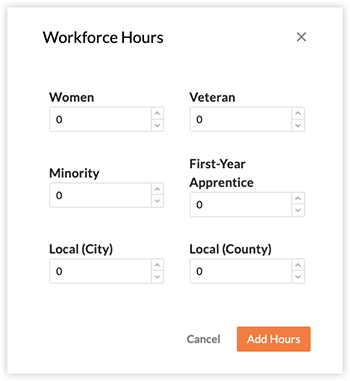
Click Add Hours to confirm.
Click Create.
The log entry is created or added.