Respond to a 'Welcome to Procore' Email
Background
If your employer or a company you do business with invites you to join their Procore organization as a user, you will receive an automated email message from the @procoretech.com domain with the 'Welcome to Procore' subject line. To respond to the email and join the Procore organization, follow the Steps below to log in to the Procore web application for the first time.
Things to Consider
Required User Permission:
To receive an invite to become a Procore user, a user with 'Admin' level permission to the Company Directory must do the following:
Additional Information:
After sending an invite, the system sends the person an automated "Welcome to Procore" email from the @procoretech.com domain.*
If you are a new Procore user, you will be prompted to create a password.
For security reasons, the Get Started link in the "Welcome to Procore" email and any follow-up invitations expire three days after the email is sent, or after a user clicks the link once.
If the recipient does NOT respond to an invite, the system sends follow-up invitations at one, three, seven, and fourteen days.
You can re-invite people who don't respond to your invites.
Examples
Welcome Email for a Company's Procore Account
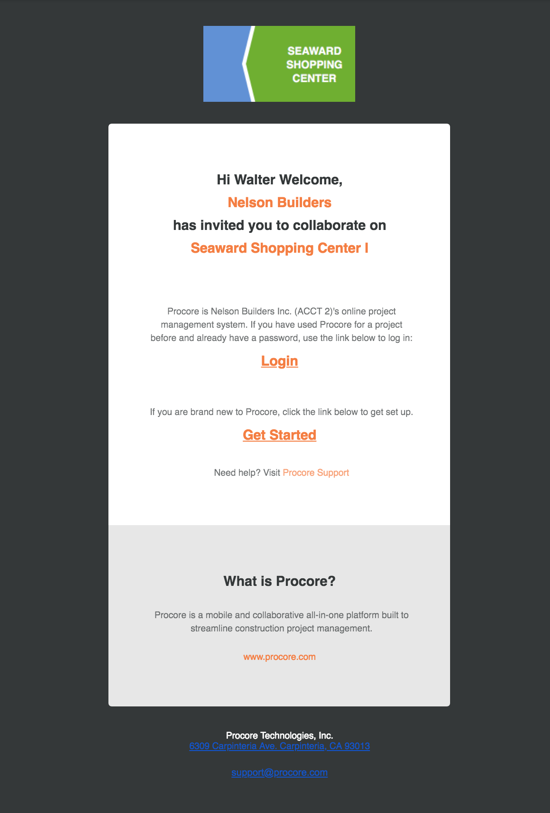
Welcome Email for a Company's Procore Project
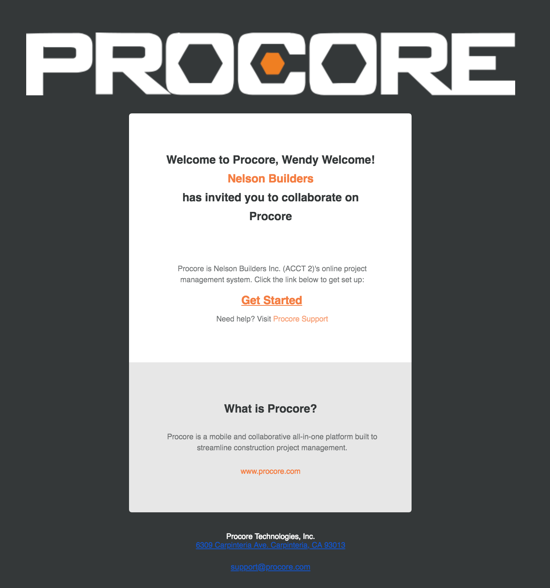
Welcome Email for a Company's Procore Account
The example below shows you what an invite to a company's Procore account looks like.
Welcome Email for a Company's Procore Project
The example below shows you what an invite looks like for a Procore project looks like.
Pasos
Abra el correo electrónico de bienvenida.
Si es nuevo en Procore, haga clic en Comenzar.
Nota: Si ha utilizado Procore para un proyecto en el pasado y ya tiene una contraseña, haga clic en Iniciar sesión. Luego, continúe con Cómo iniciar sesión en Procore Web (app.procore.com).Ingrese una contraseña en el campo Contraseña que cumpla con los siguientes requisitos:
Procore's Password Requirements:
Ocho (8) o más caracteres
Al menos una (1) letra mayúscula
Al menos una (1) letra minúscula
Al menos un (1) número
Al menos un (1) carácter especial (!@#$%^&*)
Las contraseñas deben coincidir
No puede reutilizar sus últimas cuatro (4) contraseñas
Ingrese la misma contraseña nuevamente en el campo Confirmar .
Si desea suscribirse al boletín de construcción de Procore y recibir información sobre las actualizaciones del producto, marque la casilla de verificación.
Haga clic en Establecer contraseña.
See Also
Loading related articles...