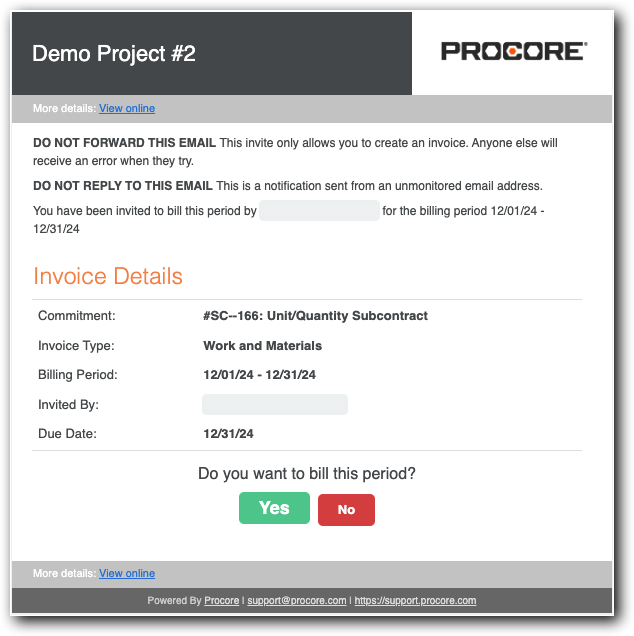
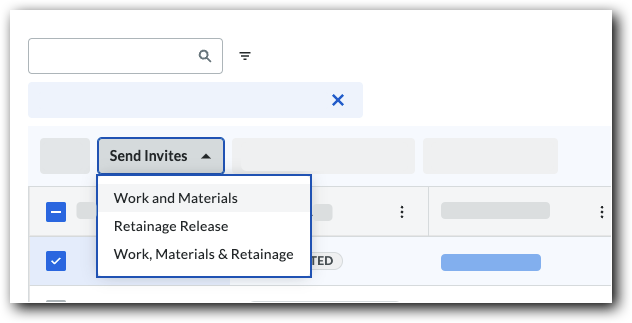
Send an 'Invite to Bill' to an Invoice Contact
Procore can be configured to use terminology specific to General Contractors, Owners, or Specialty Contractors. Learn how to apply the dictionary options.
To learn the differences: Show/Hide
This table shows the differences in tool names (bold) and terms across the point-of-view dictionaries for Project Financials.
Contratistas Generales
Inglés (Estados Unidos) - PredeterminadoPropietarios
Inglés (Terminología de propietario V2)Contratistas especializados
Inglés (terminología de contratistas especializados)Facturación
Facturación
Requisiciones de pago
Dueño
Financiación
Dueño
Propietario/Cliente
Propietario/Cliente
GC/Cliente
Orden de cambio de contrato primario
Orden de Cambio de Fondos
orden de cambio del contrato del cliente
Contratos primarios
Financiación
Contratos de cliente
Ingresos
Financiación
Ingresos
Subcontrato
Contrato
Subcontrato
Contratista
Contratista
Contratista
Partidas del contratista (SSOV)
Partidas del contratista (CSOV)
Partidas del contratista (SSOV)
About These Dictionaries
Default Setting: The 'General Contractor' dictionary is enabled by default for all accounts.
Availability: These alternate dictionaries in italics are available in US English only.
How to Switch Your Dictionary
To change your company's terminology to the Owner or Specialty Contractor dictionary, contact your company's
. They will work with your Procore Point of Contact to make the change.A Procore Administrator is a user who has 'Admin' level permissions on all of the Company level Tools in Procore. Granting a user ‘Admin’ level permissions in the Company level Directory tool automatically assigns that user ‘Admin’ permissions on all Company level tools. Also called a Company Administrator.