Add a Comment to an Observation (Android)
Things to Consider
Este activo o ítem se puede ver o editar en modo sin conexión si se vio y almacenó en caché previamente en su dispositivo móvil. Las tareas realizadas en modo fuera de línea se sincronizan con Procore una vez que se restablece la conexión de red.
Steps
Navigate to the Observations tool on your Android device.
Tap the observation to which you want to add a comment.
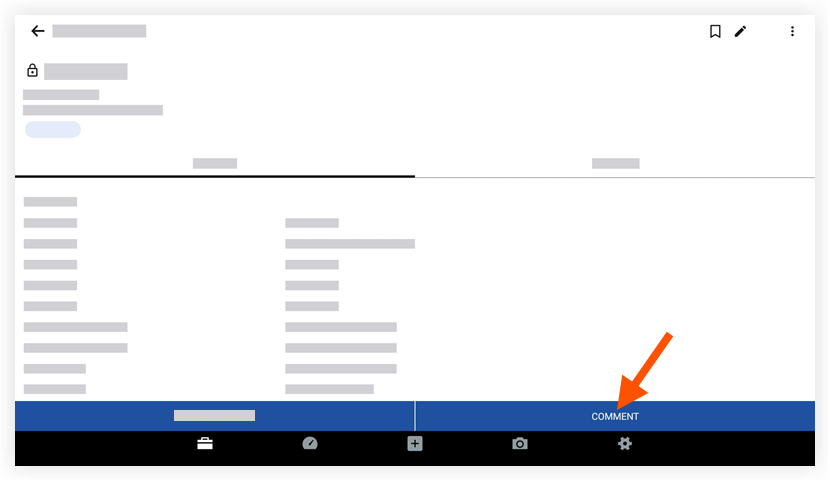
Tap Comment.
Optional: Tap Attachments to add optional files or photos from the following options:
Choose File:
Tap the more menu (≡) icon to select the location from which you would like to upload a file or photo.
Tap the file or photo(s) you would like to attach.
Choose from Procore: Tap to select an existing photo in Procore.
Tap the Procore album from which you want to add a photo.
Tap the photo you want to add.
Tap OK.
Camera: Tap to take a photo to add to the inspection.
Position your device's camera and tap the shutter release button to capture the photo.
Tap Next.
Optional: Tap the markup icon
 to access the markup tool bar and add shapes, lines, and text to the photo.
Tap Done.
Tap Save to post your comment.
Note: This action will automatically send an email to the creator and assignee of the observation to notify them of your comment.
See Also
Loading related articles...