Close an Observation (Android)
Background
Once you have been assigned an observation, you will get an email containing all the relevant details you will need to complete the work associated with resolving the issue. Once you have completed the work, you will log into Procore on a computer or mobile device to change the status to 'Ready for Review,' telling the creator that they can now review the completed work. This article details how to complete this action on an Android mobile device.
Things to Consider
Este activo o ítem se puede ver o editar en modo sin conexión si se vio y almacenó en caché previamente en su dispositivo móvil. Las tareas realizadas en modo fuera de línea se sincronizan con Procore una vez que se restablece la conexión de red.
Prerequisites
The status of the observation must be set to 'Ready for Review.'
Steps
When the ball is in your court on a observation, you will get an email notifying that you are required to respond.
Navigate to the Observations tool on your Android mobile device.
Tap the observation you want to close.
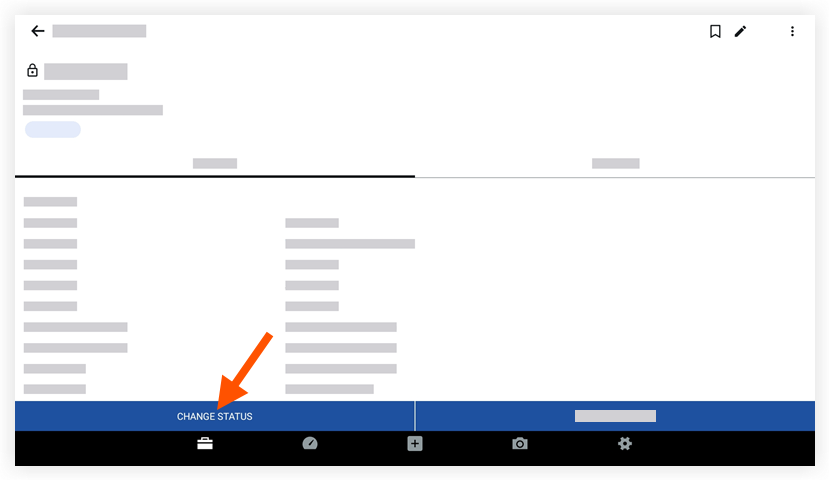
Tap Change Status to notify the observation's creator that the work has been accepted. Additionally, you can add a comment without changing the status to provide or request additional details. See Add a Comment to an Observation (Android).
Tap the 'Status' field to change the observation's status (e.g. Closed).
Tap the text box to add optional comments.
Tap Save to close the observation.
Note: This action will automatically send an email to responsible parties notifying them of your response.
See Also
Loading related articles...