Create Contract Documents & Statuses
Navigate to the project's Commitments tool.
In the Contracts tab, locate the commitment to work with.
Click the Number link to open it.
In the commitment, click the Compliance tab.
Scroll to the Contract Compliance Documents card.
Click Create New.
NotaEl botón Crear nuevo solo está visible y disponible para los usuarios con permisos de administrador de facturas en la herramienta Pedidos del proyecto.
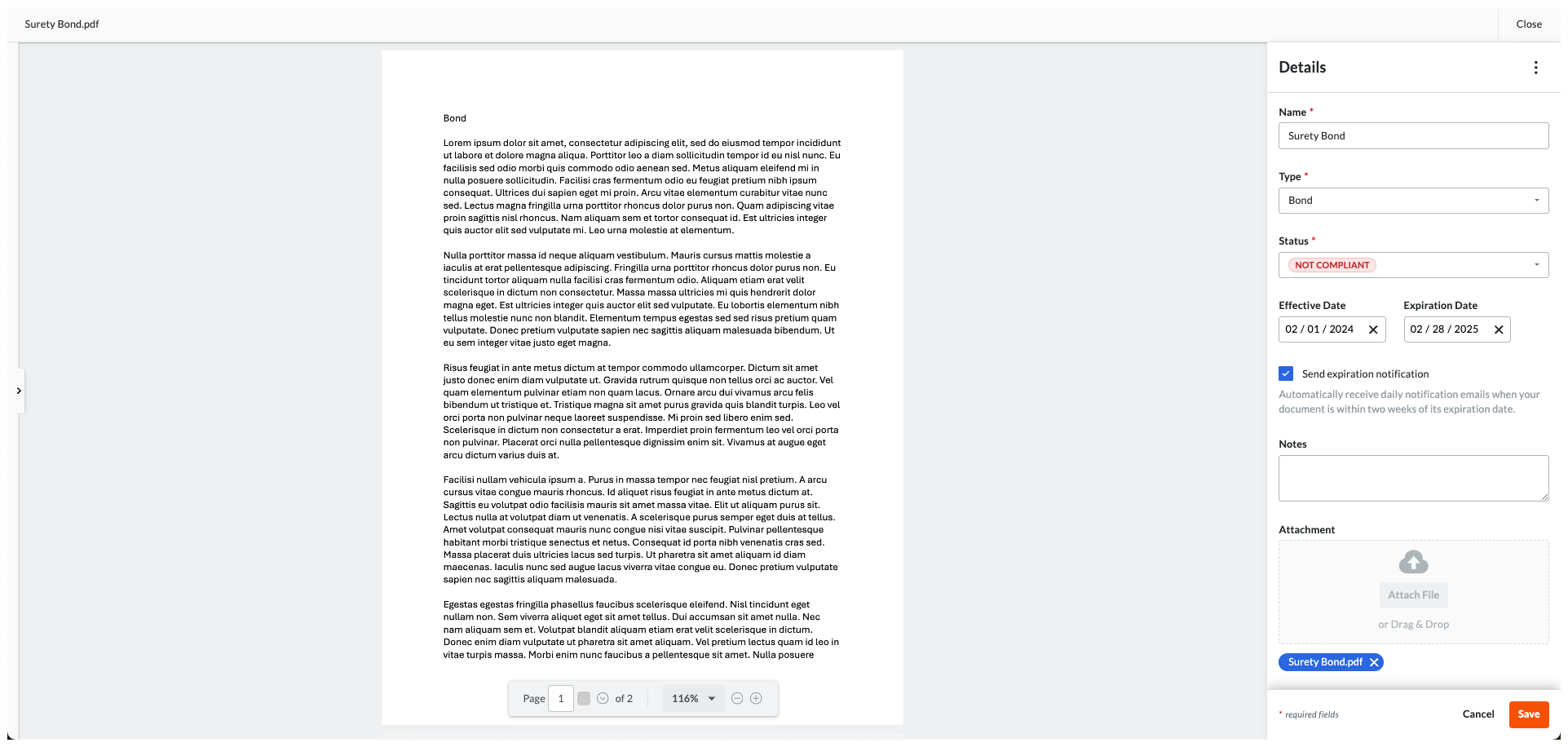
In the Details pane, enter:
Name. Type the name of the compliance requirement. For example, type: Surety Bond
Type. Select a requirement type from the drop-down list. The choices are Bond, License, Master Agreement, Permit, Safety, W-9, or Other.
Status. Choose a status for the requirement: Compliant or Not Compliant.
Effective Date. Select an effective date for the compliance requirement.
Expiration Date. Select an expiration date for the compliance requirement.
Send Expiration Notification. Mark this checkbox to send a daily email notification to the commitment's invoice contacts when the compliance requirement is within fourteen (14) days of the set 'Expiration Date'.
NotaPara detener la notificación por correo electrónico, cambie o elimine la fecha de vencimiento. Procore deja de enviar notificaciones sesenta (60) días después de que pase la fecha de vencimiento.
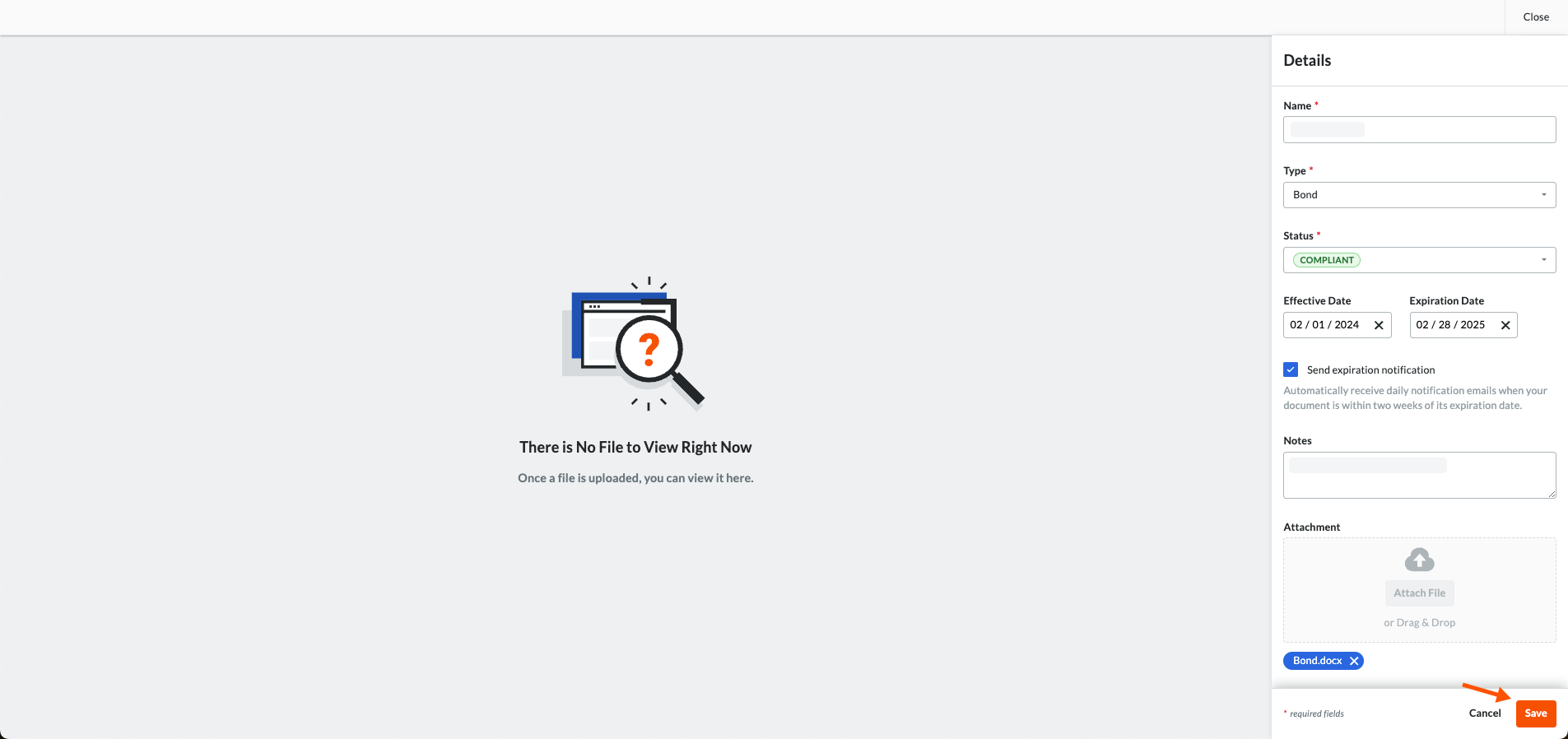 A GREEN success banner confirms that the contract compliance document has been added to the table. The add action is also noted in the Change History tab of the commitment.