Add Root Cause Analysis Fields
Background
In the Company level Admin tool, you can add custom values for Hazard, Contributing Condition, and Contributing Behavior fields. Once configured, team members can select these tailored values when creating an Observation or Incident. This allows your organization to align data collection with internal safety policies or specific regulatory compliance requirements.
Things to Consider
Additional Information
Changes made here will apply across all projects using these fields.
Steps
Navigate to the Company level Admin tool.
Under 'Company Settings' in the sidebar, click Root Cause Analysis.
Click the tab for the specific field you want to configure:
Hazards
Contributing Behaviors
Contributing Conditions
Click the +Add button.
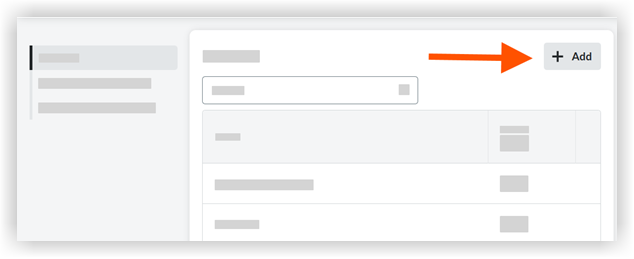
In the fields that appear:
Enter the name for the custom root cause.
Mark the checkbox to make the field Active (or uncheck it to keep it Inactive for now).
Click Create.
If marked active, these new selections will immediately be available as dropdown options in both the Observations and Incidents tools when users create a new record.

See Also
Loading related articles...