Configurar alertas y gravedad para Incidentes
Antecedentes
La configuración de la gravedad y las alertas para la herramienta Incidentes permite a los usuarios notificar automáticamente a las partes interesadas clave sobre los registros del incidente según el tipo de archivo del registro del incidente. Si bien estos ajustes se configuran en el nivel de empresa, la capacidad de un usuario para ver un incidente y los detalles del registro del incidente se basa en sus permisos para la herramienta Incidentes en cada proyecto de Procore.
Things to Consider
Required User Permissions:
To configure Severity, remove Alert Recipients, and manage Alert Types:
'Admin' level permissions on the Company level Admin tool.
To add Alert Recipients, you need both of the following:
'Admin' on the Company level Admin tool
'Read Only' level permissions or higher on the Company level Directory tool.
Steps
We recommend that you start with Configure Severity before you Configure Alerts. If your company has already configured severity settings for the Incidents tool, continue to Configure Alerts.
Configure Severity
General
Navigate to the Company level Admin tool.
Under 'Tool Settings', click Incidents.
Click the Severity tab.
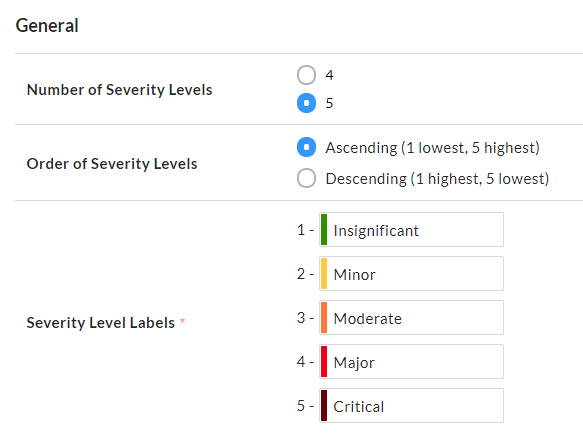
Under 'General', complete the following:
Number of Severity Levels: Choose between '4' and '5'.
Severity Level Labels: Enter a name for each color-coded level.
Order of Severity Levels: Choose between 'Ascending' (1 representing the lowest level and 5 representing the highest level) and 'Descending' (1 representing the highest level and 5 representing the lowest level).
Click Update.

Injury/Illness
Navigate to the Company level Admin tool.
Under 'Tool Settings', click Incidents.
Click the Severity tab.
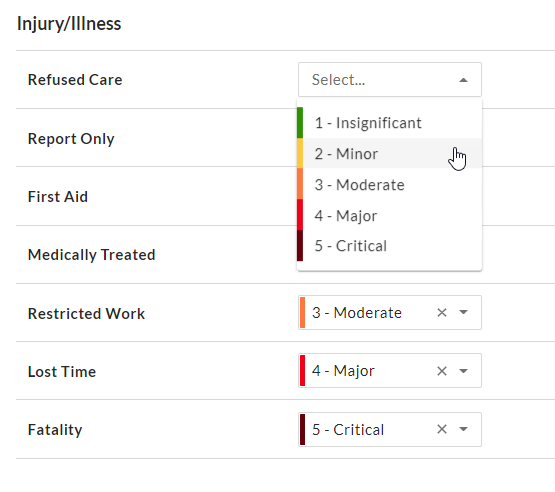
Under 'Injury/Illness', select a severity level for each filing type.
Click Update.

Configure Alerts
Alert Recipients
Cualquier usuario puede añadirse a una lista "Destinatarios de alertas" para recibir notificaciones push de alertas y correos electrónicos para los proyectos a los que está añadido, pero necesita permisos de nivel "Solo lectura" o superior en la herramienta Incidentes de un proyecto para ver el registro asociado. con la alerta.
Navigate to the Company level Admin tool.
Under 'Tool Settings', click Incidents.
Click the Alerts tab.
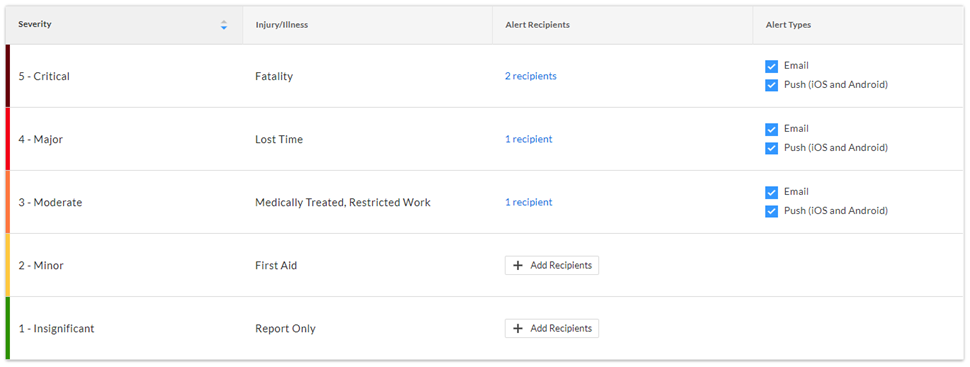
In the 'Alert Recipients' column, do one of the following:
Click +Add Recipients next to the severity level you want to configure alerts for.
Click (#) Recipients if the severity level already has one or more alert recipients.
Click the triangle icon in the 'Edit Alert Recipients' window to open the search bar.
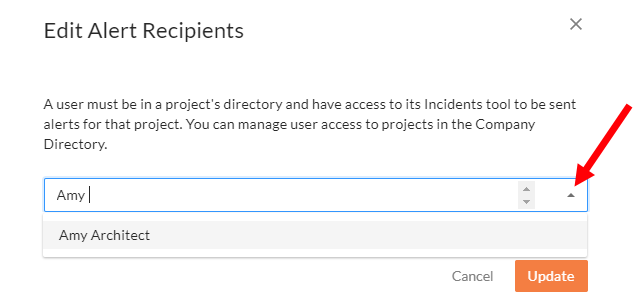
Enter the user's name you want to send alerts to and select their name. You can search by their first name or last name and suggested users display as you type.
Continue adding as many users as needed.
Click the X next to a user's name to remove them from the alert recipients list.
Press ESC on your keyboard to close the drop-down menu.
Click Update.


Alert Types
Navigate to the Company level Admin tool.
Under 'Tool Settings', click Incidents.
Click the Alerts tab.
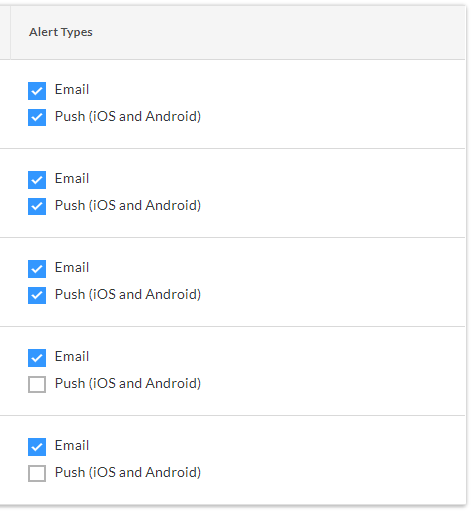
In the 'Alert Types' column next to the severity level you want to configure alerts for, select 'Email', 'Push (iOS and Android)', or both options. Note: Users can choose whether to enable push notifications from Procore on their devices. See Manage Project Settings (iOS) and Manage Project Settings (Android).