Configurar el inicio de sesión único en la herramienta Administrador de procore
Antecedentes
Soporte técnico de Procore inicio de sesión único iniciado por SP y Inicio de sesión único iniciado por proveedor de identidad con Okta, OneLogin y ID de Microsoft Entra. Ver ¿Cuál es la diferencia entre un inicio de sesión único iniciado por SP y un inicio de sesión único iniciado por proveedor de identidad? Procore también ofrece soporte técnico para el inicio de sesión único con otros proveedores de servicios que cumplen con Lenguaje de marcado de aserción de seguridad (SAML) 2.0 y SHA 256.
Term | SP-Initiated Context | IdP-Initiated Context |
|---|---|---|
Identity Provider (IdP) | Authenticates the user after receiving a request from Procore. | Authenticates the user directly within the IdP portal and initiates the session. |
Service Provider (SP) | Procore—initiates the login request and consumes the returned assertion. | Procore—receives and validates the unsolicited assertion from the IdP. |
Issuer URL (Entity ID) | Identifies Procore as the entity requesting authentication. | Identifies your IdP as the entity issuing the authentication assertion. |
Target URL | The IdP endpoint where Procore sends the SAML AuthnRequest. | The IdP app tile/launch URL that routes the user directly to Procore. |
SAML | Protocol used to pass requests to the IdP and assertions back to Procore. | Protocol used to push pre-generated authentication assertions directly to Procore. |
X.509 Certificate | Verifies signatures on both outgoing requests and incoming assertions. | Verifies the IdP's digital signature on the incoming authentication assertion. |
Temas a considerar
Permisos de usuario necesarios:
Permisos de nivel "Administrador" en la herramienta Administrador de nivel de empresa.
Información adicional:
Póngase en contacto con su proveedor de servicios de inicio de sesión único si necesita ayuda para localizar la URL del emisor, la URL de destino y el certificado x509.
requisitos
Configure la aplicación Procore en la solución o el software de inicio de sesión único de su proveedor de identidad.
Obtenga los ajustes de inicio de sesión único necesarios del software o la solución de inicio de sesión único de su proveedor de identidad.
Pasos
Vaya a la herramienta Administrador de procore.
En Ajustes de la empresa, haga clic en Configuración de inicio de sesión único.
Haga clic en Editar.
Obtenga la información de inicio de sesión del emisor: (p. ej., Okta, OneLogin, o ID de Microsoft Entra).
TipFor details about configuring SSO:
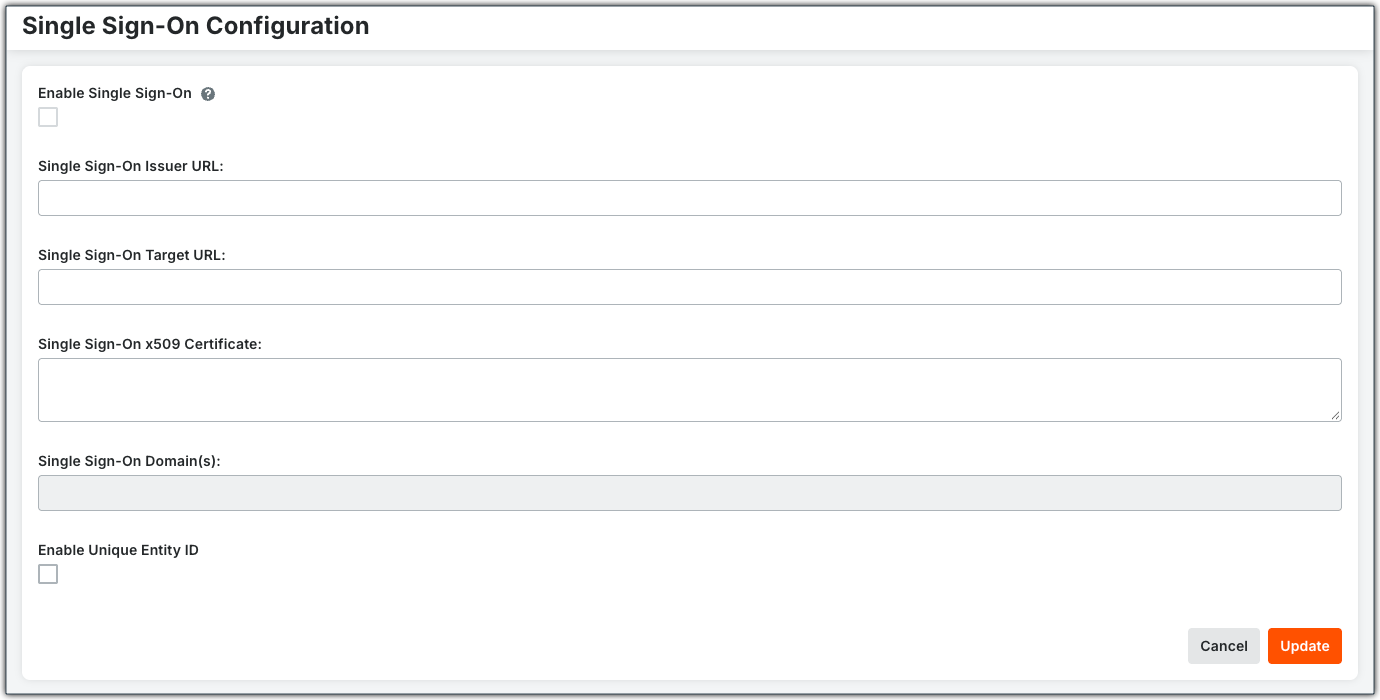
Introduzca la información de la siguiente manera:
URL de inicio de sesión único de emisor. Esto se conoce comúnmente como el emisor y es una URL única que identifica al proveedor que emite una solicitud Lenguaje de marcado de aserción de seguridad (SAML).
URL de destino de inicio de sesión único. Esta es la URL que recibirá las solicitudes de Lenguaje de marcado de aserción de seguridad (SAML) del proveedor.
Certificado x509 de inicio de sesión único. Esta es la información del certificado digital cifrado.
Tip: When to use 'Enable Unique Entity ID' in ProcoreSingle Instance: If your company only manages one (1) Procore company instance, clear the Enable Unique Entity ID check box.
Multiple Instances: If your company manages multiple Procore company instances and requires a dedicated enterprise application for each instance in your IdP, mark the Enable Unique Entity ID check box. Note that each Procore instance is still limited to one (1) enterprise application.
Important Requirements & Limitations:
Email Domain Rule: Procore targets SSO users by email domain. An email domain can only be mapped to one (1) Procore company instance across the entire platform.
Generating the URL: You must select the Enable Unique Entity ID check box on the SSO Configuration page in the Company Admin tool before the unique Single Sign On Entity ID URL will appear in Procore (the service provider). Once generated, copy and paste this URL into the IdP's Entity ID field.
Access & Provisioning: Enabling this check box does not alter company access. Access to a company instance in Procore is determined by a user's presence in the company's Directory tool and their configured tool permissions. Automated user provisioning is not currently supported.
