Este sitio web aún no se ha lanzado por completo en su idioma preferido
La única página operativa del Sitio de soporte técnico (versión 2) en su idioma preferido es la Videoteca. El sitio web completo estará disponible pronto.
¿Está buscando algún otro contenido? Vuelva al Sitio de soporte técnico (versión 1).
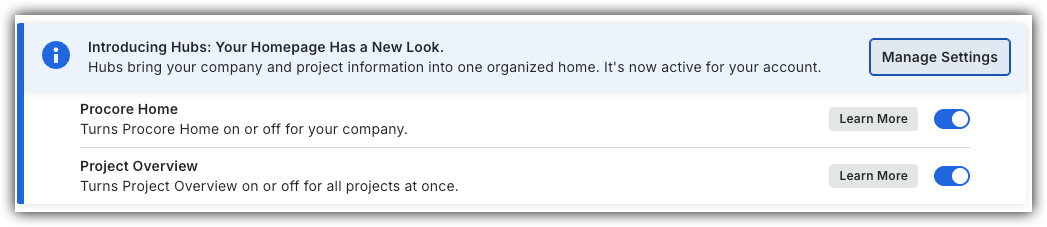
To return to the legacy Project Home, Company Administrators can navigate to the Company Portfolio / ProcoreHome tool, click Manage Settings and toggle Project OverviewOFF.
However, later this year it will be sunset and will no longer be available. If your company reverted to the legacy Project Home experience, Company Administrators can re-enable the Project Overview by switching Project Overview toggle ON.
Background
With the company's Admin tool, you can create a standardized list of project dates in your company's account. Then, when configuring a project's Home page, you can assign a calendar date to each 'Project Date'. These dates will then display on the 'Project Dates' area of the Project Home page. This feature keeps your project team members informed of important events and project targets.
Things to Consider
Required User Permissions:
'Admin' level permissions to the Project Home page.
 OFF.
OFF.
 ON.
ON. and select Edit Project Dates.
 icon.
icon.