Search for and Filter My Time Entries (Android)
Things to Consider
My Time entries on a mobile device will be logged as a time entry in the Daily Log, Company Timecard, and if Timesheets is enabled, Project and Company Timesheets tools.
Este activo o elemento se puede ver o editar en modo sin conexión si se ha visto y almacenado en caché en un dispositivo móvil. Las Tareas realizadas en modo sin conexión se sincronizan con Procore una vez que se restablece la conexión de red.
Prerequisites
To see My Time as an option on your project, you must be marked as an employee of your company. See How do I add someone as an employee of my company?
Steps
Search for My Time Entries
Navigate to the My Time tool on your Android mobile device.
Tap the Search
 icon.
icon.
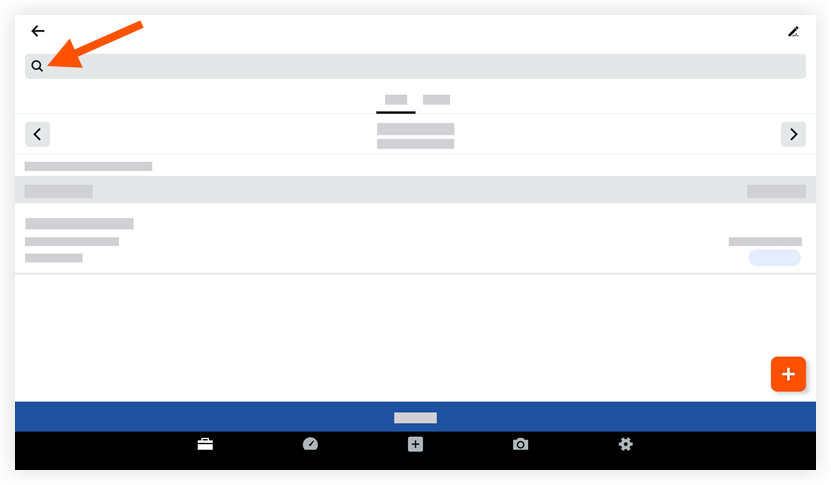
Type a keyword or phrase into the search bar that matches the description of the My Time item for which you are searching.
Tap an item to view more details.
Filter My Time Entries
Navigate to the My Time tool on your Android mobile device.
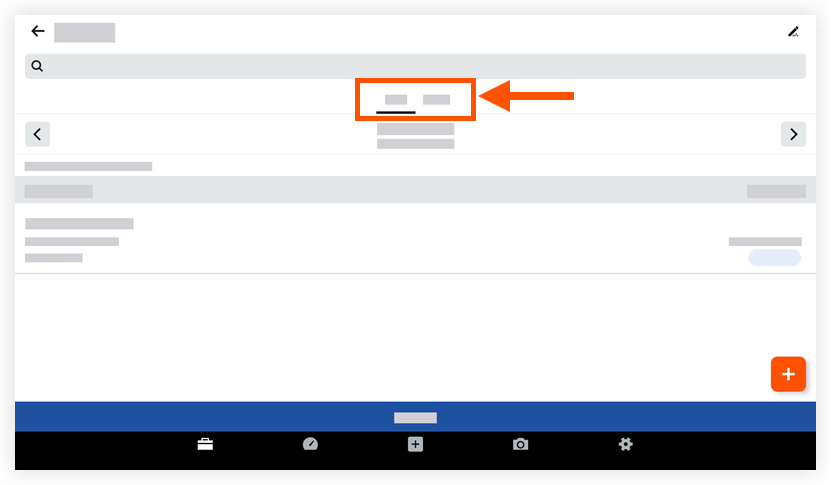
Tap to apply one of the following subtabs to filter your entries:
Day: This view displays your My Time entries for the date selected.
Week: This view displays your My Time entries for the work week selected.
Select the date for the time entry you are filtering for.
Tap an item to view more details.
See Also
Loading related articles...