Why does the Model Manager tool say "Project Model No Longer Available"?

Procore Model Manager - Beta Access & Feedback

The Model Manager (Beta) tool is exclusively available to registered beta participants. It is not available through Procore Explore. To learn more, see Beta Participant Guide.

  • To access the beta and provide feedback Show/Hide Details

    • To register: Participating companies must sign the Procore Beta Agreement. Once signed, your Procore Administrator coordinates with your Procore point of contact to enable Model Manager (Beta) on specific Procore projects.

    • To Provide Feedback During Beta: Contact your dedicated Beta program lead.

    • To report issues: Report breaking changes to Procore Customer Support. For general feedback or non-critical issues, contact your Beta program lead or Procore point of contact.

  • Notice: Procore Beta Services & Documentation Show/Hide Details

    For information about Beta Services, see the Procore Subscription Services Agreement. This documentation supports a product currently in Beta; content is actively being developed for General Availability (GA) and may be incomplete.

    • As-Is Basis: Provided solely for evaluation purposes on an "as is" basis.

    • No Warranties: Standard contractual commitments do not apply. This information carries no formal product commitments, and Procore assumes no liability for harm arising from its use.

    • Subject to Change: Procore may change, discontinue, or choose not to generally release these Beta Services at any time without notice.

Procore is finalizing functionality and documentation for general availability in the UK and Ireland (UKI). Please check back here for updates.
Answer

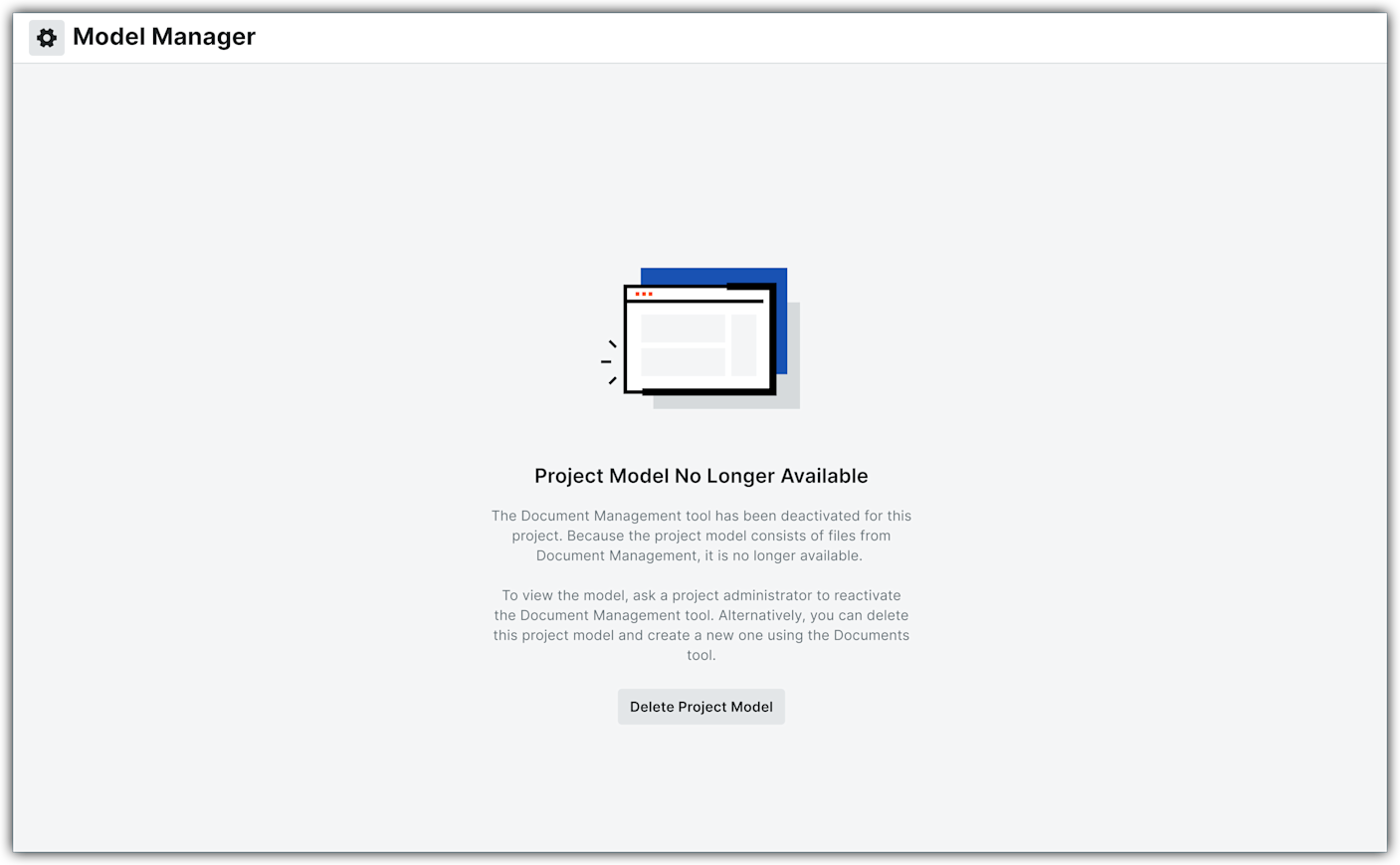
Your project model is missing because the Document Management tool was deactivated on your project. Since your model's files live in that tool, the model can no longer be displayed.

This image shows the Project Model No Longer Available message which appears when the Document Management tool is disabled by a Project Admin if the tool was hosting model files.

You have two options to restore access:

  1. Reactivate: Ask a Project Admin to turn the Document Management tool back on. See Add and Remove Project Tools.

  2. Start Over: Click Delete Project Model, then create a brand new model using the Documents tool instead. See Create a Project Model.

Best Practice for Using Both Repositories

If your organization needs to test or maintain workflows across both repository systems, Procore requires you to set up two separate Procore projects—one configured for Document Management and the other for Documents.


Windows is a registered trademark of Microsoft Corporation in the United States and other countries. Google Chrome, Android, and Google Play are trademarks of Google LLC. iPhone, iPad, and App Store are trademarks or service marks of Apple Inc., registered in the U.S. and other countries and regions. iOS is a trademark or registered trademark of Cisco in the U.S. and other countries and is used under license by Apple Inc. Autodesk, AutoCAD, Civil 3D, Navisworks, and Revit are registered trademarks or trademarks of Autodesk, Inc., and/or its subsidiaries and/or affiliates in the USA and other countries. All other trademarks are the property of their respective owners.

See Also

Loading related articles...