Create Contract Documents & Statuses
Navigate to the project's Commitments tool.
In the Contracts tab, locate the commitment to work with.
Click the Number link to open it.
In the commitment, click the Compliance tab.
Scroll to the Contract Compliance Documents card.
Click Create New.
Remarque
Le bouton Créer nouveau est uniquement visible et disponible pour les utilisateurs disposant des permissions d’administrateur des factures dans l’outil Engagements du projet.
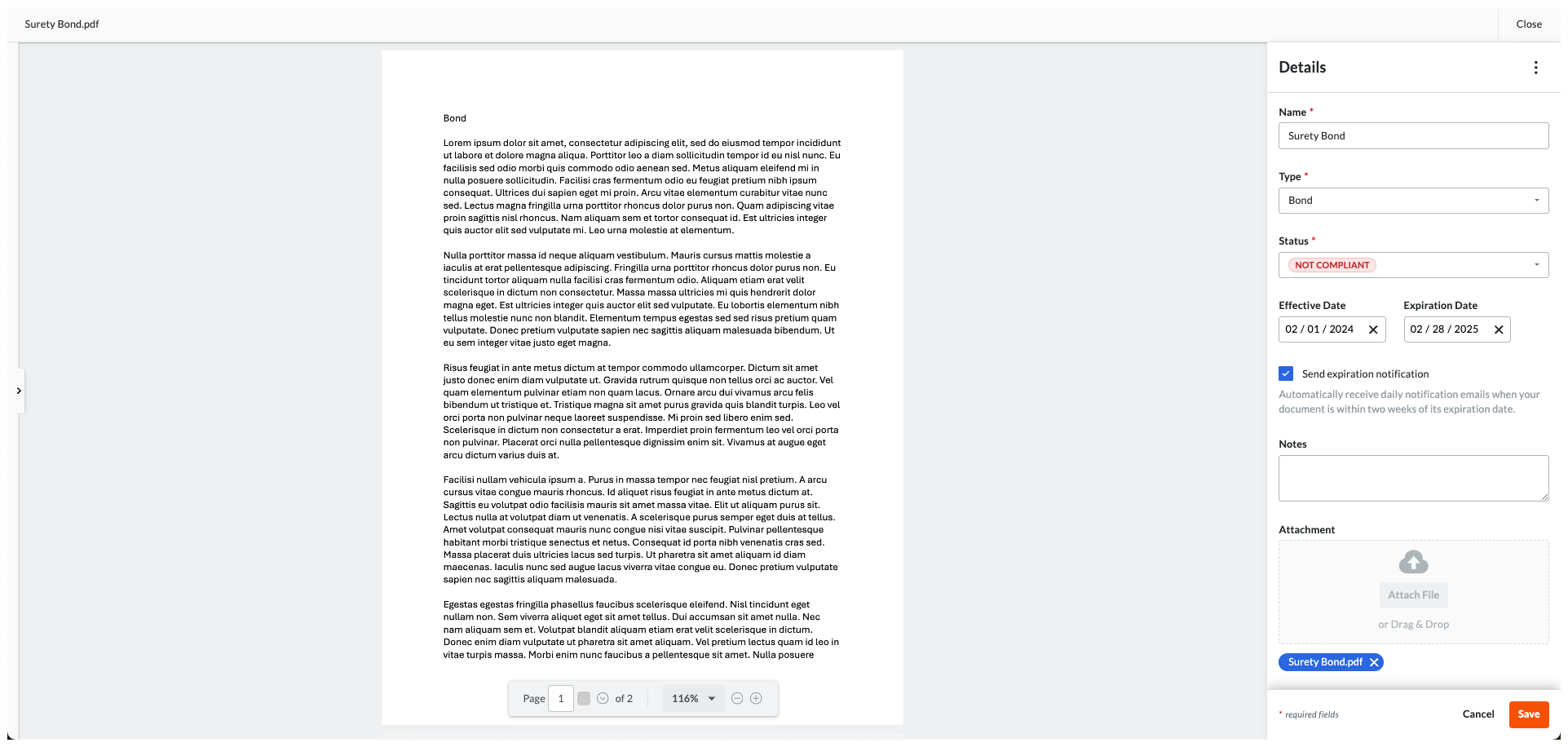
In the Details pane, enter:
Name. Type the name of the compliance requirement. For example, type: Surety Bond
Type. Select a requirement type from the drop-down list. The choices are Bond, License, Master Agreement, Permit, Safety, W-9, or Other.
Status. Choose a status for the requirement: Compliant or Not Compliant.
Effective Date. Select an effective date for the compliance requirement.
Expiration Date. Select an expiration date for the compliance requirement.
Send Expiration Notification. Mark this checkbox to send a daily email notification to the commitment's invoice contacts when the compliance requirement is within fourteen (14) days of the set 'Expiration Date'.
Remarque
Pour arrêter la notification par courriel, modifiez ou supprimez la date d’expiration. Procore cesse d’envoyer des notifications soixante (60) jours après la date d’expiration.
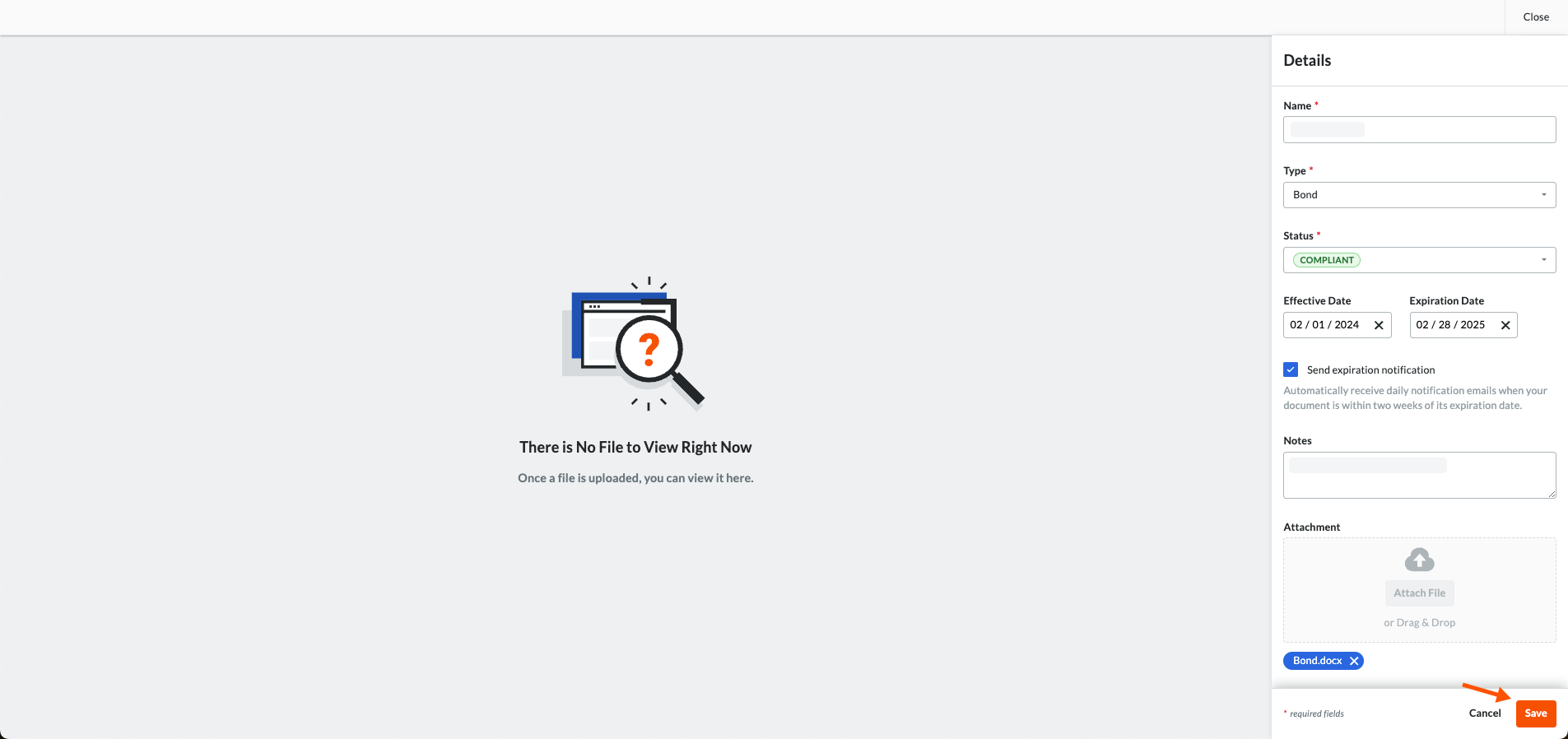 A GREEN success banner confirms that the contract compliance document has been added to the table. The add action is also noted in the Change History tab of the commitment.