Ajouter des segments personnalisés

Steps

  1. Navigate to the Company level Admin tool.

  2. Under 'Company Settings', click the Work Breakdown Structure link.

  3. In the 'Segments' table, click the Add Segment button.
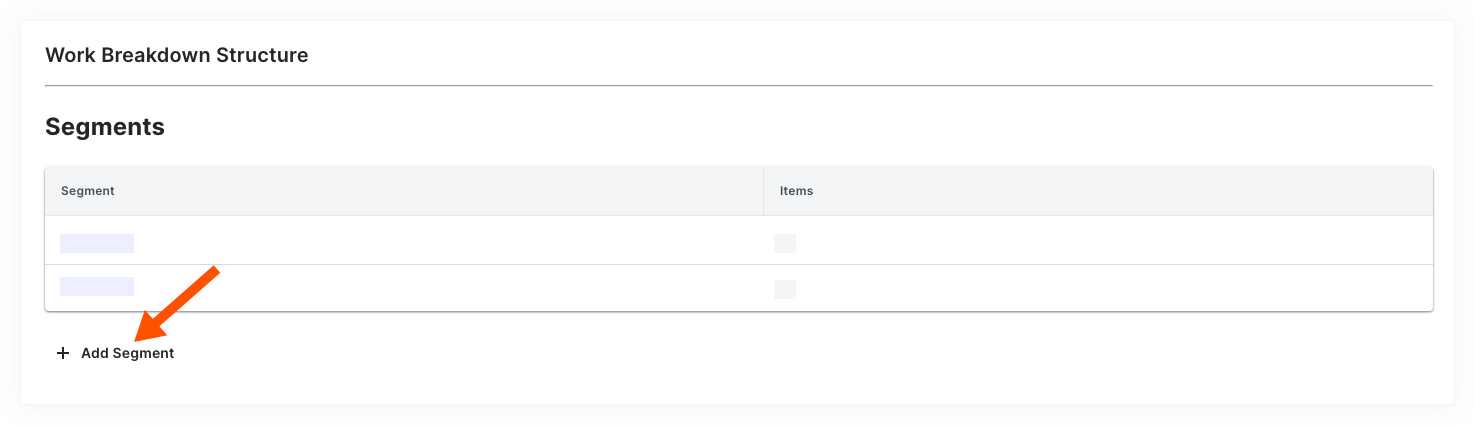
    wbs-default-segment-click-add.png

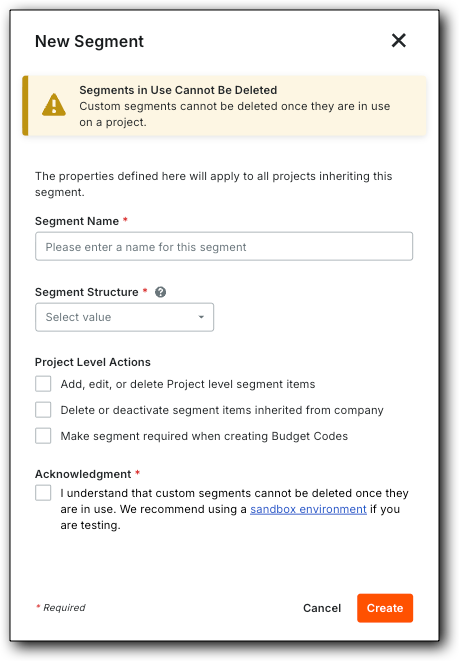
  4. In the 'New Segment' window, do the following:

     Remarque

    Un astérisque (*) dans la liste ci-dessous indique un champ obligatoire.

    wbs-new-segment.png

  5. Under the Project Level Actions section, choose one (1) or all of these options:

     Note

    When the 'Project Level Actions' settings are turned ON, your project administrators (users with 'Admin' level permissions on the Project level Admin tool) are permitted to perform specific tasks on segments and segment items at the project level. These settings are turned OFF by default.

  6. Click Create. Procore adds the new segment to the bottom of the 'Segments' list.

  7. Repeat the steps above for all of the new segments to add.

 Tips
  • Need to edit your new segment's settings? The best time to edit a new segment is before you start using it on a project. Once a custom segment is used to create a project budget code, you can edit it at any time. For details, see Edit Custom Segment Settings.

  • Want to delete a custom segment? Its important to note that a custom segment cannot be deleted after it has been added to the budget code structure on one (1) or more projects in your company's Procore account. To learn more, see Delete Custom Segments.

  • Want to add segment items? If your new segment is created, you can add new items now. For instructions, see Add Custom Segment Items.

  • Ready to define your company's default budget code structure? You can arrange your segments in any order you want. This arrangement defines your company's budget code structure. For instructions, see Arrange Segments to Form the Company's Budget Code Structure.