Create a Bid Template
Background
Creating bid templates helps your organization maintain consistency across project procurement cycles. Instead of configuring bid packages, submission rules, and boilerplate instructions from scratch for every new project, you can establish a standard template framework at the Company level. This saves administrative setup time and ensures all project teams gather information uniformly.
Things to Consider
Required User Permissions on the Company Admin tool.
Additional Information:
Bid templates can only be created with Base Bid and Alternates scope.
Bid Templates can only utilize cost codes from the Company level of Procore. Project specific cost codes need to be added at the project level.
Prerequisites
Bid templates must be created within an existing Bid Template Collection.
Steps
Navigate to the Company's Admin tool.
Under 'Tool Settings', click Bidding.
Select the Templates tab.
Click the name of Template Collection where the Template will be created. See Create a Bid Template Collection.
Create a New Template
Click the Actions dropdown menu.
Click New.
Enter a Name for the Bid Template.
Add Sections (Optional) Show/Hide Fields
Important
Sections are not available on bid packages that were created prior to this feature being available (January 2024).
Click Add Section.
Enter a name for the section.
To add a line item for the section, click the Add Line Item menu.
OR
Click the plus icon on the same row as the bid form.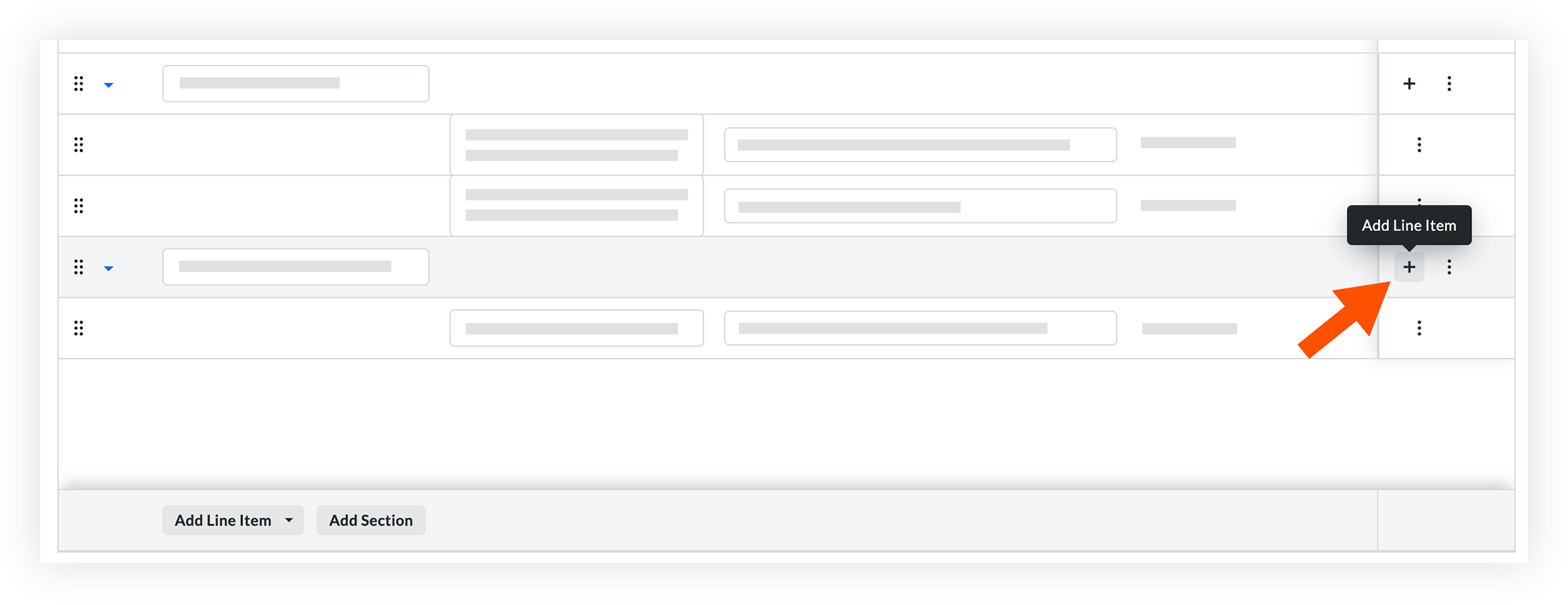
Continue adding sections and line items as necessary.
Optional: To reorder sections or line items, click and drag over the grip
 icon and drop it in a new area.
Optional: If you need to delete a section, click the vertical ellipsis
 icon and select Delete. This will delete the section and all of its line items.

To add additional line items, click Add Line Item and repeat the same process.
If you want to allow bidders to provide alternative options or substitutions, scroll to the Alternates section and add line items as necessary.
When the bid form is complete:
Click Save to save the bid form without adding bidders.
ORClick Save and Add Bidders to add and invite bidders. See Add Bidders to a Bid Form.
 icon.
icon. to show your selected bidders.